Author: Wayne Bellows

  • Microsoft Entra Backup and Recovery: The Safety Net Your Tenant Has Always Needed

    Microsoft Entra Backup and Recovery: The Safety Net Your Tenant Has Always Needed

    Every Entra ID administrator has a horror story.

    Maybe it was a bulk user import that went wrong and overwrote attributes across half your directory. Maybe it was a well-intentioned change to a Conditional Access policy that cascaded into a lockout at 11pm on a Friday. Maybe it was a compromised account that quietly weakened your MFA requirements before anyone noticed.

    Up until recently, recovering from those situations meant one of three things: rebuilding from memory, combing through audit logs and manually reversing changes one by one, or restoring from a third-party backup tool you may or may not have had the budget for.

    Microsoft has quietly shipped something that changes that equation. Microsoft Entra Backup and Recovery entered public preview in March 2026, and if your tenant has Entra ID P1 or P2 licensing, it’s already running — no setup required.

    Here’s what it actually does, what it doesn’t do, and what you should do with it right now.


    What It Is

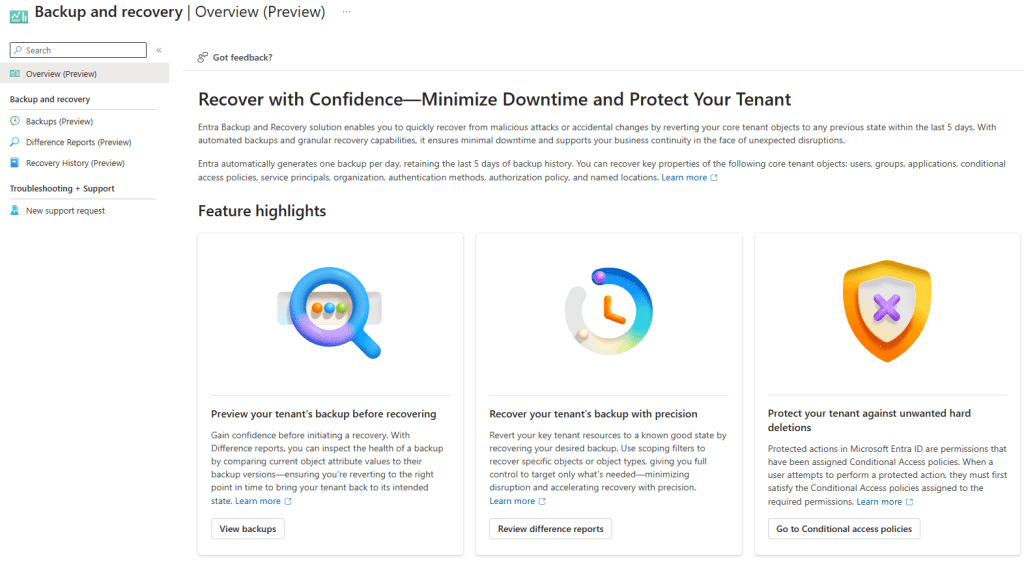
    Entra Backup and Recovery is a built-in, automated snapshot service for your Entra ID tenant. Once a day, Microsoft takes a point-in-time backup of the critical objects in your directory and retains the last five days of history. Crucially, the backups are tamper-proof — no user, application, or admin (including Global Administrators) can delete, modify, or disable them. Backup data is stored in the same geo-location as your tenant, determined at tenant creation.

    From those snapshots, you can:

    • View available backups — a rolling five-day history available in the Entra admin centre
    • Create difference reports — compare any backup snapshot against the current state of your tenant and see exactly what changed
    • Recover objects — restore all objects, specific object types, or individual objects by ID to their backed-up state
    • Review recovery history — audit completed and in-progress recovery operations

    What Gets Backed Up

    This is where the detail matters. Entra Backup and Recovery covers a defined set of object types, and within those types, a defined set of properties. It’s not a full serialisation of every attribute on every object — but it covers the things that matter most.

    Conditional Access policies and named locations

    This is arguably the most valuable part of the whole feature. All properties of Conditional Access policies are in scope, as are all properties of named location policies. This is the scenario most admins will reach for this tool first. A misapplied policy, a deleted exclusion group, a grant control that got changed — all of that is now recoverable.

    Users

    A broad set of user properties is included: display name, UPN, account enabled/disabled state, department, job title, mail, mobile, usage location, employee data, and more. What’s notably not in scope: manager and sponsor relationships. Those won’t be restored.

    Groups

    Core group properties are covered: display name, description, mail settings, security settings, classification, and theme. Group ownership changes are out of scope. Dynamic group rule changes are also out of scope — so if someone modified a dynamic membership rule, that won’t appear in the diff.

    Applications and service principals

    For app registrations, properties like display name, sign-in audience, required resource access, optional claims, and redirect URI configuration are included. For service principals, the backup extends further: when a service principal is recovered, Entra also restores the OAuth2 delegated permission grants and app role assignments tied to it. That’s important — it means recovering an enterprise app brings back the permissions alongside it, not just the object itself.

    Authentication method policies

    The backup covers the configured state of individual authentication methods: FIDO2 passkeys, Microsoft Authenticator, SMS, voice call, email OTP, Temporary Access Pass, certificate-based authentication, and third-party OATH tokens. If someone disables passkey authentication or weakens your Authenticator configuration, that’s recoverable.

    Authorization policy

    Guest user role settings are covered — specifically, the permission level assigned to guest users in your tenant (member access, guest access, or restricted guest). It also covers the blockMsolPowerShell setting.

    Organisation-level MFA settings

    Tenant-wide per-user MFA settings are included — available MFA methods, whether app passwords are blocked, and device remembering settings.


    What It Doesn’t Cover

    It’s equally important to understand the scope boundaries.

    Hard-deleted objects are not recoverable through this feature. If a user, group, or application has been permanently deleted (either manually hard-deleted, or after the 30-day soft delete window expires), Entra Backup and Recovery cannot restore them. That’s what soft delete and the recycle bin are for — more on that below.

    On-premises synced objects are excluded from recovery. If you’re running hybrid identity with AD Connect or Cloud Sync, changes to synced objects will appear in difference reports, but they’re automatically excluded from recovery. That’s by design: the source of truth for those objects is on-premises AD, so recovery has to happen there. The exception is if you’ve converted objects to cloud-managed (moved the source of authority to the cloud) — those become fully recoverable.

    Not every attribute on every object is included. The supported property list is well-defined and growing over time, but it’s not a complete object dump. If the change you’re trying to reverse involves an attribute outside the supported set, the backup won’t capture it.


    The Difference Between This and Soft Delete

    A point worth emphasising: these are two different tools for two different problems.

    Soft delete handles object deletion. When you delete a user, group, M365 group, or application, it goes into the recycle bin for 30 days. You can restore it from there through the portal or Graph API with all its properties intact. Soft delete is on by default and is your first line of defence against accidental deletions.

    Entra Backup and Recovery handles attribute corruption. If an object still exists but its properties have been changed — by a misconfiguration, a bad import, or a malicious actor — that’s where backup and recovery steps in. It restores the values of supported properties back to their backed-up state.

    The scenario you need to think about for a security incident is both:

    1. A bad actor might corrupt attributes (that’s where backup and recovery helps)
    2. A bad actor might also delete objects and then hard-delete them from the recycle bin to prevent recovery

    Which brings us to the companion feature.


    Protected Actions: Locking Down the Recycle Bin

    If you’re setting up Entra Backup and Recovery as part of a resilience posture, you should do this alongside it.

    Protected actions let you require step-up authentication before specific high-risk operations can be performed. The one to configure immediately is microsoft.directory/deletedItems/delete — the action that hard-deletes an object from the recycle bin.

    By assigning a Conditional Access authentication context to that protected action, you can require that anyone trying to permanently purge a directory object must first satisfy strict conditions — phishing-resistant MFA, a compliant device, maybe even a Secure Access Workstation (SAW). Even a compromised Global Administrator account would be blocked from hard-deleting objects if the device or authentication method doesn’t meet the bar.

    Combined, the picture looks like this:

    • Soft delete keeps deleted objects recoverable for 30 days
    • Protected actions prevent hard deletion without step-up authentication
    • Entra Backup and Recovery lets you restore attribute values from the last five days
    • Audit logs and Entra ID Protection signals alert you when changes happen

    That’s a layered identity resilience posture, not just a backup feature.


    The Two New RBAC Roles

    Entra Backup and Recovery introduces two new built-in roles:

    Microsoft Entra Backup Reader — Read-only access to backups, difference reports, and recovery history. Useful for security auditors or operations teams that need visibility without the ability to trigger changes.

    Microsoft Entra Backup Administrator — Everything in Backup Reader, plus the ability to initiate difference reports and trigger recovery operations. Note that all Backup Administrator permissions are already included in the Global Administrator role, so your existing GA accounts can use this without role assignment. For least-privilege, use the dedicated role.

    One preview caveat: early reports indicate the Backup Administrator role can be difficult to assign through the UI during preview. If you hit that, PowerShell (via Microsoft Graph) works as a workaround.


    How to Use It: The Practical Workflow

    Finding it: In the Entra admin centre, look for Backup and recovery in the left navigation pane. You’ll see four sections: Overview, Backups, Difference Reports, and Recovery History.

    Running a difference report: Select one of your five available backups, choose “Create difference report,” and select your scope — all object types, specific types, or individual object IDs. The first time you run a report against a particular backup, it takes longer (the service needs to load the backup metadata). A first run for a small tenant can take over an hour in the current preview. Subsequent reports against the same backup run much faster since the data is already loaded. This is a known limitation that Microsoft is expected to improve before general availability.

    Reading the report: The output shows you changed objects, grouped by type. For each object, you can drill into the specific attributes that changed and see the old value (from the backup) versus the current value. This is genuinely useful for understanding what happened before you decide whether to recover.

    Triggering recovery: From a difference report, you can choose to recover — scoping to all changed objects, specific object types, or individual object IDs. Recovery time scales with the number of changes involved. Small targeted recoveries (a handful of users, a few CA policies) are fast. Large-scale recoveries across hundreds of thousands of objects can take significantly longer.

    Best practice from Microsoft’s own documentation: Always run a difference report first. Review the changes, confirm you understand the scope, and then trigger recovery. This also pre-loads the backup data, which speeds up the recovery operation itself.


    What to Do Right Now

    Given that this is already running in your tenant if you have P1/P2, there are a few things worth doing today:

    Check that it’s visible. Go to the Entra admin centre and navigate to Backup and recovery. Confirm you can see your last five daily backups. If you can’t, verify your licensing and role assignment.

    Run your first difference report against yesterday’s backup. Even if you don’t expect anything to be wrong, this is worth doing for two reasons: you’ll understand the interface before you’re under pressure, and it pre-loads the data so your first real recovery runs faster.

    Set up protected actions for hard-delete. Go to Roles and Administrators > Protected Actions, find microsoft.directory/deletedItems/delete, assign an authentication context, and wire up a Conditional Access policy with appropriately strict controls. This takes 20 minutes and significantly raises the bar for a malicious actor trying to permanently destroy directory objects.

    Test a recovery in a development tenant. Before you need this in production, run a test. Make a deliberate change to a test user or a non-production CA policy, wait for the next daily backup (or use your existing snapshot), run a diff, and recover. Know how it works before the stakes are real.


    The Bigger Picture

    Entra Backup and Recovery is still in preview, and it has real limitations — the five-day retention window is narrow, the initial diff report performance needs work, and the scope of recoverable properties will keep expanding. It’s not a replacement for a well-documented change management process or a broader identity resilience strategy.

    But it’s a meaningful step forward. For the first time, Entra ID has a native, tamper-proof, automatically-maintained safety net for the objects and policies that your entire cloud environment depends on. The cases where an admin mistake, a bad import, or a compromised account could previously cause hours of manual remediation work now have a straightforward, auditable recovery path.

    Set it up. Test it. Pair it with protected actions. And make sure your team knows where to find it before they need it.


    Resources:
  • Windows 365 Cloud Apps Just Got Serious: APPX and MSIX Support Changes Everything for Frontline

    Windows 365 Cloud Apps Just Got Serious: APPX and MSIX Support Changes Everything for Frontline

    Windows 365 Cloud Apps went generally available in November 2025, and the concept is compelling: stream individual apps from a Cloud PC to a user’s device, without giving them a full desktop. Think RemoteApp, but cloud-native and managed entirely through Intune.

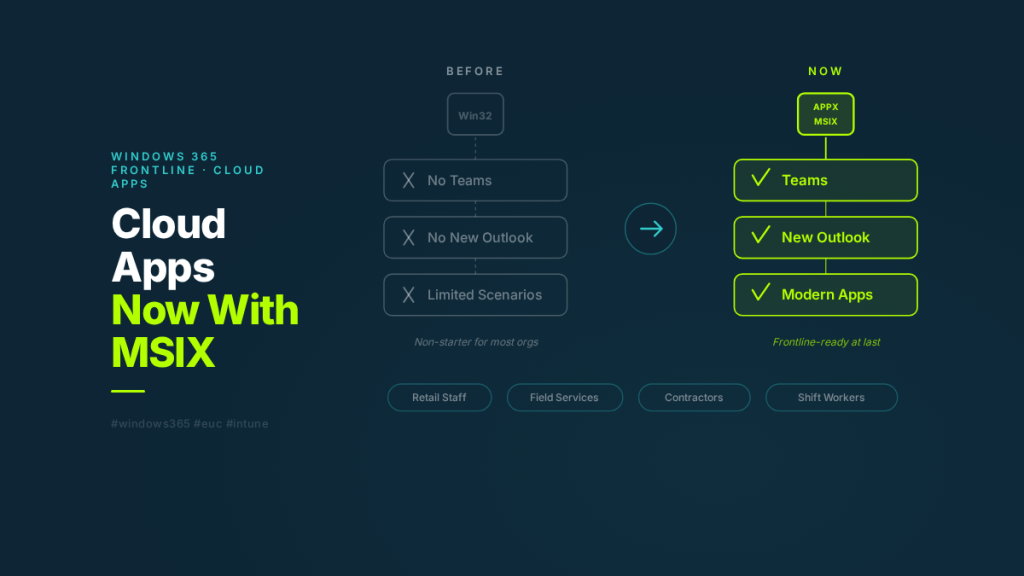
    The problem? Until this week, Cloud Apps only supported Win32 applications. That meant Microsoft Teams and the new Outlook — both packaged as APPX or MSIX — couldn’t be published through it. For most real-world scenarios, that was a deal-breaker.

    As of the week of March 23, 2026, Microsoft added APPX and MSIX application support to Cloud Apps. It sounds like a packaging update. In practice, it removes the single biggest barrier to Cloud Apps adoption.

    This post covers what Cloud Apps is, how it works architecturally, what this update actually changes, and where it fits alongside a full Cloud PC deployment.

    What Are Windows 365 Cloud Apps?

    Cloud Apps is a delivery model within Windows 365 Frontline that lets you publish individual applications to users instead of provisioning a full Cloud PC desktop for each person.

    The experience from the user’s perspective: they open Windows App, see only the specific apps that have been published to them, and click to launch. The app opens in its own window on their local device — no desktop, no taskbar, no Start menu. Just the app.

    From an architecture perspective, Cloud Apps runs on top of Windows 365 Frontline Cloud PCs operating in shared mode. When a user launches a Cloud App, it initiates a RemoteApp connection to one of the shared Cloud PCs in the pool. The Windows UI is stripped away so only the application window is rendered in the remote session. The user sees an app. Under the hood, it’s a Cloud PC running in shared mode, with concurrency tied to the number of Frontline licences assigned to the provisioning policy.

    The key distinction from a full Cloud PC: users don’t get a persistent desktop environment. There’s no personal desktop, no file explorer, no Start menu. They get access to the specific applications IT has published — nothing more.

    How App Discovery and Publishing Works

    This is where it gets interesting, and where the APPX/MSIX limitation was most painful.

    Cloud Apps discovers available applications by scanning the Start Menu of the underlying Cloud PC image. When you create a provisioning policy with the experience type set to “Access only apps,” Windows 365 enumerates every application that has a Start Menu entry on the image. Those apps are then listed in the Intune admin centre as “Ready to publish.”

    Admins select which apps to publish, and those apps become available in Windows App for all users assigned to the provisioning policy. You can edit display names, descriptions, and icons — but the core app discovery is driven by what’s on the image.

    Here’s the catch that tripped up the original release: the discovery and publishing pipeline only supported Win32 executables. APPX and MSIX packages register themselves differently in Windows — they use the modern app model with package identity, containerised execution, and different Start Menu registration paths. The Cloud Apps discovery engine simply didn’t know how to find them.

    That’s what changed this week. The discovery pipeline now supports APPX and MSIX packages alongside Win32 apps. Any application on the image that creates a Start Menu entry — regardless of packaging format — can now be discovered and published as a Cloud App.

    Why This Matters More Than It Sounds

    If you’re not deep in Windows packaging, “we added APPX/MSIX support” might sound like a minor technical improvement. Here’s why it’s not.

    Microsoft has been steadily moving its own applications to modern packaging formats. Teams is an MSIX package. The new Outlook is an APPX package. Many apps delivered through the Microsoft Store and via Intune’s app catalogue are MSIX. The direction of travel is clear: MSIX is the future of Windows app packaging.

    A Cloud Apps deployment that can only publish Win32 apps is a deployment that can’t publish Microsoft’s own flagship productivity tools. That’s not a niche gap — it’s a fundamental limitation that made Cloud Apps impractical for most organisations.

    With APPX and MSIX support, a Cloud Apps deployment can now publish Teams, the new Outlook, and any other modern-packaged app that’s on the image. The feature goes from “interesting concept with a big asterisk” to “genuinely viable for production frontline scenarios.”

    A Quick Primer: Win32 vs APPX vs MSIX

    For context on why these packaging formats matter and what makes them different:

    Win32 is the traditional application model that’s been around for decades. MSI installers, EXE files, and applications that write directly to Program Files, the registry, and shared system locations. They’re flexible but messy — installs can leave residual files, uninstalls aren’t always clean, and conflicts between applications sharing system resources are common.

    APPX was introduced with Windows 8 for Universal Windows Platform (UWP) apps. APPX packages run in a containerised environment with their own virtualised filesystem and registry. They install cleanly, uninstall completely, and can’t interfere with other apps. The trade-off: they were originally designed for UWP-only, limiting their usefulness for traditional desktop applications.

    MSIX is the evolution that bridges both worlds. It brings the clean install/uninstall behaviour and containerisation of APPX to traditional Win32 and .NET Framework applications. MSIX supports differential updates (only downloading what changed), mandatory digital signing for security, and a 99.96% install success rate according to Microsoft’s data. It’s designed to be the single packaging format for all Windows app types going forward.

    The reason Cloud Apps struggled without APPX/MSIX support is that Microsoft has been packaging its own apps in these formats for years. Teams, the new Outlook, and many Store-delivered apps aren’t Win32 — they’re MSIX or APPX. If your app delivery platform can’t see them, you can’t publish them.

    Cloud Apps vs Full Cloud PC: When to Use Which

    Cloud Apps doesn’t replace a full Cloud PC. They solve different problems for different user personas. Here’s how to think about when each model fits.

    Cloud Apps makes sense when:

    The user needs access to a small number of specific applications — typically two or three. They don’t need a full desktop environment, file management, or the ability to install additional software. Think frontline retail workers who need a POS system and Teams. Field service staff who need a single line-of-business app on shared devices. Contractors who need controlled access to specific tools without a full managed desktop. Seasonal or temporary staff where provisioning and deprovisioning full Cloud PCs per person would be operationally heavy.

    A full Cloud PC makes sense when:

    The user needs a persistent desktop environment with their own files, settings, and application state. They work with multiple applications simultaneously and switch between them throughout the day. They need the ability to open apps ad hoc — not just pre-published ones. Their workflow involves file management, browser-based tools alongside desktop apps, or other activities that need a complete Windows desktop.

    The shared licensing model underneath:

    Both Cloud Apps and shared-mode Frontline Cloud PCs use the same Windows 365 Frontline licensing. The licence model allows unlimited user assignments per licence, but only one concurrent active session per licence at a time. So if you have 50 Frontline licences assigned to a Cloud Apps provisioning policy, up to 50 users can have active Cloud App sessions simultaneously.

    This makes Frontline significantly more cost-effective than Enterprise Cloud PCs for shift-based or part-time workers. You’re not paying for a dedicated Cloud PC per user — you’re paying for concurrent capacity.

    Security Consideration: Published Apps Can Launch Other Apps

    There’s one architectural detail worth flagging that catches some admins off guard.

    When a user launches a published Cloud App, that app runs on a full Cloud PC under the hood. The published app can launch other applications that exist on the Cloud PC image, even if those other apps haven’t been published as Cloud Apps.

    For example: if you publish Outlook as a Cloud App and a user clicks a link in an email, it can launch Edge — even if Edge isn’t published. If an app has a “Open in Explorer” option, it could launch File Explorer.

    For many scenarios, this is fine and even expected behaviour. But if you’re in a regulated environment or need strict application control, you should layer Application Control for Windows (formerly Windows Defender Application Control) on top of Cloud Apps to enforce exactly which executables can run on the underlying Cloud PC.

    Don’t assume that publishing three apps means only three apps can run. The published app list controls what the user can launch directly — not what can execute on the session host.

    What’s Still in Preview

    A few things to be aware of that are still in preview or coming soon:

    Enhanced user experiences for Cloud Apps are in public preview. This includes improved Windows Snap support, full-screen mode, better DPI handling, and visual refinements like borders, shadows, and theme integration. These improvements use the same RemoteApp enhancements available in Azure Virtual Desktop.

    Autopilot Device Preparation support for Cloud Apps is also in public preview. This gives you an alternative to custom images for getting apps onto the underlying Cloud PCs — you can use Autopilot Device Preparation policies to install apps during provisioning, and Cloud Apps will discover them once installed.

    User Experience Sync allows app settings and data to persist between user sessions on shared Cloud PCs. Since Cloud Apps runs on shared-mode Frontline Cloud PCs, user state would normally be lost when a session ends. User Experience Sync preserves settings and data, which is important for apps that store user preferences locally.

    The Bigger Picture

    Cloud Apps has been a “watch this space” feature since it launched. The concept was right — not every user needs a full desktop, and app-only delivery is often the better fit for frontline and contractor scenarios. But the Win32 limitation made it hard to recommend for production use when you couldn’t even publish Teams.

    With APPX and MSIX support, that changes. The feature is now capable of delivering the apps that most organisations actually need in frontline scenarios. Combined with the Frontline shared licensing model, it’s a genuinely cost-effective alternative to provisioning full Cloud PCs for users who only need a handful of apps.

    If you evaluated Cloud Apps earlier and parked it because of app support gaps, it’s worth taking another look. The gap that mattered most is now closed.


    Wayne Bellows is a Technical Account Manager at Nerdio. He writes about Azure Virtual Desktop, Windows 365, Intune, and the EUC industry at modern-euc.com.

  • Habit #7: Optimise Log Analytics

    Habit #7: Optimise Log Analytics

    Visibility is essential — but it shouldn’t come at any cost.

    Monitoring is a critical part of running Azure Virtual Desktop.

    Without it, you’re blind to performance issues, login delays, and user experience problems.

    But there’s a trade-off that many teams don’t fully realise:

    Observability isn’t free.

    And in many environments, Log Analytics quietly becomes one of the largest — and least optimised — costs in Azure.

    That’s where Habit #7 comes in.

    Highly effective admins don’t just enable monitoring.
    They optimise it.


    The Hidden Cost of Visibility

    Log Analytics is incredibly powerful.

    It provides deep visibility into:

    • Session performance
    • User experience
    • Host health
    • Application behaviour

    But it works by ingesting data.

    And in Azure, you don’t pay for storing most of that data (at least initially).
    You pay for ingesting it.

    That means:

    The more frequently you collect data, the more you pay.

    In many AVD environments, default configurations collect data far more frequently than needed for day-to-day operations.

    The result?

    High ingestion volumes… and unexpectedly high costs.


    What Log Analytics Optimisation Really Means

    Optimising Log Analytics isn’t about turning monitoring off.

    It’s about collecting the right data, at the right frequency, for the right purpose.

    In Nerdio Manager for Enterprise, admins have control over how telemetry is collected and retained.

    This includes:

    • Data collection frequency (polling intervals)
    • Performance counters being captured
    • Retention periods

    The goal isn’t to reduce visibility.

    It’s to remove unnecessary noise.


    The Three Pillars of Habit #7

    Like every habit in this series, this comes down to consistent, repeatable behaviour.


    Pillar 1: Review What You’re Collecting

    Most environments collect far more data than they actually use.

    Highly effective admins regularly review:

    • Which performance counters are enabled
    • Whether those metrics are actively used
    • Which dashboards or reports depend on them

    A simple question helps guide this:

    “If we stopped collecting this data, would anyone notice?”

    If the answer is no, it’s likely unnecessary.


    Pillar 2: Adjust Collection Frequency

    One of the biggest cost drivers in Log Analytics is how frequently data is collected.

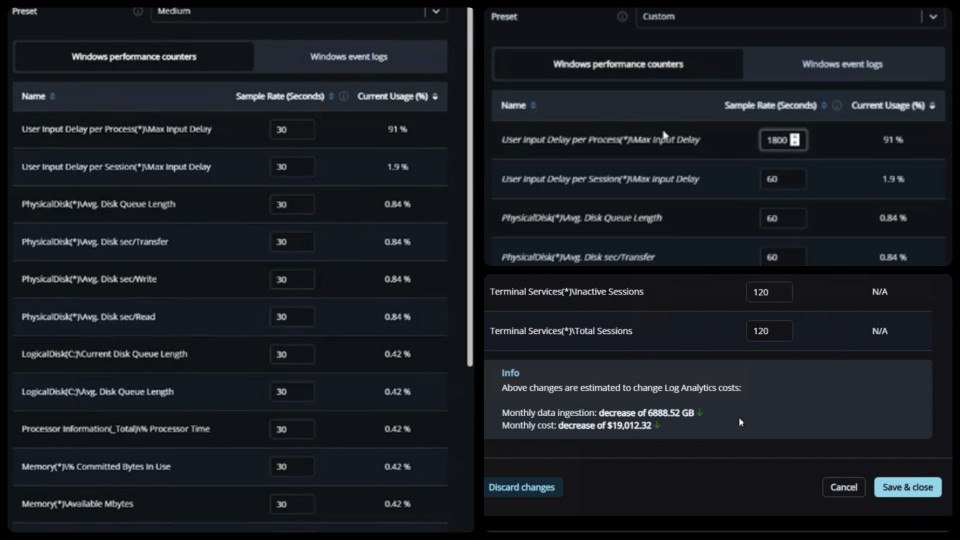
    By default, many metrics are captured every 30 seconds.

    For most environments, that level of granularity isn’t required.

    Adjusting polling intervals to:

    • 60 seconds
    • 120 seconds
    • Or even longer for certain metrics

    …can significantly reduce ingestion volume without materially impacting visibility.

    The data is still there.

    It’s just collected more efficiently.

    Log Analytics Optimisation in Nerdio Manager.

    Pillar 3: Align Retention with Real Needs

    Not all data needs to be kept forever.

    Highly effective admins:

    • Align retention periods with operational requirements
    • Keep short-term data for troubleshooting
    • Retain longer-term data only where it adds value

    For many teams, a 30-day retention window is more than sufficient for operational analysis.

    Anything beyond that should be intentional.


    What This Habit Enables

    When Log Analytics is optimised properly:

    • Monitoring costs drop significantly
    • Data ingestion becomes predictable
    • Dashboards remain effective
    • Troubleshooting capability is preserved

    Most importantly:

    You maintain visibility — without overpaying for it.


    Common Mistakes to Avoid

    Log Analytics optimisation is often overlooked or misunderstood.

    Some common pitfalls include:

    • Leaving default collection settings unchanged
    • Collecting high-frequency data that’s never used
    • Retaining data longer than necessary
    • Reducing data collection too aggressively without understanding impact

    The goal is balance.

    Too much data increases cost.
    Too little data reduces visibility.


    How Habit #7 Builds on the Previous Habits

    By this stage, the environment should already be well optimised:

    • Images are standardised
    • Patching is predictable
    • Applications are decoupled
    • Autoscale is tuned
    • VM sizing is aligned with demand

    Habit #7 completes the picture.

    It ensures that the monitoring layer itself is optimised, not just the infrastructure it observes.


    The Real Takeaway

    Monitoring is essential.

    But more data doesn’t always mean more value.

    Highly effective admins understand this.

    They don’t collect everything.

    They collect what matters.

    And they do it efficiently.


    Closing the Series

    That’s the final habit in the series.

    The 7 Habits of Highly Effective Nerdio Admins aren’t about individual features.

    They’re about operational discipline:

    • Build consistently
    • Patch predictably
    • Separate concerns
    • Optimise continuously
    • Use data to drive decisions

    Individually, each habit adds value.

    Together, they create environments that are:

    • Stable
    • Scalable
    • Cost-efficient
    • Predictable

    And ultimately — easier to manage.

  • Why Your Intune Policies Don’t Apply Instantly — And How That’s Changing

    Why Your Intune Policies Don’t Apply Instantly — And How That’s Changing

    If you’re moving from SCCM (Configuration Manager) to Microsoft Intune, one of the first things that catches teams off guard is the timing question: “I made a change — why hasn’t it hit the device yet?”

    With SCCM, you had more direct control over deployment schedules and could see exactly what was happening in the pipeline. Intune works differently. It’s not slower by design — it’s built on a fundamentally different architecture. And once you understand how it actually works, both the current behaviour and the improvements Microsoft is rolling out make a lot more sense.

    This post breaks down what happens from the moment you make a change in Intune to the moment a device reflects it — and what’s being done to close that gap even further.


    Intune Is an Eventual Consistency System (And That’s by Design)

    The first concept to get your head around is eventual consistency. Unlike SCCM’s more synchronous delivery model, Intune doesn’t push changes to devices instantly. Instead, devices converge to a desired state over time.

    Think about using your laptop on a flight with no internet. Everything still works — your files, your apps, your settings — because the device operates independently. The moment you land and reconnect, everything reconciles seamlessly. That’s eventual consistency in action.

    The trade-off is that until a device checks in, Intune doesn’t truly know its current state. Are there pending changes? Has something shifted locally? Is the device still compliant? All of that gets resolved at check-in time — which is exactly why check-in timing matters so much.


    The Three Types of Device Check-Ins

    Not all check-ins are the same. Intune buckets them into three main categories:

    1. Single device check-ins These happen when an admin or user takes an explicit action on a specific device — for example, triggering a sync manually from the Company Portal or the Intune admin centre.

    2. Client-initiated check-ins These happen in the background to keep devices healthy when nothing else is going on. They’re essentially the device saying “just checking in, anything new?” on a regular schedule.

    3. Change-based check-ins (the Fast Lane) These are triggered when a service-side change happens that affects one or more devices. This is where most of the action is — and where Microsoft has been focused on driving improvements.


    What Is the Intune Fast Lane?

    The Fast Lane is how Intune accelerates policy delivery when a change occurs. When a service-side change occurs, Intune sends a push notification to affected devices, instructing them to check in immediately rather than wait for their next scheduled check-in.

    Four things trigger a Fast Lane notification:

    1. An admin modifies the targeting of a payload — for example, adding an Entra group to an existing policy assignment
    2. An admin modifies the contents of a payload — like changing a configuration value in a policy
    3. Entra group membership changes — when users are added or removed from groups that have policies assigned
    4. App updates from the store — automatic updates to assigned apps

    The last two are worth flagging for teams coming from SCCM: these can happen entirely behind the scenes. A group membership change driven by HR provisioning, or an automatic app update, still triggers a Fast Lane notification from Intune’s perspective. It’s worth understanding that the system is reacting to more events than an admin might consciously initiate.


    Where the Delays Actually Happen

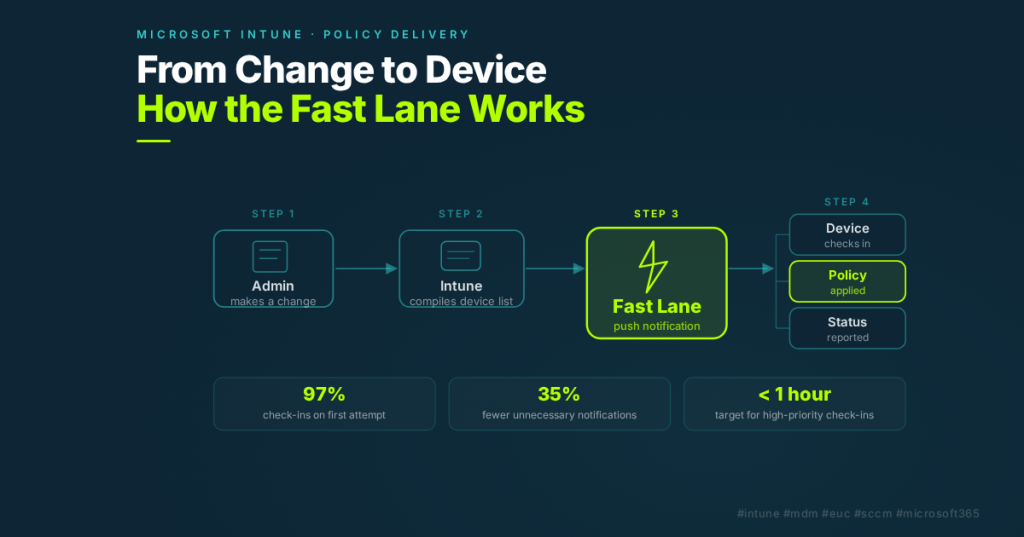
    The journey from admin change to device compliance looks like this:

    1. Admin makes a change
    2. Intune compiles the list of affected devices
    3. Intune sends push notifications to those devices
    4. Devices receive the notification and check in
    5. Intune applies the changes
    6. Devices report status back to the admin

    Most of the latency sits in the handoff between step 3 and step 4 — between Intune sending the notification and the device actually checking in. That’s the seam Microsoft has been focused on closing.

    The last-mile delivery of notifications relies on platform providers: WNS for Windows, APNS for Apple, and FCM for Android/Google devices. These are best-effort systems — not guaranteed — and can be affected by the device being offline, network issues, or platform delays. That part of the pipeline isn’t fully visible to Intune (or to you as an admin), which is something Microsoft has been working to address.


    What Microsoft Has Been Improving

    Here’s where it gets genuinely interesting for teams that have been frustrated with policy delivery timing. Microsoft has made — or is very close to releasing — five specific improvements to this pipeline.

    1. Smarter, More Targeted Notifications

    The system was sending a lot of noise. Around 40% of Fast Lane notifications didn’t result in any actual device changes. Meanwhile, 65% of all MDM check-ins also produced no changes. The system was accelerating check-ins for devices that didn’t need it, while potentially backing up devices that did.

    The fix: Intune has overhauled its notification system to be far more precise about which devices actually need to check in. The result is a 35% reduction in unnecessary notifications and the ability to process 40% more sessions. Today, 97% of notification-based check-ins are handled on the first attempt.

    That 97% sounds impressive — and at Intune’s scale, it is. But as Albert Caveo from the Intune team puts it: “If your water heater was working 97% of the time, you wouldn’t brag about the hot showers. You’d never forget that one cold shower.” The goal is to keep pushing toward 99.9%.

    2. Intelligent Check-In Prioritisation

    Previously, Intune’s prioritisation algorithm only distinguished between “maintenance” and “non-maintenance” check-ins. That meant a device falling out of compliance due to a detected threat competed equally with a routine background check-in from a healthy device.

    The new model introduces a priority tier system based on impact. Devices with pending changes can now jump to the front of the queue when capacity limits are hit. And the system is moving from those two broad categories to explicit SLO-backed tiers — so a remote wipe or a new device enrolment will always get handled ahead of a background health check.

    The goal: critical check-ins seldom need to retry, and high-priority check-ins complete within one hour.

    3. No More Dropped Notifications

    In the old model, Intune would send one Fast Lane notification per device per 30-minute window. If multiple changes came through in that window, additional notifications were simply dropped. They weren’t queued — they were gone. The device would catch up at its next scheduled check-in, which could be hours away.

    The new system introduces per-device notification timers. When a change occurs, rather than firing a notification immediately, Intune starts a short timer (a couple of minutes). If more changes come in for the same device during that window, the timer extends slightly — up to 10 minutes — allowing the device to pick up all pending changes in a single check-in.

    After notifying, if there are still more changes queued, Intune will always schedule another notification rather than dropping it. The practical outcome: every change you make will result in a push notification. No more changes silently falling through because of notification window collisions.

    4. Fast Lane Expansion to More Payloads

    The Fast Lane previously didn’t cover everything. Scripts, Win32/classic apps, custom compliance policies, and payloads delivered through the Intune Management Extension (IME) or MMPC gateway had inconsistent Fast Lane coverage.

    That’s changing. Fast Lane notifications are being expanded to cover all gateways and all payload types, including IME-delivered content on both Windows and Mac. The experience will be consistent regardless of how a payload is delivered.

    5. Better Windows Notification Reliability via IC3

    For Windows specifically, Intune is adding a second notification channel alongside the native Windows notification service (WNS). The new channel uses IC3 — the same communications protocol that Microsoft Teams uses — delivered via the Intune Management Extension.

    This gives Intune more control over end-to-end notification delivery on Windows, including delivery receipts, better diagnostics, and the ability to reason across all pending changes and device actions in one place. It also lays the groundwork for future capabilities like presence awareness and more targeted notifications.

    The main thing you need to ensure on your end: keep your network and firewall rules up to date with the required Intune network endpoints. Microsoft publishes these, and they occasionally change as new capabilities roll out.

    Bonus: iOS Maintenance Check-In Optimisation

    For iOS specifically, Microsoft has redesigned how maintenance check-ins are handled. Previously, iOS devices had three service-initiated maintenance check-ins daily (roughly every eight hours), and during peak hours these were accounting for up to 40% of all Intune traffic — most of which produced no device changes.

    The new model is smarter: during peak hours, if a device has already checked in recently, the maintenance check-in is deferred. During off-peak hours, it continues as normal. The result: 99.5% of changes to iOS devices are now delivered faster, while overall delayed check-ins across all platforms are reduced by 10%.


    What This Means for Your SCCM Migration

    If you’re mid-migration or planning one, here are the practical takeaways:

    You don’t need to change how you work. All of these improvements are being built directly into the Intune platform. There are no configuration switches to flip or extra steps to take. They apply across the board.

    Understand the model, not just the tools. The eventual consistency model is genuinely different from SCCM. Policies don’t hit devices the instant you save them — but with the improvements above, the window between “change made” and “device updated” is shrinking significantly for anything that matters.

    Watch your network endpoints. The IC3/IME notification improvements require up-to-date firewall and network rules. Worth a check with your networking team if you’re seeing notification delivery issues.

    Use the Fast Lane triggers intentionally. Know that changes to Entra group membership — not just explicit policy changes — trigger Fast Lane notifications. Factor that into how you design your group structures and assignment targeting.


    Closing Thoughts

    Intune timing has historically been one of the more frustrating aspects of the SCCM-to-cloud migration conversation. The “eventual” in eventual consistency felt a little too eventual at times. What’s encouraging about Microsoft’s current direction is that they’re not just adding more notifications or shorter timers — they’re building genuine intelligence into the system. Priority awareness, noise reduction, smarter notification timers — these are architectural changes, not patches.

    For teams managing thousands of endpoints, the difference between “it’ll apply within the next maintenance window” and “critical changes apply within the hour” is meaningful. And that’s the direction Intune is heading.


    Adapted from the Microsoft session “Intune timing demystified: what really happens behind the scenes” presented by Albert Caveo, Principal Product Manager, Microsoft Intune Core Platform team.

  • Habit #6: Regularly Right-Size Using Nerdio Advisor

    Habit #6: Regularly Right-Size Using Nerdio Advisor

    The environment you designed six months ago probably isn’t the environment you’re running today.

    Most Azure Virtual Desktop environments start out well-designed.

    VM sizes are carefully chosen.
    Host pool capacity is planned.
    Autoscale is configured.

    At the beginning, everything fits.

    But environments rarely stay static.

    Users come and go.
    Applications change.
    Workloads evolve.

    Over time, what was once the right size often becomes the wrong size.

    That’s why Habit #6 exists.

    Highly effective admins don’t assume their original VM sizing decisions are still correct.

    They validate them regularly.


    Environment Drift Is Inevitable

    Even the most disciplined environments drift.

    Over time, you may see:

    • Increased user density on session hosts
    • New applications changing resource demands
    • Departments adopting new workflows
    • Seasonal fluctuations in usage

    None of this means that something was configured incorrectly.

    It simply means the environment evolved.

    The risk comes when sizing decisions stay frozen while everything else changes.

    That’s where right-sizing becomes essential.


    What Right-Sizing Actually Means

    Right-sizing isn’t about aggressively shrinking VM sizes.

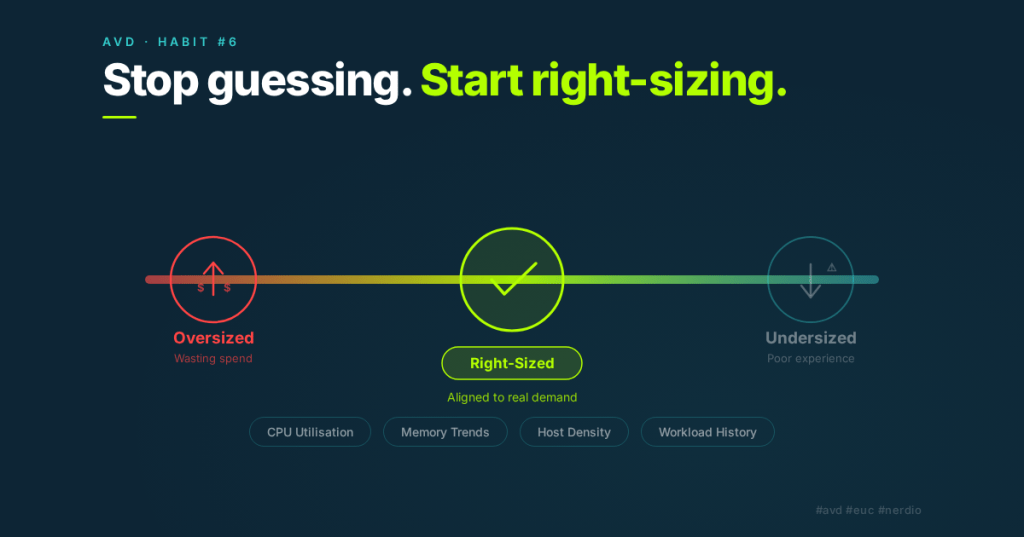
    It’s about aligning infrastructure with real demand.

    In Nerdio Manager for Enterprise, Nerdio Advisor helps surface opportunities where VM sizes or host counts no longer match usage patterns.

    It analyses:

    • CPU utilisation trends
    • Memory utilisation
    • Host density
    • Historical workload behaviour

    From this data, it can highlight potential opportunities to:

    • Reduce VM size
    • Adjust host counts
    • Improve session density
    • Eliminate unused capacity

    Advisor doesn’t force changes.

    It simply shows where optimisation may exist.


    The Three Pillars of Habit #6

    Like the other habits in this series, right-sizing becomes effective when it’s treated as a repeatable behaviour rather than a one-time task.


    Pillar 1: Review Advisor Recommendations Regularly

    Right-sizing should be part of your operational rhythm.

    Highly effective admins review Advisor recommendations periodically to understand how their environment is evolving.

    These reviews help answer questions such as:

    Are hosts consistently underutilised?
    Are machines running close to resource limits?
    Has user demand changed since the environment was first deployed?

    Looking at these trends regularly prevents small inefficiencies from turning into long-term overspend.


    Pillar 2: Validate Host Pool Sizing Against Real Demand

    Advisor recommendations are a starting point.

    Before making changes, administrators should validate recommendations against how the environment is actually used.

    Important considerations include:

    • Login storms
    • Peak usage periods
    • Critical applications
    • Future growth expectations

    Right-sizing should always balance efficiency with user experience.

    The goal is optimisation — not risk.


    Pillar 3: Make Incremental Adjustments

    The most successful optimisation strategies are gradual.

    Highly effective admins:

    • Test smaller VM sizes in validation pools
    • Adjust session density carefully
    • Monitor performance after changes
    • Iterate based on real results

    This approach ensures improvements are sustainable and predictable.

    Large, aggressive changes introduce uncertainty.

    Small, measured adjustments build confidence.


    What This Habit Enables

    When environments are regularly right-sized, several things happen.

    First, infrastructure becomes more efficient.

    Unused capacity is eliminated, and VM sizes better match the workloads they support.

    Second, costs become more predictable.

    Right-sizing ensures organisations are paying for what they actually use — not what they once needed.

    Finally, operational confidence improves.

    Administrators know their environment reflects current demand rather than historical assumptions.


    Common Mistakes to Avoid

    Right-sizing is powerful, but it can be misunderstood.

    Some common pitfalls include:

    • Treating right-sizing as a one-time exercise
    • Blindly applying recommendations without validation
    • Optimising based on short-term usage spikes
    • Reducing VM sizes too aggressively

    Good optimisation is disciplined.

    It balances cost efficiency with stability.


    How Habit #6 Builds on the Previous Habits

    By the time organisations reach Habit #6, the earlier habits have already created a stable foundation.

    Images are standardised.
    Patching is predictable.
    Applications are decoupled from images.
    Autoscale behaviour is understood.

    Only once that foundation exists does right-sizing become safe.

    Without it, changing VM sizes can introduce instability.

    With it, right-sizing becomes one of the most powerful cost optimisation tools available.


    The Real Takeaway

    Infrastructure decisions age.

    What worked six months ago may not be optimal today.

    Highly effective admins recognise this.

    They don’t rely on past assumptions.

    They validate them.

    Regular right-sizing ensures that the environment you’re running today reflects the demands of today — not the design decisions of yesterday.

    That’s the essence of Habit #6.


    Next in the series:
    Habit #7 — Optimise Log Analytics

    Monitoring is essential for maintaining visibility into your environment, but unmanaged telemetry can quietly inflate Azure costs. The final habit explores how to maintain observability while keeping analytics costs under control.

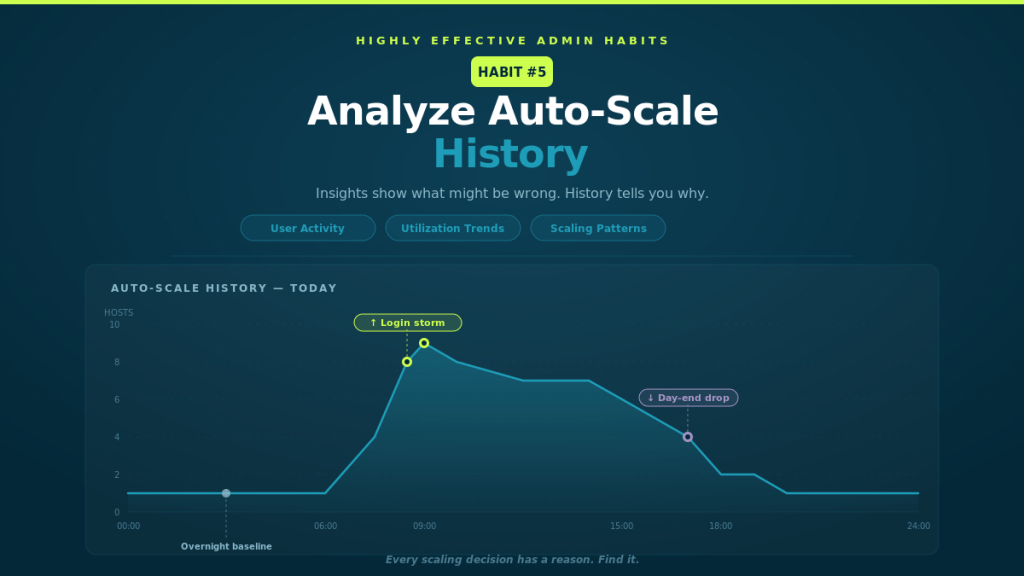
  • Habit #5: Analyse Auto-Scale History

    Habit #5: Analyse Auto-Scale History

    Insights show what might be wrong. History tells you why.

    Auto-scale is designed to react to demand.

    Users log in → hosts scale out.
    Users log off → hosts scale in.

    Simple in theory.

    But in the real world, Auto-Scale behaviour can sometimes look confusing:

    • Hosts scale out earlier than expected
    • Machines stay online when no users remain
    • Capacity spikes suddenly
    • Scaling appears inconsistent

    When this happens, many admins immediately start tweaking auto-Scale settings.

    The most effective admins do something different first.

    They look at the history.


    Auto-Scale Behaviour Often Tells a Story

    When Auto-Scale behaves in ways that seem unexpected, it’s rarely a bug.

    More often, it’s Auto-Scale doing exactly what it was configured to do — just reacting to signals you might not have noticed.

    Auto-Scale makes decisions based on inputs such as:

    • Active user sessions
    • CPU utilisation
    • Memory utilisation
    • Session limits
    • Time-based schedules

    If any of these signals change, Auto-Scale responds.

    Without reviewing historical behaviour, those responses can feel random.

    But once you analyse the history, patterns start to emerge.


    What Auto-Scale History Reveals

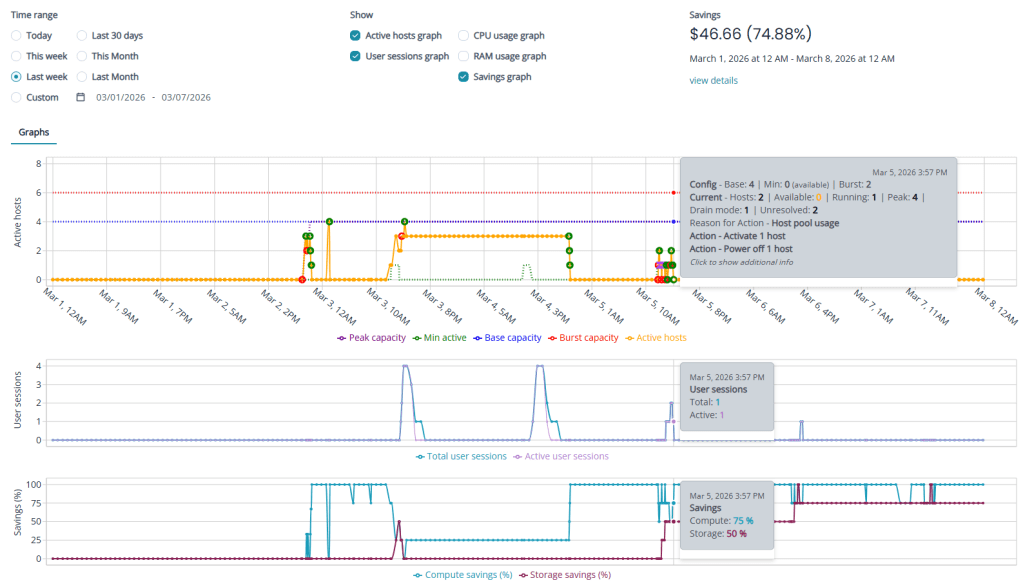
    Auto-Scale History in Nerdio Manager for Enterprise provides a timeline of scaling behaviour so you can understand exactly what happened.

    It allows administrators to see:

    • When scale-out events occurred
    • When hosts scaled back in
    • What triggered each scaling decision
    • How host capacity changed throughout the day

    Instead of guessing why Auto-Scale reacted, you can see the reasoning behind every action.

    This turns Auto-Scale from a black box into an explainable system.


    The Three Pillars of Habit #5

    Highly effective admins don’t just glance at Auto-Scale history when something goes wrong.

    They analyse it regularly.

    Three behaviours make this habit effective.


    Pillar 1: Correlate Scale Events with User Activity

    Auto-Scale should follow user demand.

    That means scale-out events should align closely with increases in user sessions.

    By reviewing Auto-Scale history alongside session activity, you can identify patterns such as:

    • Morning login storms
    • Midday workload peaks
    • Shift-based usage patterns
    • End-of-day session drop-offs

    When scaling events align with user behaviour, your Auto-Scale configuration is doing its job.

    If scaling happens too early or too late, it may indicate that thresholds or session limits need adjustment.

    The key is understanding how demand drives capacity.


    Pillar 2: Analyse Resource Utilisation Trends

    User sessions alone don’t tell the whole story.

    Resource utilisation often reveals why Auto-Scale behaves the way it does.

    Review historical trends for:

    • CPU utilisation
    • Memory utilisation
    • Average sessions per host

    These metrics help answer important questions:

    Are hosts consistently underutilised?
    Are machines running near capacity?
    Are session limits too conservative?

    In many environments, utilisation data quickly reveals opportunities to right-size VM families or adjust session density.

    Without this context, Auto-Scale decisions can appear unpredictable.

    With it, they become completely logical.


    Pillar 3: Identify Inefficient Scaling Patterns

    Auto-Scale history also helps reveal inefficiencies that quietly increase costs.

    Examples include:

    • Hosts running overnight with no active sessions
    • Scale-out events creating more hosts than needed
    • Frequent scale-in and scale-out oscillations
    • Burst hosts being created unnecessarily

    One-off events rarely matter.

    Patterns do.

    When these patterns appear repeatedly, they often indicate that scaling thresholds or schedules can be refined.

    Small adjustments can eliminate significant waste over time.


    What This Habit Enables

    When administrators regularly analyse Auto-Scale history, scaling becomes predictable.

    Instead of reacting to unexpected behaviour, teams gain:

    • Clear visibility into scaling decisions
    • Faster troubleshooting when anomalies occur
    • Evidence-based optimisation
    • Improved cost control
    • Greater confidence in Auto-Scale configuration

    Auto-Scale stops feeling mysterious.

    It becomes something you understand and control.


    Common Mistakes to Avoid

    Even experienced teams can misinterpret Auto-Scale behaviour.

    Some common pitfalls include:

    • Reviewing only one day of historical data
    • Optimising around short-term anomalies
    • Ignoring weekly or seasonal usage patterns
    • Adjusting Auto-Scale settings without understanding triggers

    Auto-Scale optimisation works best when decisions are based on consistent trends rather than isolated events.

    Looking at several weeks of history often reveals the true behaviour of an environment.


    How Habit #5 Builds on Habit #4

    Habit #4 focused on Auto-Scale Insights.

    Insights help surface potential optimisation opportunities — such as idle capacity or oversized VM SKUs.

    Habit #5 goes one step further.

    It explains why those opportunities exist.

    When you combine insights with historical analysis, you create a powerful feedback loop:

    Insights highlight optimisation opportunities.
    History explains the behaviour behind them.

    Together, they allow admins to refine Auto-Scale configurations with confidence.


    The Operational Discipline Behind Great Environments

    The most stable Azure Virtual Desktop (AVD) environments don’t rely on trial and error.

    They rely on observation.

    Highly effective teams treat Auto-Scale history as part of their operational routine.

    They review it:

    • During monthly environment reviews
    • When investigating performance issues
    • After major application or user changes
    • When evaluating cost optimisation opportunities

    Over time, this creates a deeper understanding of how the environment behaves.

    And that understanding leads to better decisions.


    The Real Takeaway

    Auto-Scale isn’t magic.

    It’s simply a system responding to signals.

    When those signals are understood, scaling becomes predictable.

    And predictable systems are easier to optimise.

    That’s the real value of Habit #5.


    Next in the series:
    Habit #6 — Regularly Right-Size Using Nerdio Advisor

    Even well-designed environments drift over time. The most effective admins continuously validate that their VM sizing still reflects real demand.

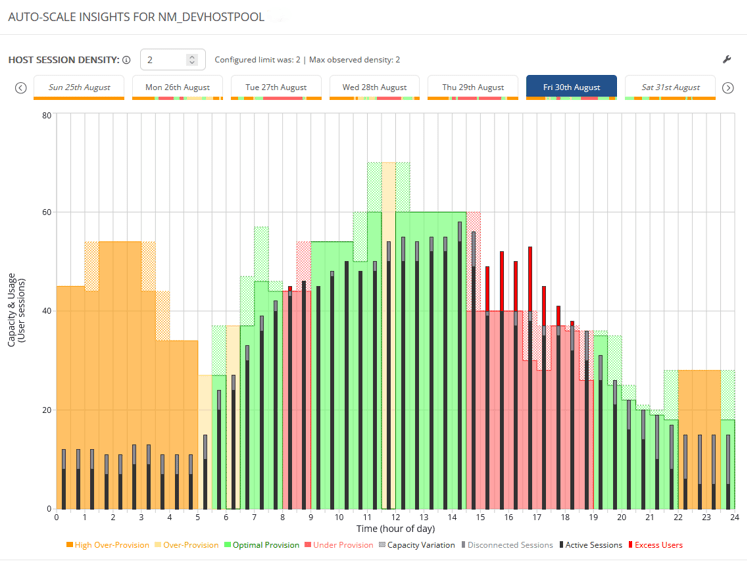
  • Habit #4: Act on Auto-Scale Insights

    Habit #4: Act on Auto-Scale Insights

    Don’t set it and forget it.

    Auto-scale is one of the most powerful features in Azure Virtual Desktop.

    It promises elasticity.
    It promises cost control.
    It promises performance stability.

    But here’s the reality:

    Most environments drift.

    Auto-scale gets configured once — often during deployment — and then quietly left alone. Months later, usage patterns have changed, user numbers have shifted, and application behaviour has evolved… but scaling logic hasn’t.

    That’s where Habit #4 comes in.

    Highly effective Nerdio admins don’t treat auto-scale as a static configuration.
    They treat it as a feedback loop.


    Auto-Scale Drift Is Normal

    Even well-designed environments don’t stay optimal forever.

    Over time:

    • Users join or leave
    • Working hours shift
    • Seasonal spikes come and go
    • Applications change resource profiles

    None of this means the original configuration was wrong.

    It just means the environment evolved.

    The problem isn’t drift.
    The problem is ignoring it.


    What Auto-Scale Insights Actually Do

    Auto-Scale Insights in Nerdio Manager for Enterprise surface where your configuration no longer reflects reality.

    They highlight:

    • Idle capacity
    • Inefficient scaling schedules
    • Burst logic that may be too conservative — or too aggressive

    Insights don’t make changes for you.
    They show you where opportunity exists.

    They turn instinct into evidence.


    The Three Pillars of Habit #4

    Like the other habits, this one breaks down into repeatable behaviours.

    You don’t need a dramatic reconfiguration.
    You need a disciplined review.


    Pillar 1: Review Insights Regularly

    Auto-scale should have an operational cadence.

    Highly effective admins:

    • Review Insights monthly (or at minimum quarterly)
    • Look for trends, not one-off anomalies
    • Treat it like a performance and cost dashboard

    Small adjustments made regularly compound over time.

    What’s dangerous isn’t one imperfect configuration.
    It’s leaving it untouched for a year.


    Pillar 2: Validate Provisioning Against Real Usage

    The question isn’t “Is autoscale enabled?”

    The question is:

    Does our current provisioning reflect how the environment is actually being used?

    Review:

    • Active and disconnected sessions per host
    • Scale-out frequency
    • Ramp, peak, and taper events
    • Host counts during low-demand periods

    As a general rule of thumb, sustained utilisation below ~60% often signals overprovisioning. Sustained utilisation above ~80% may indicate constrained performance.

    The goal isn’t to chase perfect numbers.

    The goal is alignment between capacity and demand.


    Pillar 3: Optimise Safely, Not Aggressively

    Cost optimisation should be invisible to users.

    Highly effective admins:

    • Adjust VM size incrementally
    • Modify session limits gradually
    • Tune burst thresholds cautiously
    • Validate performance after changes

    Aggressive optimisation introduces risk.

    Disciplined optimisation builds confidence.


    What This Enables

    When Auto-Scale Insights are acted on consistently:

    • Compute costs drop meaningfully
    • Scaling becomes predictable
    • Surprise overruns decrease
    • Performance stabilises

    More importantly, optimisation becomes a data exercise — not guesswork.

    This aligns strongly with my broader emphasis on disciplined, data-driven decision making.


    Common Mistakes to Avoid

    Even experienced teams fall into these traps:

    • Blindly applying every recommendation without context
    • Optimising based on one week of data
    • Ignoring seasonal workload patterns
    • Tuning autoscale before stabilising images and applications

    Order matters.

    Autoscale optimisation works best when:

    • Images are consistent
    • Patching is predictable
    • Applications are disciplined

    That foundation makes scaling behaviour easier to interpret — and safer to adjust.


    How Habit #4 Builds on the Foundation

    Habit #4 doesn’t stand alone.

    It builds on:

    • Habit #1: Standardised image management
    • Habit #2: Predictable patching
    • Habit #3: Controlled application delivery

    Only when the environment is stable does autoscale optimisation become safe.

    Otherwise, you’re just scaling instability faster.


    The Real Takeaway

    Autoscale isn’t about turning machines on and off.

    It’s about continuously aligning capacity with reality.

    Set it.
    Measure it.
    Refine it.

    That’s the habit.


    Next up: Habit #5 — Analyse Auto-Scale History
    Insights show what might be wrong. History tells you why.

  • March 31, 2026, is coming: New Azure VNets won’t have outbound internet by default — here’s the EUC-ready fix (NAT Gateway v2)

    March 31, 2026, is coming: New Azure VNets won’t have outbound internet by default — here’s the EUC-ready fix (NAT Gateway v2)

    The change that won’t hurt… until it does

    If you run Azure Virtual Desktop (AVD) or Windows 365 (Cloud PCs) in Azure, you’ve probably relied on a quiet convenience for years:

    Deploy a VM in a subnet and—without doing anything special—it can reach the internet.

    That “it just works” behavior is going away by default for new networks.

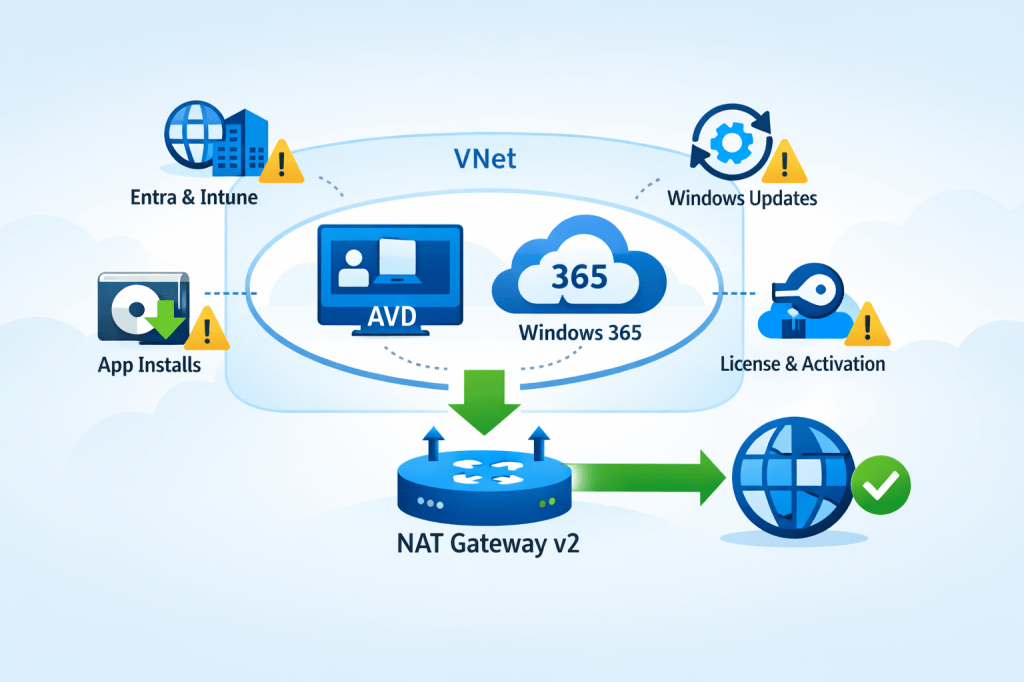
    Microsoft has confirmed that after March 31, 2026, newly created Azure Virtual Networks will default to private subnets, meaning no default outbound internet access unless you explicitly configure an outbound method.

    And here’s the trap: nothing breaks on day one. Your existing VNets keep working as they do today. Then, weeks later, someone builds a new VNet (or a new subnet), tries to deploy AVD session hosts or provision Cloud PCs… and suddenly:

    • Hosts can’t download what they need
    • Windows activation and updates don’t behave
    • Intune enrollment/sync gets weird
    • Provisioning workflows fail in ways that look like “AVD is broken” (it’s not)

    Microsoft explicitly notes that certain services (including Windows activation and Windows updates) won’t function in a private subnet unless you add explicit outbound connectivity.

    So, let’s make this change boring—in a good way. ✅


    What exactly is changing on March 31, 2026?

    ✅ What changes

    • New VNets created after March 31, 2026 will default to private subnets (Azure sets the subnet property defaultOutboundAccess = false by default).
    • Private subnets mean VMs do not get “default outbound access” to the internet or public Microsoft endpoints unless you configure an explicit egress method.

    ✅ What does not change

    • Existing VNets are not automatically modified.
    • New VMs deployed into existing VNets will continue to behave as those subnets are configured today, unless you change those subnets.

    Also important: you still have control

    Microsoft’s guidance is “secure by default,” but you can still configure subnets as non-private if you truly need to keep the default outbound behavior for a period of time.
    That said… for EUC, the better long-term move is to standardize on explicit outbound now.


    Why AVD and Windows 365 teams should care (more than most)

    EUC workloads have a long list of dependencies on outbound connectivity. A few high-impact examples:

    AVD session hosts

    • Agent/bootloader downloads and updates
    • Host registration and service connectivity
    • Windows activation + KMS / public activation flows
    • Windows Update / Defender updates
    • App install flows that fetch from internet endpoints (MSIX, Winget, vendor CDNs, etc.)
    • Telemetry and management paths (depending on your architecture)

    Windows 365 (Azure Network Connection / ANC)

    Microsoft is explicit here: for Windows 365 ANC deployments using VNets created after March 31, 2026, Cloud PC provisioning will fail unless outbound internet access is explicitly configured.

    So the question becomes: what’s the cleanest, most repeatable outbound design for EUC networks?


    Your outbound options (EUC decision guide)

    Azure recognizes several “explicit outbound” patterns.
    For EUC, these are the common ones:

    1) NAT Gateway (recommended default for most EUC spokes)

    Best when:

    • You want simple, scalable outbound for session hosts / Cloud PCs
    • You need a predictable egress IP for allow-lists
    • You don’t need deep L7 inspection for all traffic (or you’re doing that elsewhere)

    2) Firewall/NVA + UDR (hub-and-spoke inspection)

    Best when:

    • You need central inspection, TLS break/inspect, egress filtering at scale
      Trade-offs:
      • Complexity and cost
      • SNAT scaling considerations
      • You may still use NAT Gateway with firewall designs (more on that below)

    3) Standard Load Balancer outbound rules

    Best when:

    • You already have SLB, and outbound rules are a deliberate part of your design
      Trade-offs:
    • More moving parts than NAT Gateway for a simple “give the subnet internet” outcome

    4) Public IP per VM (usually a “no” for EUC)

    Trade-offs:

    • Operational overhead
    • Increased attack surface
    • Harder to govern at scale for pooled hosts / Cloud PCs

    For most AVD and Windows 365 environments, the sweet spot is:
    ➡️ NAT Gateway for outbound simplicity and scale.

    And now we have a better version of it.


    Enter NAT Gateway v2: the “make it simple” fix

    Microsoft announced StandardV2 NAT Gateway and StandardV2 Public IPs to match it. The headline improvements are exactly what EUC architects care about:

    • Zone-redundant by default (in regions with Availability Zones)
    • Higher performance (Microsoft calls out up to 100 Gbps throughput and 10 million packets/sec)
    • IPv6 support
    • Flow logs support
    • Same price as Standard NAT Gateway (per Microsoft’s announcement)

    But know the gotchas

    From Microsoft’s NAT SKU guidance:

    • Requires StandardV2 Public IPs (Standard PIP won’t work)
    • No in-place upgrade from Standard → StandardV2 NAT Gateway (replace it)
    • Some regions don’t support StandardV2 NAT Gateway (check your target region list)

    If you’re designing for EUC scale + resilience, the zone redundancy alone is a big deal.


    Walkthrough: Deploy NAT Gateway v2 for AVD / Windows 365

    Below is a practical, EUC-focused setup using the Azure portal.

    Architecture target

    • You have a VNet with one or more EUC subnets (e.g., AVD-Hosts, CloudPCs)
    • You attach one NAT Gateway v2 to those subnets
    • All outbound traffic from those subnets egresses via the NAT’s public IP(s)

    NAT Gateway is associated at the subnet level, and a subnet can only use one NAT gateway at a time (so plan accordingly).


    Step 0: Confirm your subnet posture (private vs not)

    After March 31, 2026, new VNets will default to private subnets.

    In the subnet configuration in Azure:

    • Find Default outbound access
    • If you want the secure-by-default posture, set it Disabled (private subnet)
    • Then ensure you provide explicit outbound (NAT Gateway)

    Note: if you change an existing subnet’s default outbound access setting, existing VMs may need a stop/deallocate to fully apply the change.


    Step 1: Create a StandardV2 Public IP

    NAT Gateway v2 requires a StandardV2 Public IP.

    Azure portal:

    1. Create Public IP address
    2. Set:
      • SKU: StandardV2 (static)
      • IP version: IPv4 (or dual-stack if required)
    3. Create it

    Step 2: Create the NAT Gateway (StandardV2)

    Azure portal:

    1. Create NAT gateway
    2. Set:
      • SKU: StandardV2
      • TCP idle timeout: leave default unless you have a reason
    3. On Outbound IP, attach the StandardV2 Public IP you created
    4. Create

    Microsoft’s announcement emphasizes StandardV2 NAT Gateway is zone-redundant by default in AZ regions.


    Step 3: Attach NAT Gateway v2 to your EUC subnet(s)

    Now associate it with the subnets where your session hosts / Cloud PCs live.

    Option A (from NAT Gateway):

    • NAT Gateway → Networking → add VNet/subnet associations

    Option B (from Subnet):

    • VNet → Subnets → select subnet → set NAT gateway → Save

    Once attached:

    • VMs in that subnet gain outbound connectivity through the NAT Gateway
    • Your egress IP becomes the NAT’s public IP (useful for allow-listing)

    Step 4: Validate (don’t skip this)

    For EUC, I like three quick validations:

    1. Effective routes
    • Confirm the subnet has the expected path for internet-bound traffic (0.0.0.0/0) via the platform egress with NAT.
    1. Outbound IP check
    • From a session host / Cloud PC, verify outbound IP matches your NAT public IP.
    1. EUC-specific smoke tests
    • Windows activation / licensing behavior
    • Windows Update connectivity
    • Intune enrollment/sync (if applicable)
    • Any app deployment mechanisms that pull from vendor CDNs

    Remember: Microsoft explicitly warns that private subnets need explicit outbound for services like Windows activation/updates.


    Common EUC deployment patterns (what I recommend)

    Pattern A: “EUC spoke NAT” (simple + effective)

    • Each EUC spoke VNet has a NAT Gateway v2 attached to EUC subnets
    • Keep routing simple
    • Use NSGs for egress control + consider NAT flow logs for visibility (where needed)

    Pattern B: “Hub inspection + NAT scale”

    If you route everything through a firewall/NVA for inspection, NAT Gateway can still be relevant in designs where you need scalable SNAT characteristics for outbound (especially when you’ve seen firewall SNAT constraints in the wild). This becomes an architecture conversation, but the key is: private subnets force you to be explicit, and NAT Gateway is the simplest explicit egress building block.


    “Do this before March 31, 2026” checklist

    For AVD admins, Windows 365 admins, and EUC architects:

    • Identify where your org creates “new VNets” (projects, regions, subscriptions)
    • Update your EUC network templates to include explicit outbound (NAT Gateway v2 is the default pick)
    • Standardize an allow-listing approach using the NAT’s static public IP(s)
    • Decide logging posture (do you want NAT flow logs for troubleshooting/top talkers?)
    • Run a “new VNet” dry run now (don’t wait for the deadline)
    • For Windows 365 ANC: confirm your provisioning pipelines won’t fail on new VNets without explicit outbound

    Final thought: make your cloud consistent

    This change is “secure by default,” but operationally it creates a nasty split-brain risk: old VNets behave one way, new VNets behave another.

    The easiest way to keep EUC stable is to choose a consistent outbound pattern everywhere. For most AVD + Windows 365 environments, NAT Gateway v2 is the cleanest baseline: zone-resilient, scalable, and straightforward to operate.

  • Habit #3: Centralise and Automate Application Management

    Habit #3: Centralise and Automate Application Management

    Once desktop images are standardised and patching is automated, many environments hit the next friction point: application management.

    This is often where complexity quietly creeps back in.

    Applications are installed in different ways, updated inconsistently, and tied to specific images or host pools “just to make things work.” Over time, this undermines the stability gained from good image and patch discipline.

    Highly effective admins avoid this by treating application management as a centralised, automated operating model — not a collection of one-off installs.

    This is Habit #3.


    Why application sprawl undermines otherwise well-run environments

    In less mature AVD environments, application delivery tends to evolve organically:

    • Some apps are baked into images
    • Others are installed manually
    • Updates are handled inconsistently
    • Different teams use different tools

    Initially, this can feel flexible. At scale, it becomes fragile.

    Common symptoms include:

    • Bloated desktop images
    • Longer image rebuild and testing cycles
    • Unclear ownership of applications
    • Increased support tickets following updates

    The issue isn’t the tools — it’s the lack of a consistent operating model.


    The mindset shift: applications should not define your images

    Highly effective admins make a deliberate separation:

    Images provide the foundation. Applications provide the functionality.

    When applications are tightly coupled to images:

    • Every app update forces an image change
    • Testing effort increases
    • Rollbacks become harder and riskier

    Decoupling applications from images allows teams to:

    • Keep images minimal and stable
    • Update applications independently
    • Reduce the blast radius when something breaks

    This is where Nerdio Manager for Enterprise becomes a control plane for application delivery — not just a place to manage hosts.


    The three pillars of Habit #3

    Highly effective admins consistently apply three principles when managing applications.


    Pillar 1: Decouple applications from desktop images

    Images should change slowly. Applications often don’t.

    Highly effective admins:

    • Avoid baking applications into images unless there’s a clear technical reason
    • Keep images focused on OS configuration, runtimes, and baseline security
    • Allow applications to evolve independently of the image lifecycle

    This results in:

    • Faster image rebuilds
    • Lower testing overhead
    • More predictable recovery and rollback

    Key idea:

    Images provide stability. Applications provide flexibility.


    Pillar 2: Centralise app delivery into a single operating model

    Modern AVD environments require flexibility. Different applications need different deployment approaches.

    Highly effective admins embrace this reality — but they manage it centrally, rather than allowing application delivery to fragment.

    This may include:

    • Public or private WinGet packages
    • Scripted installs using Shell Apps or Scripted Actions
    • Intune-managed applications
    • MSIX app attach (where it makes sense)
    • Legacy tooling where required, such as SCCM

    The critical point isn’t which method is used — it’s that:

    • The choice is intentional
    • Deployment is automated
    • Behaviour is predictable

    Centralisation provides:

    • Clear visibility into how applications are delivered
    • Consistent update behaviour across environments
    • Faster troubleshooting when issues arise

    The result is flexibility without fragmentation.

    Key idea:

    Different tools. One control plane.


    Pillar 3: Assign applications by intent, not infrastructure

    A common anti-pattern is allowing application differences to dictate:

    • New images
    • New host pools
    • Environment-specific workarounds

    Highly effective admins avoid this by assigning applications based on intent, such as:

    • User role
    • Team or department
    • Business requirement

    Instead of asking:

    “Which host gets this app?”

    They ask:

    “Who actually needs this app?”

    This approach:

    • Reduces image and host pool sprawl
    • Simplifies onboarding and offboarding
    • Keeps environments easier to reason about

    Importantly, this does not require App Attach. User- or group-based assignment can be achieved through multiple delivery methods, with App Attach used selectively where it provides clear value.

    Key idea:

    Apps should be delivered by need — not by where a user logs in.


    Automate application updates deliberately

    Application updates are one of the most common sources of instability.

    Highly effective admins:

    • Automate updates where appropriate
    • Control timing and scope
    • Avoid surprise changes during business hours

    Just like OS patching, application updates work best when treated as a repeatable workflow, not an ad-hoc task.

    Automation doesn’t remove control — it formalises it.


    The operational payoff

    When application management is centralised and automated:

    • Images remain lean
    • Updates become predictable
    • Rollbacks are simpler
    • Administrative effort drops significantly

    More importantly, teams gain confidence to:

    • Introduce new applications faster
    • Standardise environments
    • Scale without increasing complexity

    How Habit #3 builds on Habits #1 and #2

    Habit #3 only works because the earlier habits are already in place:

    • Habit #1 stabilises the image
    • Habit #2 stabilises the host lifecycle

    With those foundations:

    • Applications can be delivered independently
    • Updates don’t force image rebuilds
    • Failures are isolated and recoverable

    Each habit compounds the value of the last.


    Final thoughts

    Highly effective Nerdio admins don’t let applications drive infrastructure design.

    They:

    • Decouple applications from images
    • Centralise delivery
    • Assign applications by intent
    • Automate updates predictably

    This is how AVD environments remain flexible without becoming fragile.


    This article is part of an ongoing series exploring the 7 Habits of Highly Effective Nerdio Admins. Upcoming deep-dives will cover autoscale optimisation, right-sizing, and cost visibility.

  • Habit #2: Automate Windows Patching and Host Lifecycle

    Habit #2: Automate Windows Patching and Host Lifecycle

    Once desktop image management is standardised, most teams turn their attention to the next operational challenge: Windows patching.

    This is where many Azure Virtual Desktop environments begin to struggle.

    Manual patching is time-consuming, disruptive, and inconsistent. It often relies on individual knowledge, late-night maintenance windows, and a degree of luck. Highly effective admins take a different approach — they design patching as an automated, repeatable lifecycle, not a monthly fire drill.

    This is Habit #2.


    Why patching becomes a bottleneck at scale

    In smaller environments, manual patching can feel manageable. As environments grow, the cracks start to show.

    Common symptoms include:

    • Hosts patched at different times
    • Inconsistent patch levels across pools
    • Long or unpredictable maintenance windows
    • Uncertainty about what’s actually been updated

    The real issue isn’t effort — it’s risk. Inconsistent patching weakens security posture, complicates troubleshooting, and undermines confidence in automation elsewhere.


    The mindset shift: patching is a workflow, not a task

    Highly effective admins don’t think about patching as:

    “Applying updates to machines.”

    They think about it as:

    “A controlled workflow that updates images and hosts predictably.”

    That shift matters.

    When patching is treated as a workflow, you gain:

    • Predictability
    • Auditability
    • Confidence to automate safely

    This is where Nerdio Manager for Enterprise becomes an enabler rather than just a scheduling tool.


    One size does not fit all: patching strategy depends on host pool type

    One of the most common mistakes I see is applying the same patching strategy to every host pool, regardless of how it’s used.

    Highly effective admins make a clear distinction based on host pool type.


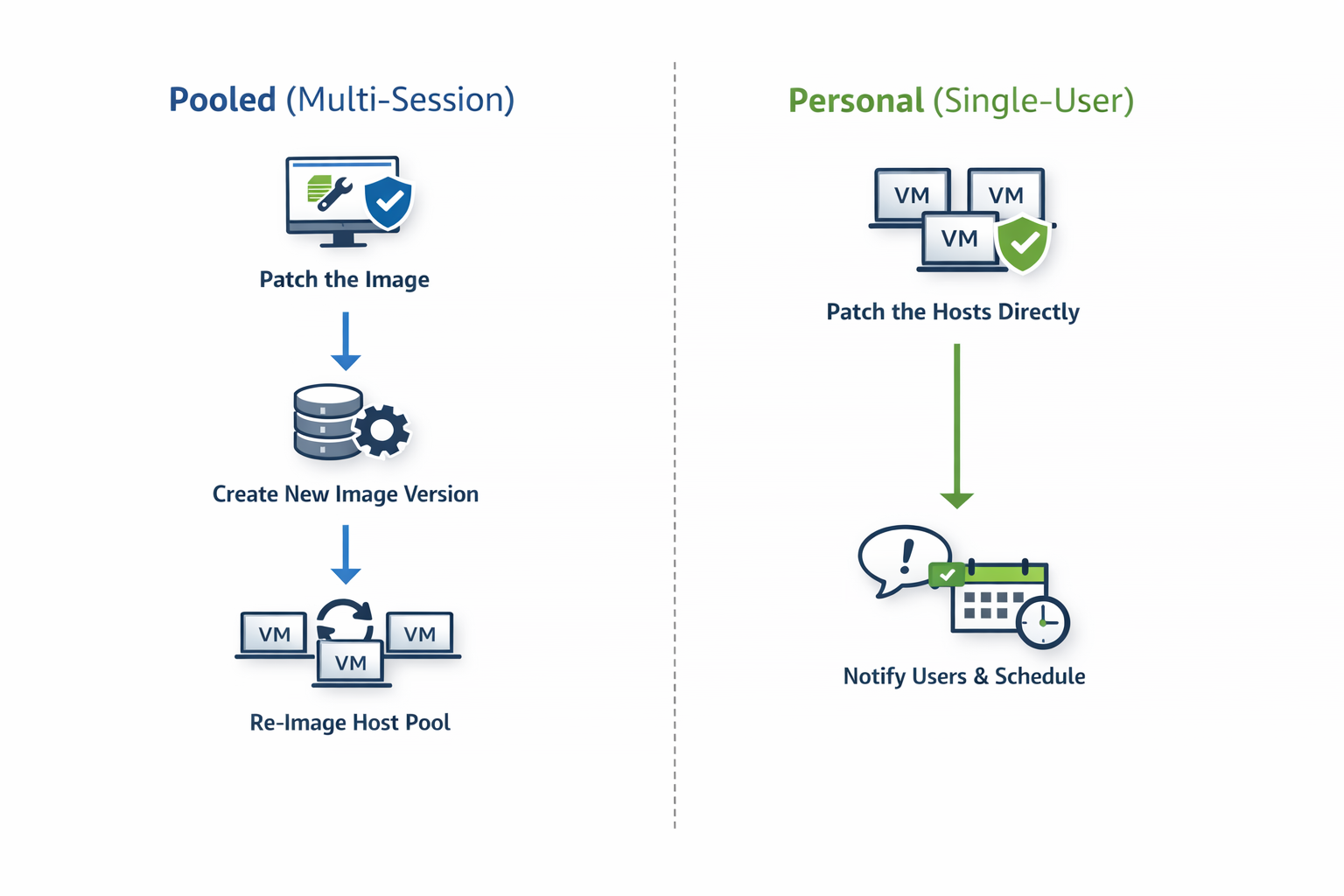
    Multi-session (pooled) host pools

    For multi-session environments, the recommended approach is simple:

    Patch the desktop image and re-image the session hosts

    This aligns naturally with how pooled AVD environments are designed.

    Why this works so well:

    • Session hosts are disposable by design
    • User data lives outside the VM (for example, FSLogix)
    • Re-imaging restores a clean, known-good baseline

    This approach delivers:

    • Consistent patch levels across all hosts
    • Faster recovery from issues
    • Cleaner environments over time

    In mature pooled environments, re-imaging is not disruptive — it’s expected.


    Personal host pools

    Personal desktops are fundamentally different.

    Because:

    • Each VM is tied to an individual user
    • Local applications or user-specific state may exist on the VM

    The recommended approach is:

    Patch the session hosts directly

    Re-imaging personal desktops can introduce unnecessary risk and user disruption. Patching hosts in place preserves:

    • User data
    • Personal configuration
    • Application state

    When combined with:

    • Drain mode
    • User notifications
    • Controlled scheduling

    …this approach keeps personal desktops secure without breaking the user experience.

    pooled vs personal patching

    The guiding principle

    Highly effective admins follow a simple rule:

    • If the host is disposable → patch the image and rebuild
    • If the host contains user state → patch the host directly

    This decision is baked into their operating model, not revisited every month.


    Why Patch Tuesday still matters

    Automation doesn’t mean patching at random.

    Highly effective admins align patching to:

    • Microsoft’s Patch Tuesday cadence
    • A predictable offset (for example, a few days later)
    • Known maintenance windows

    This creates:

    • Operational rhythm
    • Predictable change windows
    • Fewer surprises for users and support teams

    Automation doesn’t remove control — it formalises it.


    Automating the host lifecycle safely

    Patching doesn’t exist in isolation. It directly affects:

    • Host availability
    • User experience
    • Auto-scale behaviour

    That’s why effective admins automate patching together with host lifecycle controls, such as:

    • Draining sessions before maintenance
    • Controlling concurrency
    • Aborting safely after defined failures
    • Re-imaging hosts in a controlled sequence

    The objective isn’t speed — it’s controlled change at scale.


    The operational payoff

    When patching and host lifecycle management are automated correctly:

    • Hosts remain consistent
    • Security posture improves
    • Maintenance becomes predictable
    • Admin effort drops dramatically

    More importantly, teams gain confidence to:

    • Scale environments
    • Trust automation
    • Focus on optimisation rather than upkeep

    How this builds on Habit #1

    Habit #2 only works because Habit #1 exists.

    Without:

    • Standardised images
    • Versioning
    • Clear governance

    …patch automation becomes risky.

    With those foundations in place, patching becomes:

    • Safe
    • Repeatable
    • Boring (in the best possible way)

    Final thoughts

    Highly effective Nerdio admins don’t patch reactively.

    They:

    • Choose the right patching strategy per host pool
    • Align to predictable schedules
    • Automate patching as a lifecycle
    • Let the platform do the heavy lifting

    This is where operational maturity starts delivering real returns.


    This article is part of an ongoing series exploring the 7 Habits of Highly Effective Nerdio Admins. Upcoming deep-dives will cover application management, autoscale optimisation, right-sizing, and cost visibility.