Windows 365 Cloud Apps went generally available in November 2025, and the concept is compelling: stream individual apps from a Cloud PC to a user’s device, without giving them a full desktop. Think RemoteApp, but cloud-native and managed entirely through Intune.
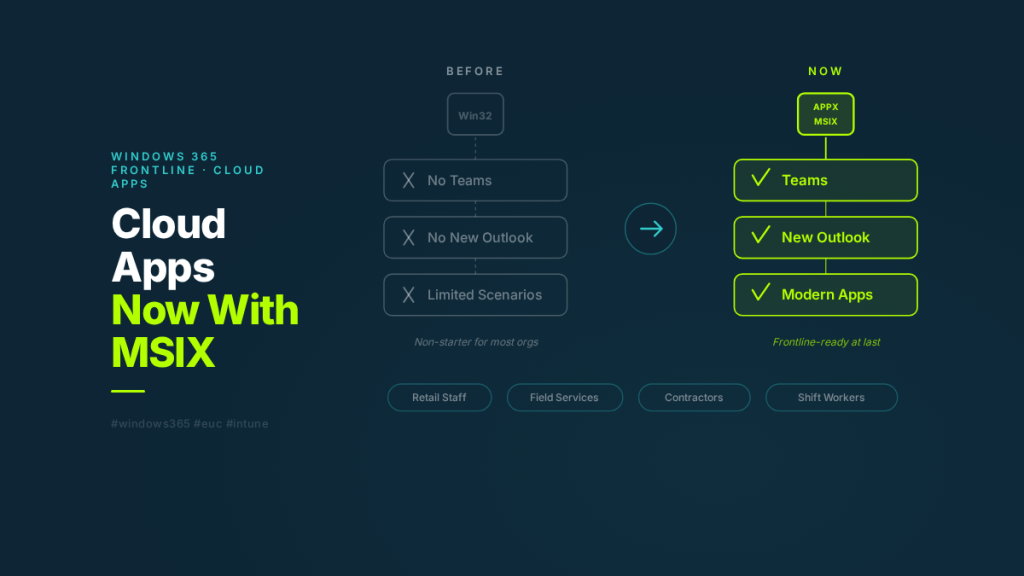
The problem? Until this week, Cloud Apps only supported Win32 applications. That meant Microsoft Teams and the new Outlook — both packaged as APPX or MSIX — couldn’t be published through it. For most real-world scenarios, that was a deal-breaker.
As of the week of March 23, 2026, Microsoft added APPX and MSIX application support to Cloud Apps. It sounds like a packaging update. In practice, it removes the single biggest barrier to Cloud Apps adoption.
This post covers what Cloud Apps is, how it works architecturally, what this update actually changes, and where it fits alongside a full Cloud PC deployment.
What Are Windows 365 Cloud Apps?
Cloud Apps is a delivery model within Windows 365 Frontline that lets you publish individual applications to users instead of provisioning a full Cloud PC desktop for each person.
The experience from the user’s perspective: they open Windows App, see only the specific apps that have been published to them, and click to launch. The app opens in its own window on their local device — no desktop, no taskbar, no Start menu. Just the app.
From an architecture perspective, Cloud Apps runs on top of Windows 365 Frontline Cloud PCs operating in shared mode. When a user launches a Cloud App, it initiates a RemoteApp connection to one of the shared Cloud PCs in the pool. The Windows UI is stripped away so only the application window is rendered in the remote session. The user sees an app. Under the hood, it’s a Cloud PC running in shared mode, with concurrency tied to the number of Frontline licences assigned to the provisioning policy.
The key distinction from a full Cloud PC: users don’t get a persistent desktop environment. There’s no personal desktop, no file explorer, no Start menu. They get access to the specific applications IT has published — nothing more.
How App Discovery and Publishing Works
This is where it gets interesting, and where the APPX/MSIX limitation was most painful.
Cloud Apps discovers available applications by scanning the Start Menu of the underlying Cloud PC image. When you create a provisioning policy with the experience type set to “Access only apps,” Windows 365 enumerates every application that has a Start Menu entry on the image. Those apps are then listed in the Intune admin centre as “Ready to publish.”
Admins select which apps to publish, and those apps become available in Windows App for all users assigned to the provisioning policy. You can edit display names, descriptions, and icons — but the core app discovery is driven by what’s on the image.
Here’s the catch that tripped up the original release: the discovery and publishing pipeline only supported Win32 executables. APPX and MSIX packages register themselves differently in Windows — they use the modern app model with package identity, containerised execution, and different Start Menu registration paths. The Cloud Apps discovery engine simply didn’t know how to find them.
That’s what changed this week. The discovery pipeline now supports APPX and MSIX packages alongside Win32 apps. Any application on the image that creates a Start Menu entry — regardless of packaging format — can now be discovered and published as a Cloud App.
Why This Matters More Than It Sounds
If you’re not deep in Windows packaging, “we added APPX/MSIX support” might sound like a minor technical improvement. Here’s why it’s not.
Microsoft has been steadily moving its own applications to modern packaging formats. Teams is an MSIX package. The new Outlook is an APPX package. Many apps delivered through the Microsoft Store and via Intune’s app catalogue are MSIX. The direction of travel is clear: MSIX is the future of Windows app packaging.
A Cloud Apps deployment that can only publish Win32 apps is a deployment that can’t publish Microsoft’s own flagship productivity tools. That’s not a niche gap — it’s a fundamental limitation that made Cloud Apps impractical for most organisations.
With APPX and MSIX support, a Cloud Apps deployment can now publish Teams, the new Outlook, and any other modern-packaged app that’s on the image. The feature goes from “interesting concept with a big asterisk” to “genuinely viable for production frontline scenarios.”
A Quick Primer: Win32 vs APPX vs MSIX
For context on why these packaging formats matter and what makes them different:
Win32 is the traditional application model that’s been around for decades. MSI installers, EXE files, and applications that write directly to Program Files, the registry, and shared system locations. They’re flexible but messy — installs can leave residual files, uninstalls aren’t always clean, and conflicts between applications sharing system resources are common.
APPX was introduced with Windows 8 for Universal Windows Platform (UWP) apps. APPX packages run in a containerised environment with their own virtualised filesystem and registry. They install cleanly, uninstall completely, and can’t interfere with other apps. The trade-off: they were originally designed for UWP-only, limiting their usefulness for traditional desktop applications.
MSIX is the evolution that bridges both worlds. It brings the clean install/uninstall behaviour and containerisation of APPX to traditional Win32 and .NET Framework applications. MSIX supports differential updates (only downloading what changed), mandatory digital signing for security, and a 99.96% install success rate according to Microsoft’s data. It’s designed to be the single packaging format for all Windows app types going forward.
The reason Cloud Apps struggled without APPX/MSIX support is that Microsoft has been packaging its own apps in these formats for years. Teams, the new Outlook, and many Store-delivered apps aren’t Win32 — they’re MSIX or APPX. If your app delivery platform can’t see them, you can’t publish them.
Cloud Apps vs Full Cloud PC: When to Use Which
Cloud Apps doesn’t replace a full Cloud PC. They solve different problems for different user personas. Here’s how to think about when each model fits.
Cloud Apps makes sense when:
The user needs access to a small number of specific applications — typically two or three. They don’t need a full desktop environment, file management, or the ability to install additional software. Think frontline retail workers who need a POS system and Teams. Field service staff who need a single line-of-business app on shared devices. Contractors who need controlled access to specific tools without a full managed desktop. Seasonal or temporary staff where provisioning and deprovisioning full Cloud PCs per person would be operationally heavy.
A full Cloud PC makes sense when:
The user needs a persistent desktop environment with their own files, settings, and application state. They work with multiple applications simultaneously and switch between them throughout the day. They need the ability to open apps ad hoc — not just pre-published ones. Their workflow involves file management, browser-based tools alongside desktop apps, or other activities that need a complete Windows desktop.
The shared licensing model underneath:
Both Cloud Apps and shared-mode Frontline Cloud PCs use the same Windows 365 Frontline licensing. The licence model allows unlimited user assignments per licence, but only one concurrent active session per licence at a time. So if you have 50 Frontline licences assigned to a Cloud Apps provisioning policy, up to 50 users can have active Cloud App sessions simultaneously.
This makes Frontline significantly more cost-effective than Enterprise Cloud PCs for shift-based or part-time workers. You’re not paying for a dedicated Cloud PC per user — you’re paying for concurrent capacity.
Security Consideration: Published Apps Can Launch Other Apps
There’s one architectural detail worth flagging that catches some admins off guard.
When a user launches a published Cloud App, that app runs on a full Cloud PC under the hood. The published app can launch other applications that exist on the Cloud PC image, even if those other apps haven’t been published as Cloud Apps.
For example: if you publish Outlook as a Cloud App and a user clicks a link in an email, it can launch Edge — even if Edge isn’t published. If an app has a “Open in Explorer” option, it could launch File Explorer.
For many scenarios, this is fine and even expected behaviour. But if you’re in a regulated environment or need strict application control, you should layer Application Control for Windows (formerly Windows Defender Application Control) on top of Cloud Apps to enforce exactly which executables can run on the underlying Cloud PC.
Don’t assume that publishing three apps means only three apps can run. The published app list controls what the user can launch directly — not what can execute on the session host.
What’s Still in Preview
A few things to be aware of that are still in preview or coming soon:
Enhanced user experiences for Cloud Apps are in public preview. This includes improved Windows Snap support, full-screen mode, better DPI handling, and visual refinements like borders, shadows, and theme integration. These improvements use the same RemoteApp enhancements available in Azure Virtual Desktop.
Autopilot Device Preparation support for Cloud Apps is also in public preview. This gives you an alternative to custom images for getting apps onto the underlying Cloud PCs — you can use Autopilot Device Preparation policies to install apps during provisioning, and Cloud Apps will discover them once installed.
User Experience Sync allows app settings and data to persist between user sessions on shared Cloud PCs. Since Cloud Apps runs on shared-mode Frontline Cloud PCs, user state would normally be lost when a session ends. User Experience Sync preserves settings and data, which is important for apps that store user preferences locally.
The Bigger Picture
Cloud Apps has been a “watch this space” feature since it launched. The concept was right — not every user needs a full desktop, and app-only delivery is often the better fit for frontline and contractor scenarios. But the Win32 limitation made it hard to recommend for production use when you couldn’t even publish Teams.
With APPX and MSIX support, that changes. The feature is now capable of delivering the apps that most organisations actually need in frontline scenarios. Combined with the Frontline shared licensing model, it’s a genuinely cost-effective alternative to provisioning full Cloud PCs for users who only need a handful of apps.
If you evaluated Cloud Apps earlier and parked it because of app support gaps, it’s worth taking another look. The gap that mattered most is now closed.
Wayne Bellows is a Technical Account Manager at Nerdio. He writes about Azure Virtual Desktop, Windows 365, Intune, and the EUC industry at modern-euc.com.