Every Entra ID administrator has a horror story.
Maybe it was a bulk user import that went wrong and overwrote attributes across half your directory. Maybe it was a well-intentioned change to a Conditional Access policy that cascaded into a lockout at 11pm on a Friday. Maybe it was a compromised account that quietly weakened your MFA requirements before anyone noticed.
Up until recently, recovering from those situations meant one of three things: rebuilding from memory, combing through audit logs and manually reversing changes one by one, or restoring from a third-party backup tool you may or may not have had the budget for.
Microsoft has quietly shipped something that changes that equation. Microsoft Entra Backup and Recovery entered public preview in March 2026, and if your tenant has Entra ID P1 or P2 licensing, it’s already running — no setup required.
Here’s what it actually does, what it doesn’t do, and what you should do with it right now.
What It Is
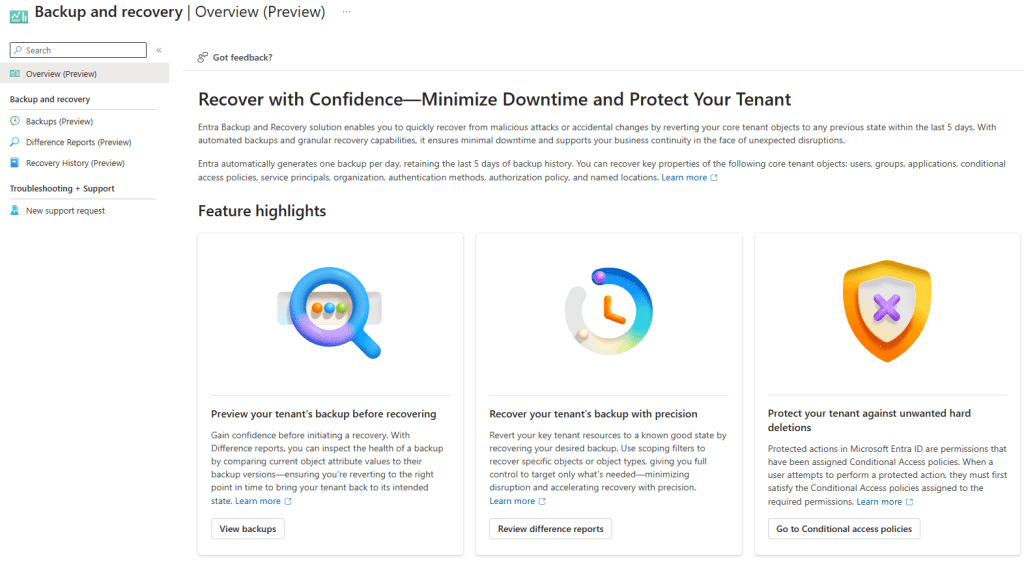
Entra Backup and Recovery is a built-in, automated snapshot service for your Entra ID tenant. Once a day, Microsoft takes a point-in-time backup of the critical objects in your directory and retains the last five days of history. Crucially, the backups are tamper-proof — no user, application, or admin (including Global Administrators) can delete, modify, or disable them. Backup data is stored in the same geo-location as your tenant, determined at tenant creation.
From those snapshots, you can:
- View available backups — a rolling five-day history available in the Entra admin centre
- Create difference reports — compare any backup snapshot against the current state of your tenant and see exactly what changed
- Recover objects — restore all objects, specific object types, or individual objects by ID to their backed-up state
- Review recovery history — audit completed and in-progress recovery operations
What Gets Backed Up
This is where the detail matters. Entra Backup and Recovery covers a defined set of object types, and within those types, a defined set of properties. It’s not a full serialisation of every attribute on every object — but it covers the things that matter most.
Conditional Access policies and named locations
This is arguably the most valuable part of the whole feature. All properties of Conditional Access policies are in scope, as are all properties of named location policies. This is the scenario most admins will reach for this tool first. A misapplied policy, a deleted exclusion group, a grant control that got changed — all of that is now recoverable.
Users
A broad set of user properties is included: display name, UPN, account enabled/disabled state, department, job title, mail, mobile, usage location, employee data, and more. What’s notably not in scope: manager and sponsor relationships. Those won’t be restored.
Groups
Core group properties are covered: display name, description, mail settings, security settings, classification, and theme. Group ownership changes are out of scope. Dynamic group rule changes are also out of scope — so if someone modified a dynamic membership rule, that won’t appear in the diff.
Applications and service principals
For app registrations, properties like display name, sign-in audience, required resource access, optional claims, and redirect URI configuration are included. For service principals, the backup extends further: when a service principal is recovered, Entra also restores the OAuth2 delegated permission grants and app role assignments tied to it. That’s important — it means recovering an enterprise app brings back the permissions alongside it, not just the object itself.
Authentication method policies
The backup covers the configured state of individual authentication methods: FIDO2 passkeys, Microsoft Authenticator, SMS, voice call, email OTP, Temporary Access Pass, certificate-based authentication, and third-party OATH tokens. If someone disables passkey authentication or weakens your Authenticator configuration, that’s recoverable.
Authorization policy
Guest user role settings are covered — specifically, the permission level assigned to guest users in your tenant (member access, guest access, or restricted guest). It also covers the blockMsolPowerShell setting.
Organisation-level MFA settings
Tenant-wide per-user MFA settings are included — available MFA methods, whether app passwords are blocked, and device remembering settings.
What It Doesn’t Cover
It’s equally important to understand the scope boundaries.
Hard-deleted objects are not recoverable through this feature. If a user, group, or application has been permanently deleted (either manually hard-deleted, or after the 30-day soft delete window expires), Entra Backup and Recovery cannot restore them. That’s what soft delete and the recycle bin are for — more on that below.
On-premises synced objects are excluded from recovery. If you’re running hybrid identity with AD Connect or Cloud Sync, changes to synced objects will appear in difference reports, but they’re automatically excluded from recovery. That’s by design: the source of truth for those objects is on-premises AD, so recovery has to happen there. The exception is if you’ve converted objects to cloud-managed (moved the source of authority to the cloud) — those become fully recoverable.
Not every attribute on every object is included. The supported property list is well-defined and growing over time, but it’s not a complete object dump. If the change you’re trying to reverse involves an attribute outside the supported set, the backup won’t capture it.
The Difference Between This and Soft Delete
A point worth emphasising: these are two different tools for two different problems.
Soft delete handles object deletion. When you delete a user, group, M365 group, or application, it goes into the recycle bin for 30 days. You can restore it from there through the portal or Graph API with all its properties intact. Soft delete is on by default and is your first line of defence against accidental deletions.
Entra Backup and Recovery handles attribute corruption. If an object still exists but its properties have been changed — by a misconfiguration, a bad import, or a malicious actor — that’s where backup and recovery steps in. It restores the values of supported properties back to their backed-up state.
The scenario you need to think about for a security incident is both:
- A bad actor might corrupt attributes (that’s where backup and recovery helps)
- A bad actor might also delete objects and then hard-delete them from the recycle bin to prevent recovery
Which brings us to the companion feature.
Protected Actions: Locking Down the Recycle Bin
If you’re setting up Entra Backup and Recovery as part of a resilience posture, you should do this alongside it.
Protected actions let you require step-up authentication before specific high-risk operations can be performed. The one to configure immediately is microsoft.directory/deletedItems/delete — the action that hard-deletes an object from the recycle bin.
By assigning a Conditional Access authentication context to that protected action, you can require that anyone trying to permanently purge a directory object must first satisfy strict conditions — phishing-resistant MFA, a compliant device, maybe even a Secure Access Workstation (SAW). Even a compromised Global Administrator account would be blocked from hard-deleting objects if the device or authentication method doesn’t meet the bar.
Combined, the picture looks like this:
- Soft delete keeps deleted objects recoverable for 30 days
- Protected actions prevent hard deletion without step-up authentication
- Entra Backup and Recovery lets you restore attribute values from the last five days
- Audit logs and Entra ID Protection signals alert you when changes happen
That’s a layered identity resilience posture, not just a backup feature.
The Two New RBAC Roles
Entra Backup and Recovery introduces two new built-in roles:
Microsoft Entra Backup Reader — Read-only access to backups, difference reports, and recovery history. Useful for security auditors or operations teams that need visibility without the ability to trigger changes.
Microsoft Entra Backup Administrator — Everything in Backup Reader, plus the ability to initiate difference reports and trigger recovery operations. Note that all Backup Administrator permissions are already included in the Global Administrator role, so your existing GA accounts can use this without role assignment. For least-privilege, use the dedicated role.
One preview caveat: early reports indicate the Backup Administrator role can be difficult to assign through the UI during preview. If you hit that, PowerShell (via Microsoft Graph) works as a workaround.
How to Use It: The Practical Workflow
Finding it: In the Entra admin centre, look for Backup and recovery in the left navigation pane. You’ll see four sections: Overview, Backups, Difference Reports, and Recovery History.
Running a difference report: Select one of your five available backups, choose “Create difference report,” and select your scope — all object types, specific types, or individual object IDs. The first time you run a report against a particular backup, it takes longer (the service needs to load the backup metadata). A first run for a small tenant can take over an hour in the current preview. Subsequent reports against the same backup run much faster since the data is already loaded. This is a known limitation that Microsoft is expected to improve before general availability.
Reading the report: The output shows you changed objects, grouped by type. For each object, you can drill into the specific attributes that changed and see the old value (from the backup) versus the current value. This is genuinely useful for understanding what happened before you decide whether to recover.
Triggering recovery: From a difference report, you can choose to recover — scoping to all changed objects, specific object types, or individual object IDs. Recovery time scales with the number of changes involved. Small targeted recoveries (a handful of users, a few CA policies) are fast. Large-scale recoveries across hundreds of thousands of objects can take significantly longer.
Best practice from Microsoft’s own documentation: Always run a difference report first. Review the changes, confirm you understand the scope, and then trigger recovery. This also pre-loads the backup data, which speeds up the recovery operation itself.
What to Do Right Now
Given that this is already running in your tenant if you have P1/P2, there are a few things worth doing today:
Check that it’s visible. Go to the Entra admin centre and navigate to Backup and recovery. Confirm you can see your last five daily backups. If you can’t, verify your licensing and role assignment.
Run your first difference report against yesterday’s backup. Even if you don’t expect anything to be wrong, this is worth doing for two reasons: you’ll understand the interface before you’re under pressure, and it pre-loads the data so your first real recovery runs faster.
Set up protected actions for hard-delete. Go to Roles and Administrators > Protected Actions, find microsoft.directory/deletedItems/delete, assign an authentication context, and wire up a Conditional Access policy with appropriately strict controls. This takes 20 minutes and significantly raises the bar for a malicious actor trying to permanently destroy directory objects.
Test a recovery in a development tenant. Before you need this in production, run a test. Make a deliberate change to a test user or a non-production CA policy, wait for the next daily backup (or use your existing snapshot), run a diff, and recover. Know how it works before the stakes are real.
The Bigger Picture
Entra Backup and Recovery is still in preview, and it has real limitations — the five-day retention window is narrow, the initial diff report performance needs work, and the scope of recoverable properties will keep expanding. It’s not a replacement for a well-documented change management process or a broader identity resilience strategy.
But it’s a meaningful step forward. For the first time, Entra ID has a native, tamper-proof, automatically-maintained safety net for the objects and policies that your entire cloud environment depends on. The cases where an admin mistake, a bad import, or a compromised account could previously cause hours of manual remediation work now have a straightforward, auditable recovery path.
Set it up. Test it. Pair it with protected actions. And make sure your team knows where to find it before they need it.
Resources: