The change that won’t hurt… until it does
If you run Azure Virtual Desktop (AVD) or Windows 365 (Cloud PCs) in Azure, you’ve probably relied on a quiet convenience for years:
Deploy a VM in a subnet and—without doing anything special—it can reach the internet.
That “it just works” behavior is going away by default for new networks.
Microsoft has confirmed that after March 31, 2026, newly created Azure Virtual Networks will default to private subnets, meaning no default outbound internet access unless you explicitly configure an outbound method.
And here’s the trap: nothing breaks on day one. Your existing VNets keep working as they do today. Then, weeks later, someone builds a new VNet (or a new subnet), tries to deploy AVD session hosts or provision Cloud PCs… and suddenly:
- Hosts can’t download what they need
- Windows activation and updates don’t behave
- Intune enrollment/sync gets weird
- Provisioning workflows fail in ways that look like “AVD is broken” (it’s not)
Microsoft explicitly notes that certain services (including Windows activation and Windows updates) won’t function in a private subnet unless you add explicit outbound connectivity.
So, let’s make this change boring—in a good way. ✅
What exactly is changing on March 31, 2026?
✅ What changes
- New VNets created after March 31, 2026 will default to private subnets (Azure sets the subnet property
defaultOutboundAccess = false by default).
- Private subnets mean VMs do not get “default outbound access” to the internet or public Microsoft endpoints unless you configure an explicit egress method.
✅ What does not change
- Existing VNets are not automatically modified.
- New VMs deployed into existing VNets will continue to behave as those subnets are configured today, unless you change those subnets.
Also important: you still have control
Microsoft’s guidance is “secure by default,” but you can still configure subnets as non-private if you truly need to keep the default outbound behavior for a period of time.
That said… for EUC, the better long-term move is to standardize on explicit outbound now.
Why AVD and Windows 365 teams should care (more than most)
EUC workloads have a long list of dependencies on outbound connectivity. A few high-impact examples:
AVD session hosts
- Agent/bootloader downloads and updates
- Host registration and service connectivity
- Windows activation + KMS / public activation flows
- Windows Update / Defender updates
- App install flows that fetch from internet endpoints (MSIX, Winget, vendor CDNs, etc.)
- Telemetry and management paths (depending on your architecture)
Windows 365 (Azure Network Connection / ANC)
Microsoft is explicit here: for Windows 365 ANC deployments using VNets created after March 31, 2026, Cloud PC provisioning will fail unless outbound internet access is explicitly configured.
So the question becomes: what’s the cleanest, most repeatable outbound design for EUC networks?
Your outbound options (EUC decision guide)
Azure recognizes several “explicit outbound” patterns.
For EUC, these are the common ones:
1) NAT Gateway (recommended default for most EUC spokes)
Best when:
- You want simple, scalable outbound for session hosts / Cloud PCs
- You need a predictable egress IP for allow-lists
- You don’t need deep L7 inspection for all traffic (or you’re doing that elsewhere)
2) Firewall/NVA + UDR (hub-and-spoke inspection)
Best when:
- You need central inspection, TLS break/inspect, egress filtering at scale
Trade-offs:
- Complexity and cost
- SNAT scaling considerations
- You may still use NAT Gateway with firewall designs (more on that below)
3) Standard Load Balancer outbound rules
Best when:
- You already have SLB, and outbound rules are a deliberate part of your design
Trade-offs:
- More moving parts than NAT Gateway for a simple “give the subnet internet” outcome
4) Public IP per VM (usually a “no” for EUC)
Trade-offs:
- Operational overhead
- Increased attack surface
- Harder to govern at scale for pooled hosts / Cloud PCs
For most AVD and Windows 365 environments, the sweet spot is:
➡️ NAT Gateway for outbound simplicity and scale.
And now we have a better version of it.
Enter NAT Gateway v2: the “make it simple” fix
Microsoft announced StandardV2 NAT Gateway and StandardV2 Public IPs to match it. The headline improvements are exactly what EUC architects care about:
- Zone-redundant by default (in regions with Availability Zones)
- Higher performance (Microsoft calls out up to 100 Gbps throughput and 10 million packets/sec)
- IPv6 support
- Flow logs support
- Same price as Standard NAT Gateway (per Microsoft’s announcement)
But know the gotchas
From Microsoft’s NAT SKU guidance:
- Requires StandardV2 Public IPs (Standard PIP won’t work)
- No in-place upgrade from Standard → StandardV2 NAT Gateway (replace it)
- Some regions don’t support StandardV2 NAT Gateway (check your target region list)
If you’re designing for EUC scale + resilience, the zone redundancy alone is a big deal.
Walkthrough: Deploy NAT Gateway v2 for AVD / Windows 365
Below is a practical, EUC-focused setup using the Azure portal.
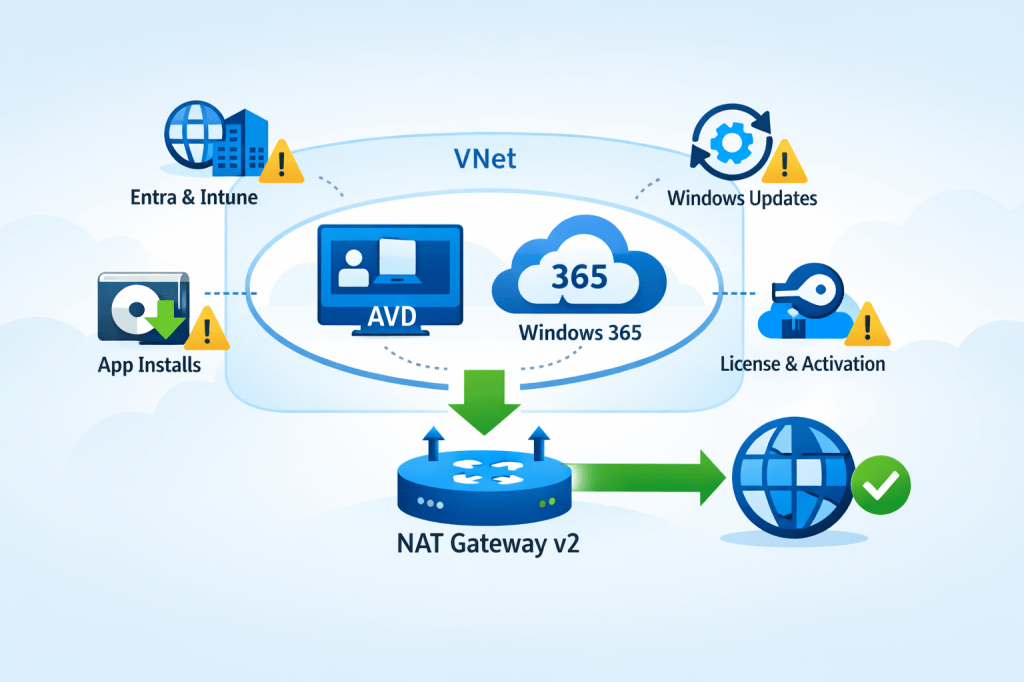
Architecture target
- You have a VNet with one or more EUC subnets (e.g.,
AVD-Hosts, CloudPCs)
- You attach one NAT Gateway v2 to those subnets
- All outbound traffic from those subnets egresses via the NAT’s public IP(s)
NAT Gateway is associated at the subnet level, and a subnet can only use one NAT gateway at a time (so plan accordingly).
Step 0: Confirm your subnet posture (private vs not)
After March 31, 2026, new VNets will default to private subnets.
In the subnet configuration in Azure:
- Find Default outbound access
- If you want the secure-by-default posture, set it Disabled (private subnet)
- Then ensure you provide explicit outbound (NAT Gateway)
Note: if you change an existing subnet’s default outbound access setting, existing VMs may need a stop/deallocate to fully apply the change.
Step 1: Create a StandardV2 Public IP
NAT Gateway v2 requires a StandardV2 Public IP.
Azure portal:
- Create Public IP address
- Set:
- SKU: StandardV2 (static)
- IP version: IPv4 (or dual-stack if required)
- Create it
Step 2: Create the NAT Gateway (StandardV2)
Azure portal:
- Create NAT gateway
- Set:
- SKU: StandardV2
- TCP idle timeout: leave default unless you have a reason
- On Outbound IP, attach the StandardV2 Public IP you created
- Create
Microsoft’s announcement emphasizes StandardV2 NAT Gateway is zone-redundant by default in AZ regions.
Step 3: Attach NAT Gateway v2 to your EUC subnet(s)
Now associate it with the subnets where your session hosts / Cloud PCs live.
Option A (from NAT Gateway):
- NAT Gateway → Networking → add VNet/subnet associations
Option B (from Subnet):
- VNet → Subnets → select subnet → set NAT gateway → Save
Once attached:
- VMs in that subnet gain outbound connectivity through the NAT Gateway
- Your egress IP becomes the NAT’s public IP (useful for allow-listing)
Step 4: Validate (don’t skip this)
For EUC, I like three quick validations:
- Effective routes
- Confirm the subnet has the expected path for internet-bound traffic (0.0.0.0/0) via the platform egress with NAT.
- Outbound IP check
- From a session host / Cloud PC, verify outbound IP matches your NAT public IP.
- EUC-specific smoke tests
- Windows activation / licensing behavior
- Windows Update connectivity
- Intune enrollment/sync (if applicable)
- Any app deployment mechanisms that pull from vendor CDNs
Remember: Microsoft explicitly warns that private subnets need explicit outbound for services like Windows activation/updates.
Common EUC deployment patterns (what I recommend)
Pattern A: “EUC spoke NAT” (simple + effective)
- Each EUC spoke VNet has a NAT Gateway v2 attached to EUC subnets
- Keep routing simple
- Use NSGs for egress control + consider NAT flow logs for visibility (where needed)
Pattern B: “Hub inspection + NAT scale”
If you route everything through a firewall/NVA for inspection, NAT Gateway can still be relevant in designs where you need scalable SNAT characteristics for outbound (especially when you’ve seen firewall SNAT constraints in the wild). This becomes an architecture conversation, but the key is: private subnets force you to be explicit, and NAT Gateway is the simplest explicit egress building block.
“Do this before March 31, 2026” checklist
For AVD admins, Windows 365 admins, and EUC architects:
- Identify where your org creates “new VNets” (projects, regions, subscriptions)
- Update your EUC network templates to include explicit outbound (NAT Gateway v2 is the default pick)
- Standardize an allow-listing approach using the NAT’s static public IP(s)
- Decide logging posture (do you want NAT flow logs for troubleshooting/top talkers?)
- Run a “new VNet” dry run now (don’t wait for the deadline)
- For Windows 365 ANC: confirm your provisioning pipelines won’t fail on new VNets without explicit outbound
Final thought: make your cloud consistent
This change is “secure by default,” but operationally it creates a nasty split-brain risk: old VNets behave one way, new VNets behave another.
The easiest way to keep EUC stable is to choose a consistent outbound pattern everywhere. For most AVD + Windows 365 environments, NAT Gateway v2 is the cleanest baseline: zone-resilient, scalable, and straightforward to operate.