Tag: Azure Virtual Desktop

  • March 31, 2026, is coming: New Azure VNets won’t have outbound internet by default — here’s the EUC-ready fix (NAT Gateway v2)

    March 31, 2026, is coming: New Azure VNets won’t have outbound internet by default — here’s the EUC-ready fix (NAT Gateway v2)

    The change that won’t hurt… until it does

    If you run Azure Virtual Desktop (AVD) or Windows 365 (Cloud PCs) in Azure, you’ve probably relied on a quiet convenience for years:

    Deploy a VM in a subnet and—without doing anything special—it can reach the internet.

    That “it just works” behavior is going away by default for new networks.

    Microsoft has confirmed that after March 31, 2026, newly created Azure Virtual Networks will default to private subnets, meaning no default outbound internet access unless you explicitly configure an outbound method.

    And here’s the trap: nothing breaks on day one. Your existing VNets keep working as they do today. Then, weeks later, someone builds a new VNet (or a new subnet), tries to deploy AVD session hosts or provision Cloud PCs… and suddenly:

    • Hosts can’t download what they need
    • Windows activation and updates don’t behave
    • Intune enrollment/sync gets weird
    • Provisioning workflows fail in ways that look like “AVD is broken” (it’s not)

    Microsoft explicitly notes that certain services (including Windows activation and Windows updates) won’t function in a private subnet unless you add explicit outbound connectivity.

    So, let’s make this change boring—in a good way. ✅


    What exactly is changing on March 31, 2026?

    ✅ What changes

    • New VNets created after March 31, 2026 will default to private subnets (Azure sets the subnet property defaultOutboundAccess = false by default).
    • Private subnets mean VMs do not get “default outbound access” to the internet or public Microsoft endpoints unless you configure an explicit egress method.

    ✅ What does not change

    • Existing VNets are not automatically modified.
    • New VMs deployed into existing VNets will continue to behave as those subnets are configured today, unless you change those subnets.

    Also important: you still have control

    Microsoft’s guidance is “secure by default,” but you can still configure subnets as non-private if you truly need to keep the default outbound behavior for a period of time.
    That said… for EUC, the better long-term move is to standardize on explicit outbound now.


    Why AVD and Windows 365 teams should care (more than most)

    EUC workloads have a long list of dependencies on outbound connectivity. A few high-impact examples:

    AVD session hosts

    • Agent/bootloader downloads and updates
    • Host registration and service connectivity
    • Windows activation + KMS / public activation flows
    • Windows Update / Defender updates
    • App install flows that fetch from internet endpoints (MSIX, Winget, vendor CDNs, etc.)
    • Telemetry and management paths (depending on your architecture)

    Windows 365 (Azure Network Connection / ANC)

    Microsoft is explicit here: for Windows 365 ANC deployments using VNets created after March 31, 2026, Cloud PC provisioning will fail unless outbound internet access is explicitly configured.

    So the question becomes: what’s the cleanest, most repeatable outbound design for EUC networks?


    Your outbound options (EUC decision guide)

    Azure recognizes several “explicit outbound” patterns.
    For EUC, these are the common ones:

    1) NAT Gateway (recommended default for most EUC spokes)

    Best when:

    • You want simple, scalable outbound for session hosts / Cloud PCs
    • You need a predictable egress IP for allow-lists
    • You don’t need deep L7 inspection for all traffic (or you’re doing that elsewhere)

    2) Firewall/NVA + UDR (hub-and-spoke inspection)

    Best when:

    • You need central inspection, TLS break/inspect, egress filtering at scale
      Trade-offs:
      • Complexity and cost
      • SNAT scaling considerations
      • You may still use NAT Gateway with firewall designs (more on that below)

    3) Standard Load Balancer outbound rules

    Best when:

    • You already have SLB, and outbound rules are a deliberate part of your design
      Trade-offs:
    • More moving parts than NAT Gateway for a simple “give the subnet internet” outcome

    4) Public IP per VM (usually a “no” for EUC)

    Trade-offs:

    • Operational overhead
    • Increased attack surface
    • Harder to govern at scale for pooled hosts / Cloud PCs

    For most AVD and Windows 365 environments, the sweet spot is:
    ➡️ NAT Gateway for outbound simplicity and scale.

    And now we have a better version of it.


    Enter NAT Gateway v2: the “make it simple” fix

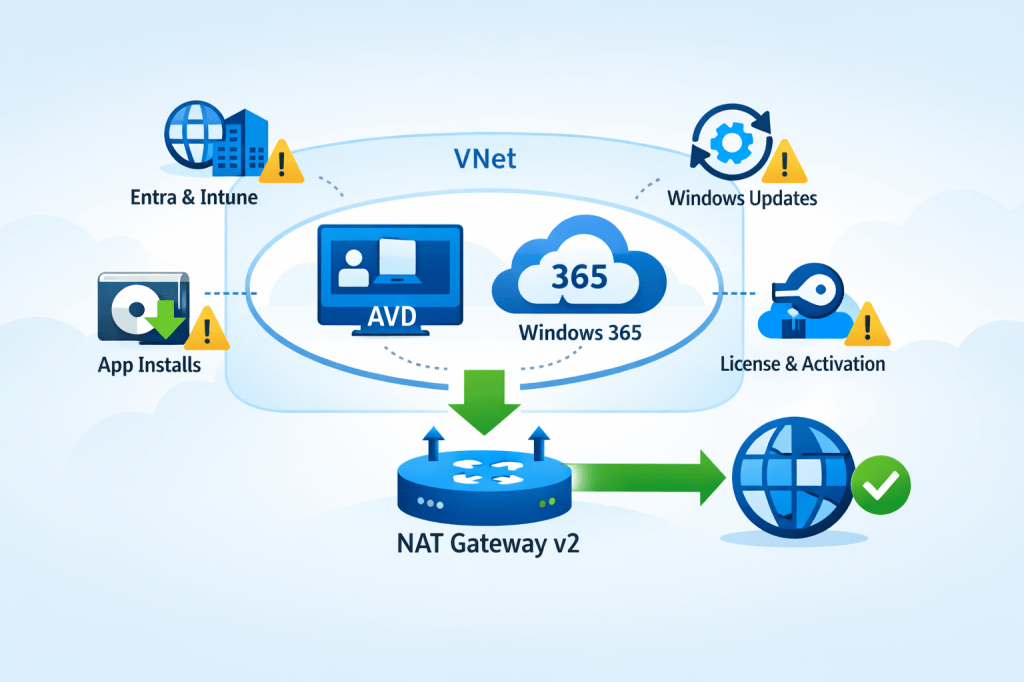
    Microsoft announced StandardV2 NAT Gateway and StandardV2 Public IPs to match it. The headline improvements are exactly what EUC architects care about:

    • Zone-redundant by default (in regions with Availability Zones)
    • Higher performance (Microsoft calls out up to 100 Gbps throughput and 10 million packets/sec)
    • IPv6 support
    • Flow logs support
    • Same price as Standard NAT Gateway (per Microsoft’s announcement)

    But know the gotchas

    From Microsoft’s NAT SKU guidance:

    • Requires StandardV2 Public IPs (Standard PIP won’t work)
    • No in-place upgrade from Standard → StandardV2 NAT Gateway (replace it)
    • Some regions don’t support StandardV2 NAT Gateway (check your target region list)

    If you’re designing for EUC scale + resilience, the zone redundancy alone is a big deal.


    Walkthrough: Deploy NAT Gateway v2 for AVD / Windows 365

    Below is a practical, EUC-focused setup using the Azure portal.

    Architecture target

    • You have a VNet with one or more EUC subnets (e.g., AVD-Hosts, CloudPCs)
    • You attach one NAT Gateway v2 to those subnets
    • All outbound traffic from those subnets egresses via the NAT’s public IP(s)

    NAT Gateway is associated at the subnet level, and a subnet can only use one NAT gateway at a time (so plan accordingly).


    Step 0: Confirm your subnet posture (private vs not)

    After March 31, 2026, new VNets will default to private subnets.

    In the subnet configuration in Azure:

    • Find Default outbound access
    • If you want the secure-by-default posture, set it Disabled (private subnet)
    • Then ensure you provide explicit outbound (NAT Gateway)

    Note: if you change an existing subnet’s default outbound access setting, existing VMs may need a stop/deallocate to fully apply the change.


    Step 1: Create a StandardV2 Public IP

    NAT Gateway v2 requires a StandardV2 Public IP.

    Azure portal:

    1. Create Public IP address
    2. Set:
      • SKU: StandardV2 (static)
      • IP version: IPv4 (or dual-stack if required)
    3. Create it

    Step 2: Create the NAT Gateway (StandardV2)

    Azure portal:

    1. Create NAT gateway
    2. Set:
      • SKU: StandardV2
      • TCP idle timeout: leave default unless you have a reason
    3. On Outbound IP, attach the StandardV2 Public IP you created
    4. Create

    Microsoft’s announcement emphasizes StandardV2 NAT Gateway is zone-redundant by default in AZ regions.


    Step 3: Attach NAT Gateway v2 to your EUC subnet(s)

    Now associate it with the subnets where your session hosts / Cloud PCs live.

    Option A (from NAT Gateway):

    • NAT Gateway → Networking → add VNet/subnet associations

    Option B (from Subnet):

    • VNet → Subnets → select subnet → set NAT gateway → Save

    Once attached:

    • VMs in that subnet gain outbound connectivity through the NAT Gateway
    • Your egress IP becomes the NAT’s public IP (useful for allow-listing)

    Step 4: Validate (don’t skip this)

    For EUC, I like three quick validations:

    1. Effective routes
    • Confirm the subnet has the expected path for internet-bound traffic (0.0.0.0/0) via the platform egress with NAT.
    1. Outbound IP check
    • From a session host / Cloud PC, verify outbound IP matches your NAT public IP.
    1. EUC-specific smoke tests
    • Windows activation / licensing behavior
    • Windows Update connectivity
    • Intune enrollment/sync (if applicable)
    • Any app deployment mechanisms that pull from vendor CDNs

    Remember: Microsoft explicitly warns that private subnets need explicit outbound for services like Windows activation/updates.


    Common EUC deployment patterns (what I recommend)

    Pattern A: “EUC spoke NAT” (simple + effective)

    • Each EUC spoke VNet has a NAT Gateway v2 attached to EUC subnets
    • Keep routing simple
    • Use NSGs for egress control + consider NAT flow logs for visibility (where needed)

    Pattern B: “Hub inspection + NAT scale”

    If you route everything through a firewall/NVA for inspection, NAT Gateway can still be relevant in designs where you need scalable SNAT characteristics for outbound (especially when you’ve seen firewall SNAT constraints in the wild). This becomes an architecture conversation, but the key is: private subnets force you to be explicit, and NAT Gateway is the simplest explicit egress building block.


    “Do this before March 31, 2026” checklist

    For AVD admins, Windows 365 admins, and EUC architects:

    • Identify where your org creates “new VNets” (projects, regions, subscriptions)
    • Update your EUC network templates to include explicit outbound (NAT Gateway v2 is the default pick)
    • Standardize an allow-listing approach using the NAT’s static public IP(s)
    • Decide logging posture (do you want NAT flow logs for troubleshooting/top talkers?)
    • Run a “new VNet” dry run now (don’t wait for the deadline)
    • For Windows 365 ANC: confirm your provisioning pipelines won’t fail on new VNets without explicit outbound

    Final thought: make your cloud consistent

    This change is “secure by default,” but operationally it creates a nasty split-brain risk: old VNets behave one way, new VNets behave another.

    The easiest way to keep EUC stable is to choose a consistent outbound pattern everywhere. For most AVD + Windows 365 environments, NAT Gateway v2 is the cleanest baseline: zone-resilient, scalable, and straightforward to operate.
  • Habit #3: Centralise and Automate Application Management

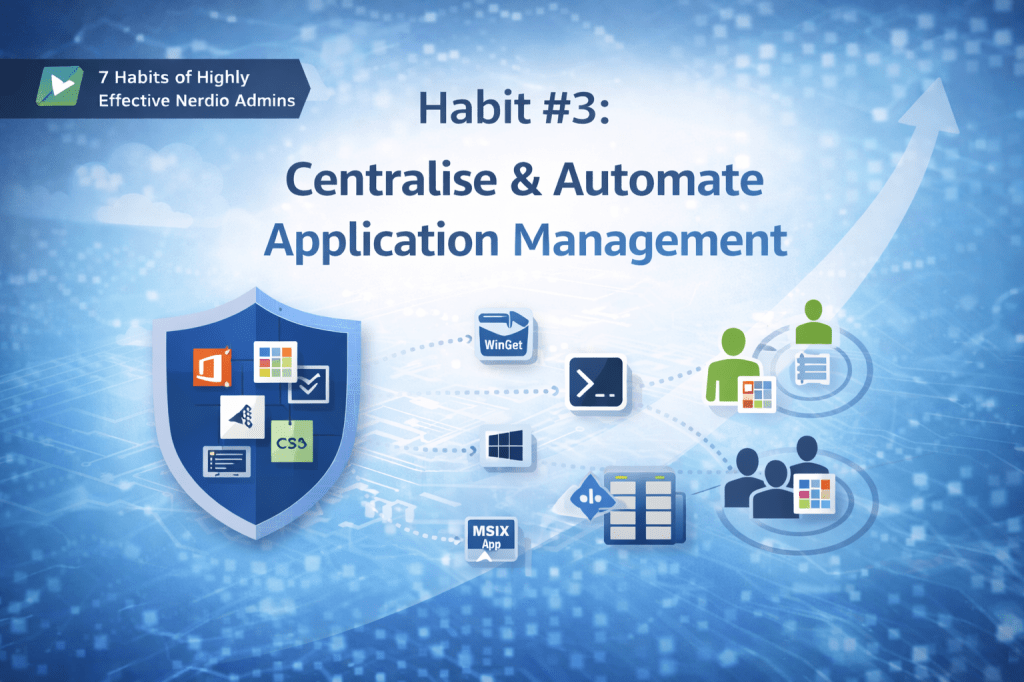
    Habit #3: Centralise and Automate Application Management

    Once desktop images are standardised and patching is automated, many environments hit the next friction point: application management.

    This is often where complexity quietly creeps back in.

    Applications are installed in different ways, updated inconsistently, and tied to specific images or host pools “just to make things work.” Over time, this undermines the stability gained from good image and patch discipline.

    Highly effective admins avoid this by treating application management as a centralised, automated operating model — not a collection of one-off installs.

    This is Habit #3.


    Why application sprawl undermines otherwise well-run environments

    In less mature AVD environments, application delivery tends to evolve organically:

    • Some apps are baked into images
    • Others are installed manually
    • Updates are handled inconsistently
    • Different teams use different tools

    Initially, this can feel flexible. At scale, it becomes fragile.

    Common symptoms include:

    • Bloated desktop images
    • Longer image rebuild and testing cycles
    • Unclear ownership of applications
    • Increased support tickets following updates

    The issue isn’t the tools — it’s the lack of a consistent operating model.


    The mindset shift: applications should not define your images

    Highly effective admins make a deliberate separation:

    Images provide the foundation. Applications provide the functionality.

    When applications are tightly coupled to images:

    • Every app update forces an image change
    • Testing effort increases
    • Rollbacks become harder and riskier

    Decoupling applications from images allows teams to:

    • Keep images minimal and stable
    • Update applications independently
    • Reduce the blast radius when something breaks

    This is where Nerdio Manager for Enterprise becomes a control plane for application delivery — not just a place to manage hosts.


    The three pillars of Habit #3

    Highly effective admins consistently apply three principles when managing applications.


    Pillar 1: Decouple applications from desktop images

    Images should change slowly. Applications often don’t.

    Highly effective admins:

    • Avoid baking applications into images unless there’s a clear technical reason
    • Keep images focused on OS configuration, runtimes, and baseline security
    • Allow applications to evolve independently of the image lifecycle

    This results in:

    • Faster image rebuilds
    • Lower testing overhead
    • More predictable recovery and rollback

    Key idea:

    Images provide stability. Applications provide flexibility.


    Pillar 2: Centralise app delivery into a single operating model

    Modern AVD environments require flexibility. Different applications need different deployment approaches.

    Highly effective admins embrace this reality — but they manage it centrally, rather than allowing application delivery to fragment.

    This may include:

    • Public or private WinGet packages
    • Scripted installs using Shell Apps or Scripted Actions
    • Intune-managed applications
    • MSIX app attach (where it makes sense)
    • Legacy tooling where required, such as SCCM

    The critical point isn’t which method is used — it’s that:

    • The choice is intentional
    • Deployment is automated
    • Behaviour is predictable

    Centralisation provides:

    • Clear visibility into how applications are delivered
    • Consistent update behaviour across environments
    • Faster troubleshooting when issues arise

    The result is flexibility without fragmentation.

    Key idea:

    Different tools. One control plane.


    Pillar 3: Assign applications by intent, not infrastructure

    A common anti-pattern is allowing application differences to dictate:

    • New images
    • New host pools
    • Environment-specific workarounds

    Highly effective admins avoid this by assigning applications based on intent, such as:

    • User role
    • Team or department
    • Business requirement

    Instead of asking:

    “Which host gets this app?”

    They ask:

    “Who actually needs this app?”

    This approach:

    • Reduces image and host pool sprawl
    • Simplifies onboarding and offboarding
    • Keeps environments easier to reason about

    Importantly, this does not require App Attach. User- or group-based assignment can be achieved through multiple delivery methods, with App Attach used selectively where it provides clear value.

    Key idea:

    Apps should be delivered by need — not by where a user logs in.


    Automate application updates deliberately

    Application updates are one of the most common sources of instability.

    Highly effective admins:

    • Automate updates where appropriate
    • Control timing and scope
    • Avoid surprise changes during business hours

    Just like OS patching, application updates work best when treated as a repeatable workflow, not an ad-hoc task.

    Automation doesn’t remove control — it formalises it.


    The operational payoff

    When application management is centralised and automated:

    • Images remain lean
    • Updates become predictable
    • Rollbacks are simpler
    • Administrative effort drops significantly

    More importantly, teams gain confidence to:

    • Introduce new applications faster
    • Standardise environments
    • Scale without increasing complexity

    How Habit #3 builds on Habits #1 and #2

    Habit #3 only works because the earlier habits are already in place:

    • Habit #1 stabilises the image
    • Habit #2 stabilises the host lifecycle

    With those foundations:

    • Applications can be delivered independently
    • Updates don’t force image rebuilds
    • Failures are isolated and recoverable

    Each habit compounds the value of the last.


    Final thoughts

    Highly effective Nerdio admins don’t let applications drive infrastructure design.

    They:

    • Decouple applications from images
    • Centralise delivery
    • Assign applications by intent
    • Automate updates predictably

    This is how AVD environments remain flexible without becoming fragile.


    This article is part of an ongoing series exploring the 7 Habits of Highly Effective Nerdio Admins. Upcoming deep-dives will cover autoscale optimisation, right-sizing, and cost visibility.

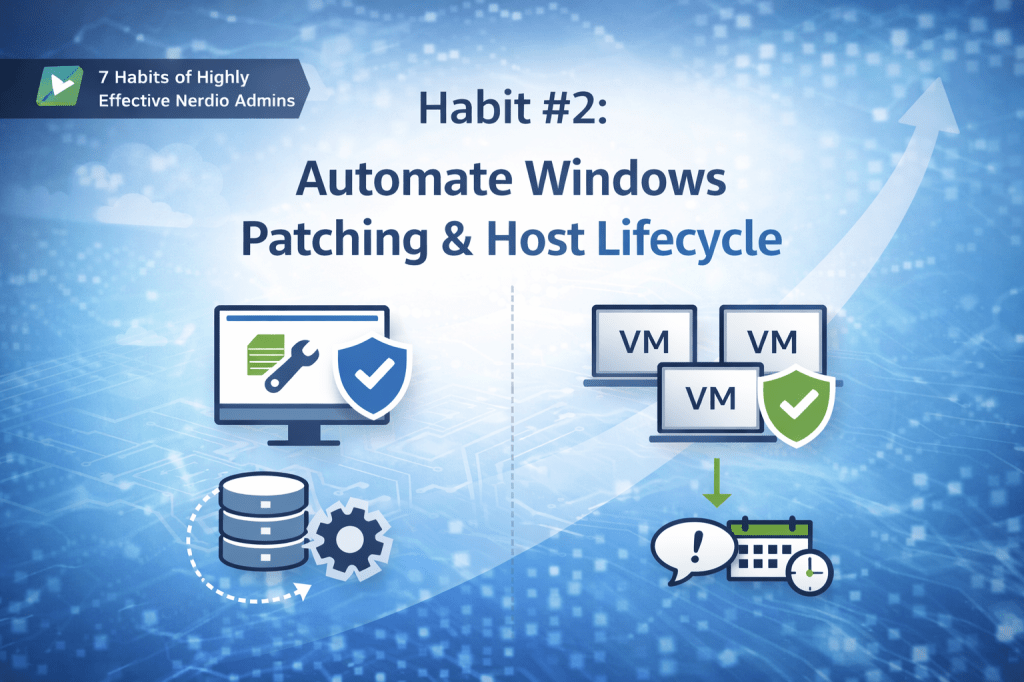
  • Habit #2: Automate Windows Patching and Host Lifecycle

    Habit #2: Automate Windows Patching and Host Lifecycle

    Once desktop image management is standardised, most teams turn their attention to the next operational challenge: Windows patching.

    This is where many Azure Virtual Desktop environments begin to struggle.

    Manual patching is time-consuming, disruptive, and inconsistent. It often relies on individual knowledge, late-night maintenance windows, and a degree of luck. Highly effective admins take a different approach — they design patching as an automated, repeatable lifecycle, not a monthly fire drill.

    This is Habit #2.


    Why patching becomes a bottleneck at scale

    In smaller environments, manual patching can feel manageable. As environments grow, the cracks start to show.

    Common symptoms include:

    • Hosts patched at different times
    • Inconsistent patch levels across pools
    • Long or unpredictable maintenance windows
    • Uncertainty about what’s actually been updated

    The real issue isn’t effort — it’s risk. Inconsistent patching weakens security posture, complicates troubleshooting, and undermines confidence in automation elsewhere.


    The mindset shift: patching is a workflow, not a task

    Highly effective admins don’t think about patching as:

    “Applying updates to machines.”

    They think about it as:

    “A controlled workflow that updates images and hosts predictably.”

    That shift matters.

    When patching is treated as a workflow, you gain:

    • Predictability
    • Auditability
    • Confidence to automate safely

    This is where Nerdio Manager for Enterprise becomes an enabler rather than just a scheduling tool.


    One size does not fit all: patching strategy depends on host pool type

    One of the most common mistakes I see is applying the same patching strategy to every host pool, regardless of how it’s used.

    Highly effective admins make a clear distinction based on host pool type.


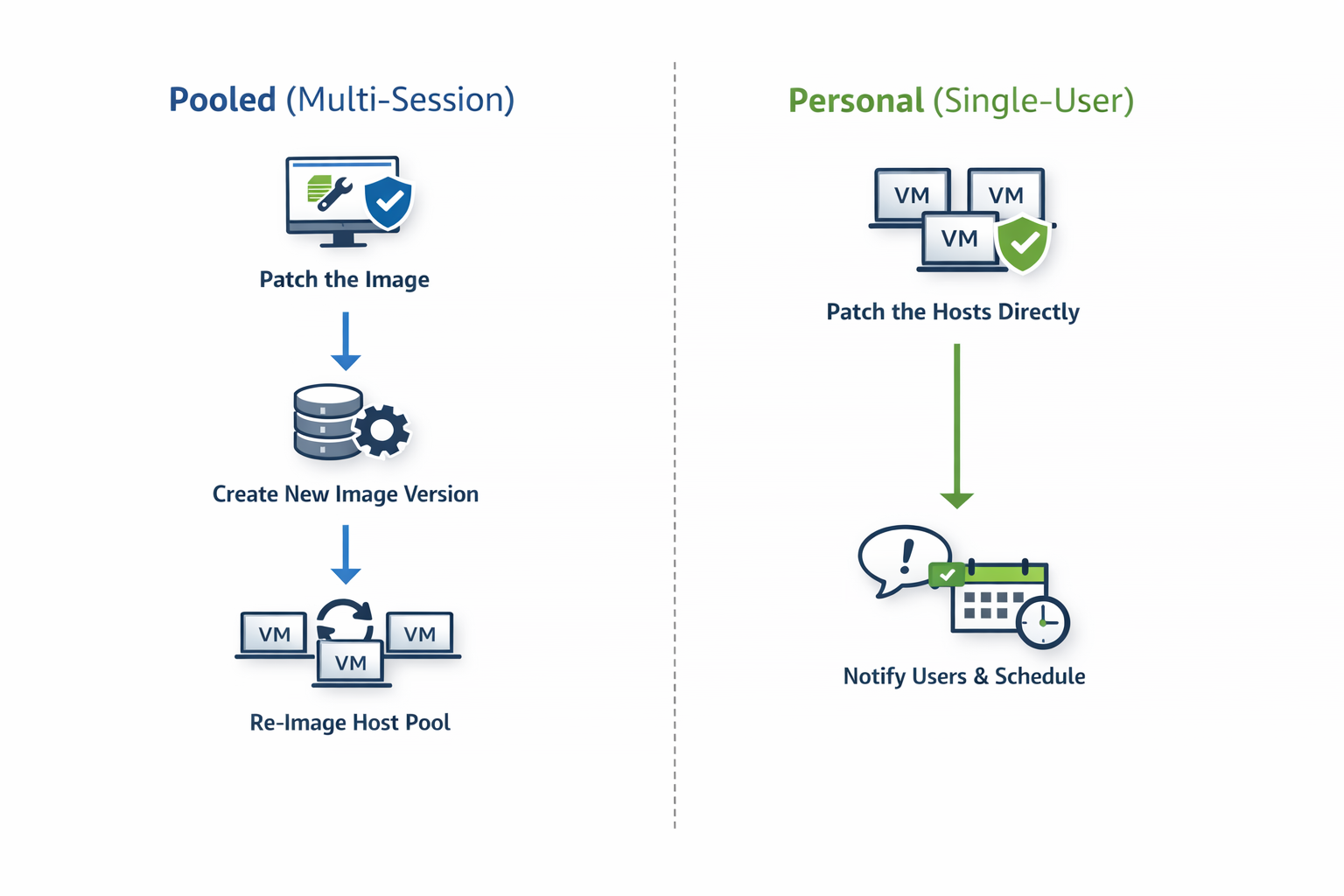
    Multi-session (pooled) host pools

    For multi-session environments, the recommended approach is simple:

    Patch the desktop image and re-image the session hosts

    This aligns naturally with how pooled AVD environments are designed.

    Why this works so well:

    • Session hosts are disposable by design
    • User data lives outside the VM (for example, FSLogix)
    • Re-imaging restores a clean, known-good baseline

    This approach delivers:

    • Consistent patch levels across all hosts
    • Faster recovery from issues
    • Cleaner environments over time

    In mature pooled environments, re-imaging is not disruptive — it’s expected.


    Personal host pools

    Personal desktops are fundamentally different.

    Because:

    • Each VM is tied to an individual user
    • Local applications or user-specific state may exist on the VM

    The recommended approach is:

    Patch the session hosts directly

    Re-imaging personal desktops can introduce unnecessary risk and user disruption. Patching hosts in place preserves:

    • User data
    • Personal configuration
    • Application state

    When combined with:

    • Drain mode
    • User notifications
    • Controlled scheduling

    …this approach keeps personal desktops secure without breaking the user experience.

    pooled vs personal patching

    The guiding principle

    Highly effective admins follow a simple rule:

    • If the host is disposable → patch the image and rebuild
    • If the host contains user state → patch the host directly

    This decision is baked into their operating model, not revisited every month.


    Why Patch Tuesday still matters

    Automation doesn’t mean patching at random.

    Highly effective admins align patching to:

    • Microsoft’s Patch Tuesday cadence
    • A predictable offset (for example, a few days later)
    • Known maintenance windows

    This creates:

    • Operational rhythm
    • Predictable change windows
    • Fewer surprises for users and support teams

    Automation doesn’t remove control — it formalises it.


    Automating the host lifecycle safely

    Patching doesn’t exist in isolation. It directly affects:

    • Host availability
    • User experience
    • Auto-scale behaviour

    That’s why effective admins automate patching together with host lifecycle controls, such as:

    • Draining sessions before maintenance
    • Controlling concurrency
    • Aborting safely after defined failures
    • Re-imaging hosts in a controlled sequence

    The objective isn’t speed — it’s controlled change at scale.


    The operational payoff

    When patching and host lifecycle management are automated correctly:

    • Hosts remain consistent
    • Security posture improves
    • Maintenance becomes predictable
    • Admin effort drops dramatically

    More importantly, teams gain confidence to:

    • Scale environments
    • Trust automation
    • Focus on optimisation rather than upkeep

    How this builds on Habit #1

    Habit #2 only works because Habit #1 exists.

    Without:

    • Standardised images
    • Versioning
    • Clear governance

    …patch automation becomes risky.

    With those foundations in place, patching becomes:

    • Safe
    • Repeatable
    • Boring (in the best possible way)

    Final thoughts

    Highly effective Nerdio admins don’t patch reactively.

    They:

    • Choose the right patching strategy per host pool
    • Align to predictable schedules
    • Automate patching as a lifecycle
    • Let the platform do the heavy lifting

    This is where operational maturity starts delivering real returns.


    This article is part of an ongoing series exploring the 7 Habits of Highly Effective Nerdio Admins. Upcoming deep-dives will cover application management, autoscale optimisation, right-sizing, and cost visibility.

  • Goodbye Hidden Single Points of Failure: AVD Regional Host Pools Explained

    Goodbye Hidden Single Points of Failure: AVD Regional Host Pools Explained

    What would you do if Azure went down in your region today?
    Not a total global outage — but a partial, messy one where your VMs are healthy, storage is fine, yet users still can’t connect.

    This scenario is why Microsoft has introduced Regional Host Pools for Azure Virtual Desktop, now available in public preview.

    This is not about making your session hosts multi-region.
    It is about removing a long-standing single point of failure in the AVD control plane.

    Let’s break down what’s changed, why it matters, and how to start using it.


    Azure resilience isn’t one thing — it’s layered

    Microsoft Azure resilience works across multiple layers:

    • Global geographies
    • Regions
    • Availability zones
    • Datacentres

    Some services (like Azure DNS or Front Door) are fully global.
    Others — virtual machines and storage — are tied to a region.

    AVD has always sat somewhere in between.

    • The control plane (metadata, brokering, app groups, workspaces) is globally distributed
    • But metadata databases were shared at a geography level

    That meant a database issue in one region could affect host pools in entirely different regions.

    Regional Host Pools are Microsoft’s fix for that architectural risk.


    What are Regional Host Pools?

    Historically, all AVD host pools used a geographical deployment model, where metadata was stored in a shared database for an entire Azure geography.

    With Regional Host Pools:

    • Each supported Azure region gets its own AVD metadata database
    • Metadata is still:
      • Replicated across availability zones
      • Replicated to a paired region for disaster recovery
    • But cross-region dependencies are removed

    The result:

    • Outages are isolated to a single region
    • The AVD control plane becomes significantly more resilient
    • You gain explicit control over where metadata lives

    This is especially important for:

    • Regulated industries
    • Public sector
    • Customers with strict data sovereignty requirements

    What actually changes when you deploy one?

    Functionally? Almost nothing.

    Architecturally? A lot.

    The only visible difference during deployment is a new field:

    Deployment Scope

    • Geographical (legacy)
    • Regional (new)

    Everything else — host pool type, validation environment, assignment type — stays the same.

    ⚠️ This does not:

    • Make session hosts multi-region
    • Replicate FSLogix profiles
    • Replace Azure Site Recovery

    It only hardens the AVD control plane.


    Public preview details (important)

    During preview:

    • Supported regions:
      • East US 2
      • Central US
    • Metadata is replicated between those paired regions
    • More regions will be added gradually as the service approaches GA

    Unsupported features (for now):

    • Session host configuration & updates
    • Dynamic autoscaling
    • Private Link
    • App Attach (still geographical only)
    • Log Analytics errors & checkpoints for regional hosts

    These will hopefully be fix by the time this feature goes GA.


    Enabling the preview

    Azure Portal

    1. Go to Subscriptions
    2. Select your subscription
    3. Settings → Preview features
    4. Register: AVD Regional Resources Public Preview

    PowerShell

    Register-AzProviderFeature `
    -ProviderNamespace Microsoft.DesktopVirtualization `
    -FeatureName AVDRegionalResourcesPublicPreview

    If you’re deploying via PowerShell, you’ll also need:

    • Az.DesktopVirtualization 5.4.5-preview
    • The -DeploymentScope Regional parameter

    Can you convert existing host pools?

    Not yet.

    Currently, you have three options:

    • Wait for Microsoft’s upcoming migration tooling
    • Create a new regional host pool, then:
      • Generate a new registration token
      • Reinstall the AVD agent
      • Move hosts across
    • Use this in testing and labs only (the safest option during preview)

    Also note:

    • Regional objects cannot be linked to geographical ones
    • Host pools, app groups, and workspaces must all share the same deployment scope

    Why this really matters

    Microsoft has been very clear:

    Regional host pools are the future of Azure Virtual Desktop.

    At some point:

    • Creating geographical host pools will be blocked
    • Geographical infrastructure will be retired
    • Regional will be the default — and the expectation

    This change:

    • Removes a hidden single point of failure
    • Improves outage isolation
    • Gives customers real control over metadata placement

    It’s one of the most meaningful architectural improvements AVD has had in years.


    Final thoughts

    If you’re running production workloads today:

    • Start planning your transition
    • Track feature parity as preview limitations close
    • Begin using regional host pools for new environments

    This isn’t a flashy feature — but it’s a foundational one.
    And those are usually the changes that matter most.