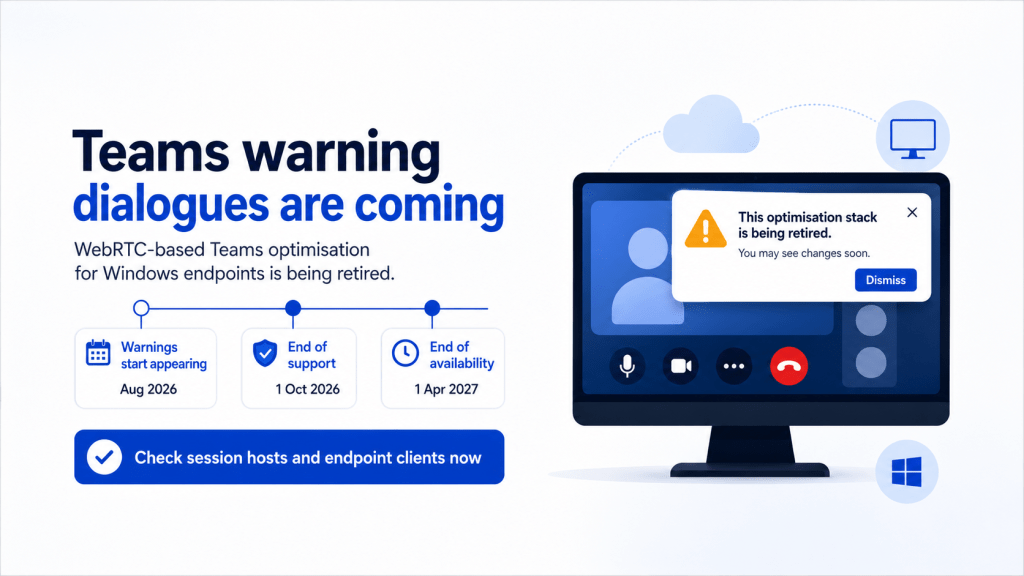
Sometime in early August, some of your users are going to open Teams inside their session and get a dialogue box they’ve never seen before. It’s dismissible, so most of them will close it and carry on. A few will raise a ticket.
That dialogue is the first visible step in retiring the WebRTC-based Teams optimisation for Windows endpoints. Microsoft set it out in Message Center post MC1239928, and it covers Azure Virtual Desktop, Windows 365 and Citrix.
What what makes this different from most deprecations? The work isn’t really on the session host. It’s on the endpoint. And endpoints are usually the part of the estate you control least, especially if you’ve got thin clients, contractors, or people connecting from their own machines.
This post covers what’s changing, the requirements at both ends, how to check where you actually stand today, and what stops the new stack working in locked-down environments.
The two milestones
The dates straight from the documentation.
1 October 2026, End of Support. WebRTC-based optimisation carries on working, but Microsoft and Citrix no longer support it when the connection comes from a Windows endpoint. Two months before this, users see dismissible dialogues at application launch. That’s the August dialogue.
1 April 2027, End of Availability. WebRTC stops working and the new optimisation is enforced. Two months before this one, the warning becomes a modal dialogue rather than a dismissible one. Legacy optimisation policies stop taking effect entirely.
So there’s a six month window where the old stack still works but nobody will help you if it breaks. Plan for April. Treat October as the date support disappears, not the date you start looking at it.
What replaces it, and why it’s actually worth having
The new optimisation is built on SlimCore, a media engine that ships as an MSIX package and runs on the endpoint rather than inside the session.
The feature gap is wider than I expected when I first read through it. Things the new stack does that WebRTC never did:
- 1080p video
- Hardware acceleration on the endpoint
- Gallery view at 3×3 and 7×7
- Quality of Service
- Presenter mode
- User-uploaded background effects, and organisational custom backgrounds with a Teams Premium licence
- Media bypass, location-based routing and Operator Connect
- Full Call Quality Dashboard and Teams admin center reporting, where WebRTC only gave you limited data
The last one is the most useful for anyone running a service desk. If you’ve ever had a call quality complaint from a virtual desktop user and had almost no telemetry to work with, that changes.
So this isn’t a deprecation that costs you features. It’s a deprecation that gives you a better product, provided you get the prerequisites lined up.
The requirements sit at both ends
This is where teams can get caught out. There are two version floors, and they’re in different places managed by different people.
On the session host or Cloud PC, you need Microsoft Teams 24193.1805.3040.8975 or higher for Azure Virtual Desktop and Windows 365. If you’re patching Teams as part of your image pipeline, you’re probably fine already.
On the endpoint, you need Windows App for Windows 2.0.352.0 or higher. The Remote Desktop client for Windows is no longer supported at all; the guidance is to move to Windows App. The endpoint also needs Windows 10 1809 as an absolute floor, four cores at 1.10 GHz, and 4 GB of RAM.
Two details worth pulling out.
Thin clients are explicitly covered. Windows 10 LTSC 2019 and 2021, and Windows 11 LTSC 2024, are supported as endpoints. So a thin client estate isn’t a blocker on OS grounds, though the CPU and RAM minimums are worth checking against whatever you bought three years ago. Note that this is an endpoint allowance only; LTSC is a different story on the session host side, where the Teams desktop app isn’t supported on it.
Mac endpoints have a trap in them. You need Windows App for Mac 11.3.4 or higher, and it must be the non-App Store version, the standalone .pkg. The App Store build doesn’t bundle the plugin, so those users stay on WebRTC no matter what else you do. If you’ve got Mac users who installed Windows App themselves from the App Store because that was the obvious route, they’re on the wrong build and nothing in your management tooling will tell you.
The plugin itself, MsTeamsPluginAvd.dll, comes bundled with Windows App. You don’t deploy it separately for AVD or Windows 365.
How to find out where you actually stand
Before you plan anything, get the current state. There are a few ways in, and they answer different questions.
Inside a session, the VDI Status Indicator sits at the top left of the Teams interface. You can also go to the ellipsis, then Settings, then About. What you’re looking for is one of two strings:
AVD SlimCore Media Optimizedmeans you’re on the new stackAVD Media Optimizedmeans you’re still on WebRTC
That’s your quickest sanity check, and the one to give your service desk. If a user rings up in September asking about a dialogue box, the engineer can read the indicator and know immediately which side of the migration that user sits on.
On the endpoint itself, SlimCore installs as an MSIX package into C:\Program Files\WindowsApps, which is locked down. Don’t go changing ACLs to look inside it. List the packages instead:
Get-AppxPackage Microsoft.Teams.SlimCore*
On a working endpoint with the current split package architecture you’ll get back two entries, something like Microsoft.Teams.SlimCoreVdiHost.win-x64 and Microsoft.Teams.SlimCoreVdiFwk.win-x64.<version>. Nothing returned means SlimCore never installed, and that’s your signal to look at the next section.
Neither of those scales, though. For a fleet view, if your endpoints are Intune-managed then the Windows App version is discoverable, and that’s the number that gates everything else. Start there rather than trying to survey Teams sessions one at a time.
The MSIX trap in locked-down estates
This is the part I’d flag hardest, because it fails quietly and it fails specifically in the environments that are most tightly managed. Which is to say, the ones most likely to be running virtual desktops in the first place.
SlimCore is fetched by the plugin and staged onto the endpoint as an MSIX package. That happens with no admin rights, no reboot, and no prompt. It relies on the App Readiness Service on the endpoint.
If AppLocker, WDAC, or Group Policy blocks non-admin packaged app installation, the staging fails and Teams falls back to WebRTC. The user sees nothing; the failure lands in Event Viewer on the endpoint, as an install error. So unless someone is looking there, they simply don’t get optimised, and after April they get server-side rendering instead.
The specific policy to look for is the one that prevents non-admin users installing packaged Windows apps. If you’ve got BlockNonAdminUserInstall enabled, you can still allow SlimCore through, but you need a recent enough Windows build for the allow-list policy to exist: KB5052094 for Windows 11 23H2 and 22H2, KB5052093 for Windows 11 24H2, KB5055612 for Windows 10 22H2, or anything later.
That introduces a Group Policy called “Allowed package family names for non-admin user install”, under Computer Configuration, Administrative Templates, Windows Components, App Package Deployment. Allow-list the SlimCore package family names. There are two of them now, because the installer was split into a Host package and a Framework package, so a regex is cleaner than listing them:
Microsoft.Teams.SlimCoreVdi*.*_8wekyb3d8bbwe
If you’re running kiosk or assigned access configurations with a per-application AllAppList, SlimCore follows the UWP model, so it needs an entry there too:
<App AppUserModelId="Microsoft.Teams.SlimCoreVdiHost.win-x64_8wekyb3d8bbwe!MsTeamsVdi" />
This isn’t too difficult. It’s just invisible until you go looking, and it sits with whoever owns endpoint policy, who may not be the person reading the Teams Message Center post.
What “not optimised” actually costs you
Worth being precise about the failure mode, because it changes how you prioritise this.
After End of Availability, if Teams can’t optimise, it falls back to server-side rendering. All the multimedia processing happens on the virtual machine.
So it isn’t only a user experience problem. It’s a capacity problem. Media processing on the session host eats CPU you sized for something else, and on a pooled host that cost is shared with everyone else on the box. A handful of unoptimised users on a busy host pool will be felt by people who did nothing wrong.
If you’ve done any careful sizing work, or you’re running auto-scaling with tuned thresholds, this is the bit to take seriously. Unoptimised Teams calls change the shape of your load.
A staged plan that fits in the time available
You’ve got until April, and the work splits reasonably cleanly.
Start now, before the August dialogues, by getting your Windows App version distribution. That single number tells you the size of the problem. While you’re there, check the Teams version on your images so you can rule the session host side in or out.
Before October, brief the service desk. Give them the two status indicator strings and a one-line explanation of the dialogue, so the first wave of tickets closes in thirty seconds instead of escalating to you.
Before Christmas, deal with the awkward cohorts. Mac users on the App Store build. Thin clients that might not meet the CPU or RAM floor. Anything still on the old Remote Desktop client. These take longer than they look, because they usually involve someone else’s budget or someone else’s device.
Then in Q1, validate the MSIX path in your locked-down configurations and confirm end to end on a real endpoint of each type you support. Get-AppxPackage plus the status indicator is enough evidence.
Wrapping up
The headline is a deprecation, but the substance is an upgrade. SlimCore brings 1080p, QoS, hardware acceleration and proper call quality telemetry to virtual desktops, and those are things people have been asking for on AVD for years.
The risk isn’t the technology. It’s that this deprecation lands on the endpoint rather than the session host, so it can fall between two teams and get discovered by users instead of by you. Two months of dismissible dialogues is a generous warning, and it’s aimed at your users rather than your inbox, which is exactly why it’s worth getting ahead of.
If you only do one thing this week, pull your Windows App version numbers. Everything else follows from that.
Have you started auditing your endpoints for this yet? I’d be interested to hear whether the Mac App Store build has caught anyone else out, because I suspect that one is more common than people realise.
