Category: Entra ID

  • How to run Azure Virtual Desktop with cloud-only and external identities using FSLogix

    How to run Azure Virtual Desktop with cloud-only and external identities using FSLogix

    If you’ve ever tried to stand up Azure Virtual Desktop in a properly cloud-native tenant, with no on-premises Active Directory and no Entra Domain Services, you’ll know where it falls over. Not the session hosts. Not the networking. The profiles.

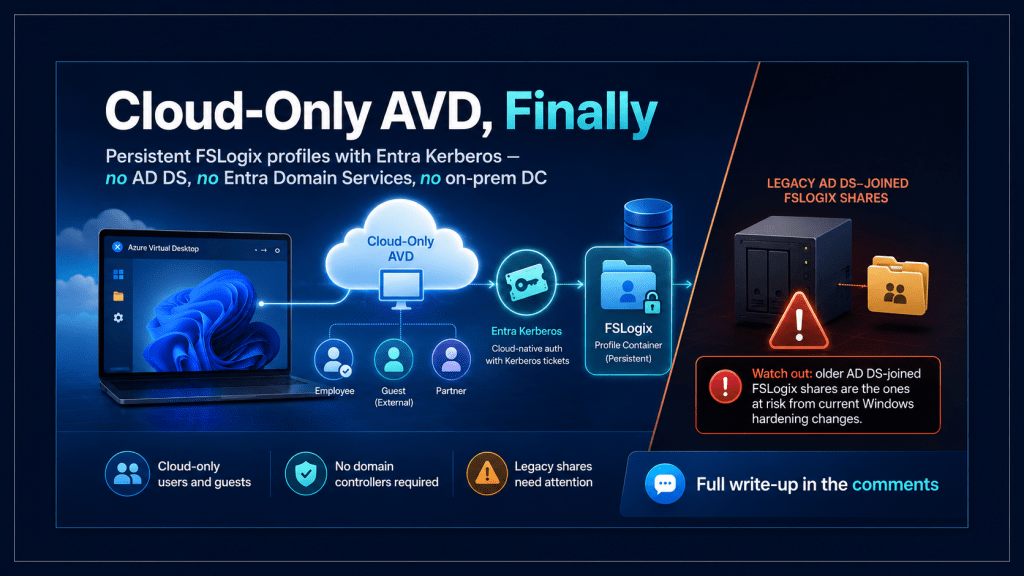
    FSLogix has needed some form of Active Directory for years, which made it the one component that kept dragging a “cloud-only” AVD design back towards a domain controller. That’s now changed. FSLogix profile containers on Azure Files can authenticate with Microsoft Entra Kerberos, which means cloud-only users, and even external guest users, can get a real, persistent profile with no domain controller anywhere in the picture.

    This post covers how to set that up end-to-end. It also covers the part that isn’t in the announcement posts: a Windows Kerberos hardening change landing in 2026 that can break FSLogix profile access on Active Directory-integrated storage, including shares you built years ago. It’s a good reason to understand the cloud-only path, because that path sidesteps the whole problem. Read that section before you touch production.

    The problem cloud-only AVD always hit

    FSLogix works by redirecting the user’s profile into a VHD(X) container on an SMB file share, then attaching it at sign-in. On a pooled host pool, that’s what gives a user the same desktop, settings, and Outlook cache on whichever session host they land on.

    The catch was always authentication to that file share. Azure Files historically required on-premises AD DS or Entra Domain Services to handle the Kerberos side. In a tenant that had neither, your options were ugly: stand up Entra Domain Services purely to host profiles, or accept that cloud-only and guest users got a fresh temporary profile every session. No roaming, no persistence, no cached sign-ins. For a genuinely cloud-first organisation, that was the line item that stopped the whole design from being clean.

    What Entra Kerberos changes

    Microsoft Entra Kerberos lets Entra ID issue the Kerberos tickets needed to reach an Azure Files share over SMB, without any domain controller involved. Applied to FSLogix, which unlocks three identity types on Azure Files:

    • Hybrid identities from Entra joined, or Entra hybrid joined session hosts, with no network line-of-sight to a domain controller. Supported in Azure commercial, Azure for US Government, and Azure operated by 21Vianet.
    • Cloud-only identities (users who only exist in Entra ID and never in an on-premises AD).
    • External identities (B2B guests invited into your tenant).

    The cloud-only and external paths are supported in the Azure commercial cloud only. If you’re running in US Gov or 21Vianet, only the hybrid path is available to you, so don’t design around cloud-only profiles there.

    The practical upshot: a pure Entra-joined session host can now load a persistent FSLogix profile for a user who has never existed in an on-premises directory. That’s the missing piece for cloud-native AVD, and it’s genuinely useful for any estate that hands desktops to contractors or partners as guests.

    Read this first: the RC4 to AES-SHA1 change

    Here’s the bit that isn’t in the launch coverage, and the reason I’d check your existing estate before building anything new.

    Starting with the April 2026 Windows cumulative update, Kerberos default behaviour changes. When an Active Directory object’s encryption type is left unset (null), Windows defaults to AES-SHA1 instead of the legacy behaviour that often landed on RC4. This is a Windows platform security change tied to CVE-2026-20833, and to be clear, the Azure Virtual Desktop service itself isn’t being modified.

    The thing to understand is what’s actually in scope. This affects FSLogix profile storage that authenticates over SMB integrated with Active Directory: on-premises AD, a NAS, a file server, or Azure Files joined to AD DS, where the relevant AD objects or service accounts are RC4-only or have encryption left null. If a dependent system doesn’t support AES-SHA1 for Kerberos, authentication can fail, and profiles can stop loading.

    Notice what’s not on that list: a pure Entra Kerberos, cloud-only share. Entra Kerberos isn’t AD Kerberos, so by the mechanism described, the cloud-only path in this post sidesteps this particular change. The deployments most exposed are the older, domain-joined FSLogix shares, exactly the ones a cloud-native design is trying to move away from. If you’re migrating off a hybrid AD DS setup, the legacy share is the thing to remediate before you decommission it.

    One caveat on that, because the two Microsoft sources don’t word it identically. The FSLogix product documentation states the warning more broadly: file shares hosting FSLogix containers that aren’t upgraded to AES-SHA1 might have access issues, and customers who have already moved to AES-SHA1 aren’t affected. The detailed hardening blog is the one that ties the actual mechanism to AD object encryption and AD-integrated SMB storage. I read the technical scope as AD-Kerberos paths, which is why I’m calling out the domain-joined shares specifically, but the safe operational rule Microsoft is pushing is simpler: make sure any Azure Files share holding FSLogix profiles is on AES-SHA1, and validate it, rather than assuming you’re exempt. If you’re not certain which Kerberos path a given share uses, treat it as in scope and check.

    The timeline matters. From April 2026, enforcement mode is the default on domain controllers, with audit mode available as a manual rollback until July 2026. From July 2026, audit mode is removed, and enforcement is the only option. Microsoft recommends remediating by the end of June 2026, especially for non-Azure Files SMB storage and Azure Files with AD DS.

    So before anything else: identify RC4 usage and null encryption settings on the AD objects tied to your FSLogix storage, move them to AES-SHA1, and validate sign-in and profile load end-to-end. Microsoft’s FSLogix blog (“Action required: Windows Kerberos hardening (RC4) may affect FSLogix profiles on SMB storage”) is worth ten minutes before any of the steps below.

    Setting it up: the storage account

    With that warning logged, here’s the build. Start with the Azure Files side.

    First, a constraint that catches people out: a storage account can authenticate with one identity method only. Entra Kerberos, or AD DS, or Entra Domain Services, not a mix. If your account is already wired to AD DS for an existing share, you can’t bolt Entra Kerberos onto the same account.

    The sequence on the storage account is:

    1. Create the storage account and an Azure Files share for the profiles, if you don’t already have them.
    2. Enable Microsoft Entra Kerberos authentication on the storage account. This creates the Entra ID app registration for the account and lets you assign permissions to Entra groups.
    3. Assign share-level permissions, either through the default share-level permission on the identity source page or with Azure RBAC roles.
    4. Configure the directory and file-level permissions for the profile containers, following Microsoft’s recommended FSLogix permission set, so users can create and use their own profile while admins retain management access. For cloud-only and external users, you do this through the Manage access control on the share.
    5. Grant admin consent to the new service principal, so users can request Entra tokens for the storage account.
    6. Disable multifactor authentication on the storage account.

    That last one always raises an eyebrow, so it’s worth being clear about why. The Kerberos ticket is acquired silently during sign-in, and there’s no interface at that point to perform a step-up MFA prompt. If MFA is enforced on the storage account, the silent ticket request fails, and the profile won’t mount. You’re not weakening user sign-in MFA here; Conditional Access on the user still applies. You’re allowing the storage account’s own token acquisition to complete without a step-up, it has no way to satisfy.

    Setting it up: the session host

    Now the session host. The profile won’t attach until the host knows to fetch a cloud Kerberos ticket at logon.

    Enable CloudKerberosTicketRetrievalEnabled using whichever of these fits your management approach:

    • Intune Settings Catalog (the modern route): the Kerberos Policy CSP setting CloudKerberosTicketRetrievalEnabled. Worth noting that Windows multi-session client editions now support this setting when it’s applied through the Settings Catalog, which wasn’t always the case.
    • Group Policy: Administrative Templates\System\Kerberos\Allow retrieving the cloud kerberos ticket during the logon.
    • Registry, if you’re baking it into an image:
    reg add HKLM\SYSTEM\CurrentControlSet\Control\Lsa\Kerberos\Parameters /v CloudKerberosTicketRetrievalEnabled /t REG_DWORD /d 1

    Next, let the FSLogix credential keys roam. When you use Entra ID with a roaming profile, the Credential Manager keys have to belong to the profile that’s currently loading, otherwise you’re effectively pinned to one machine. Set:

    reg add HKLM\Software\Policies\Microsoft\AzureADAccount /v LoadCredKeyFromProfile /t REG_DWORD /d 1

    Then the FSLogix configuration itself. If your session hosts were built by the Azure Virtual Desktop service, FSLogix is already installed. Set the usual two values:

    • Enabled = 1
    • VHDLocations = \\<storage-account-name>.file.core.windows.net\<file-share-name>

    Sign in with a test account that’s been assigned to an app group on the host pool and has permission to the share. If it’s worked, you’ll see a directory on the share named like <user SID>_<username>. Use a fresh test account, or enable DeleteLocalProfileWhenVHDShouldApply, so an existing local profile doesn’t mask whether the container is actually mounted.

    The cloud-only step everyone misses

    If your users are cloud-only and you assign share access by Entra group, there’s one more step that is easy to skip and fails silently when you do.

    You have to add an app manifest tag to the storage account’s Entra app registration so that Entra includes cloud-only group SIDs in the Kerberos ticket. Without it, Entra only puts on-premises group SIDs in the ticket; your cloud-only groups never appear, and group-based permissions to the share simply don’t take effect. No error that points to the cause, just access that doesn’t work.

    In the app registration manifest, add kdc_enable_cloud_group_sids to the tags array. This step is mandatory for cloud-only identities. Hybrid identities don’t need it, which is exactly why it catches people moving from a hybrid design to a cloud-only one. The thing that worked before now quietly doesn’t, and the difference is one manifest tag.

    External identities: real, but mind the preview line

    External (guest) identity support is the newest part of this story, and it’s worth being precise about what’s actually shipped. Connecting to Azure Virtual Desktop and Windows 365 with an external identity is generally available. Using FSLogix to give those external identities a persistent profile is still in public preview.

    That distinction matters if you’re planning a rollout. A contractor can sign in to your AVD environment today on a fully supported path. Giving them a roaming FSLogix profile that follows them across session hosts is the preview part, so treat it accordingly: pilot it with a small guest cohort, don’t promise it in a contract yet.

    A few requirements specific to external identities are easy to miss. Microsoft Entra single sign-on must be configured for the connection. The session host has to be Entra joined and running Windows 11, version 24H2 or later with the September 2025 cumulative update (KB5065789) or newer. And for Azure Virtual Desktop, you also have to assign the Virtual Machine User Login Azure RBAC role to the external identity on the VMs they’ll sign in to, which you don’t have to think about for your own member users. It’s commercial-cloud only, like the cloud-only path.

    Wrapping up

    Cloud-only and external identity support for FSLogix removes the last real reason a cloud-native AVD design had to drag a domain controller, or Entra Domain Services, along for the ride. For genuinely cloud-first organisations, that’s a meaningful simplification, and for anyone serving guests, it opens a door that used to be shut.

    Just sequence it correctly. If you’ve still got legacy FSLogix storage joined to AD DS, sort out the RC4 to AES-SHA1 migration on it before the Windows enforcement deadlines force the issue, because that’s the part that affects deployments you’ve already got running. The cloud-only Entra Kerberos path you’re building towards doesn’t carry that particular baggage, which is one more reason to make the move. And if your use case is external guests, remember the FSLogix profile piece is still in preview, so pilot before you promise.

    If you’re running cloud-only AVD already, or about to, I’d genuinely like to know how the external-identity profiles are holding up for you. Drop a comment.
  • Microsoft Entra Backup and Recovery: The Safety Net Your Tenant Has Always Needed

    Microsoft Entra Backup and Recovery: The Safety Net Your Tenant Has Always Needed

    Every Entra ID administrator has a horror story.

    Maybe it was a bulk user import that went wrong and overwrote attributes across half your directory. Maybe it was a well-intentioned change to a Conditional Access policy that cascaded into a lockout at 11pm on a Friday. Maybe it was a compromised account that quietly weakened your MFA requirements before anyone noticed.

    Up until recently, recovering from those situations meant one of three things: rebuilding from memory, combing through audit logs and manually reversing changes one by one, or restoring from a third-party backup tool you may or may not have had the budget for.

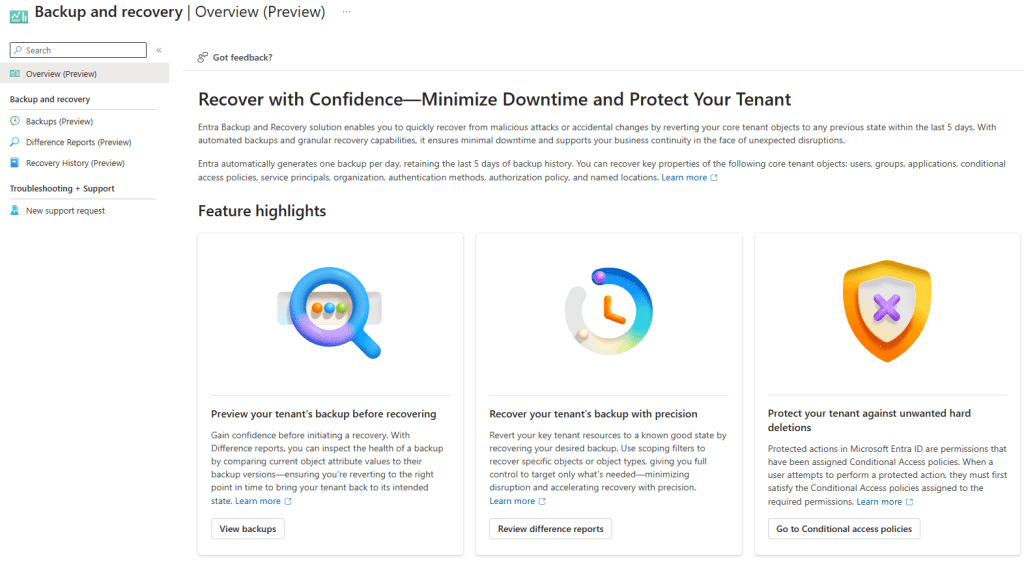
    Microsoft has quietly shipped something that changes that equation. Microsoft Entra Backup and Recovery entered public preview in March 2026, and if your tenant has Entra ID P1 or P2 licensing, it’s already running — no setup required.

    Here’s what it actually does, what it doesn’t do, and what you should do with it right now.


    What It Is

    Entra Backup and Recovery is a built-in, automated snapshot service for your Entra ID tenant. Once a day, Microsoft takes a point-in-time backup of the critical objects in your directory and retains the last five days of history. Crucially, the backups are tamper-proof — no user, application, or admin (including Global Administrators) can delete, modify, or disable them. Backup data is stored in the same geo-location as your tenant, determined at tenant creation.

    From those snapshots, you can:

    • View available backups — a rolling five-day history available in the Entra admin centre
    • Create difference reports — compare any backup snapshot against the current state of your tenant and see exactly what changed
    • Recover objects — restore all objects, specific object types, or individual objects by ID to their backed-up state
    • Review recovery history — audit completed and in-progress recovery operations

    What Gets Backed Up

    This is where the detail matters. Entra Backup and Recovery covers a defined set of object types, and within those types, a defined set of properties. It’s not a full serialisation of every attribute on every object — but it covers the things that matter most.

    Conditional Access policies and named locations

    This is arguably the most valuable part of the whole feature. All properties of Conditional Access policies are in scope, as are all properties of named location policies. This is the scenario most admins will reach for this tool first. A misapplied policy, a deleted exclusion group, a grant control that got changed — all of that is now recoverable.

    Users

    A broad set of user properties is included: display name, UPN, account enabled/disabled state, department, job title, mail, mobile, usage location, employee data, and more. What’s notably not in scope: manager and sponsor relationships. Those won’t be restored.

    Groups

    Core group properties are covered: display name, description, mail settings, security settings, classification, and theme. Group ownership changes are out of scope. Dynamic group rule changes are also out of scope — so if someone modified a dynamic membership rule, that won’t appear in the diff.

    Applications and service principals

    For app registrations, properties like display name, sign-in audience, required resource access, optional claims, and redirect URI configuration are included. For service principals, the backup extends further: when a service principal is recovered, Entra also restores the OAuth2 delegated permission grants and app role assignments tied to it. That’s important — it means recovering an enterprise app brings back the permissions alongside it, not just the object itself.

    Authentication method policies

    The backup covers the configured state of individual authentication methods: FIDO2 passkeys, Microsoft Authenticator, SMS, voice call, email OTP, Temporary Access Pass, certificate-based authentication, and third-party OATH tokens. If someone disables passkey authentication or weakens your Authenticator configuration, that’s recoverable.

    Authorization policy

    Guest user role settings are covered — specifically, the permission level assigned to guest users in your tenant (member access, guest access, or restricted guest). It also covers the blockMsolPowerShell setting.

    Organisation-level MFA settings

    Tenant-wide per-user MFA settings are included — available MFA methods, whether app passwords are blocked, and device remembering settings.


    What It Doesn’t Cover

    It’s equally important to understand the scope boundaries.

    Hard-deleted objects are not recoverable through this feature. If a user, group, or application has been permanently deleted (either manually hard-deleted, or after the 30-day soft delete window expires), Entra Backup and Recovery cannot restore them. That’s what soft delete and the recycle bin are for — more on that below.

    On-premises synced objects are excluded from recovery. If you’re running hybrid identity with AD Connect or Cloud Sync, changes to synced objects will appear in difference reports, but they’re automatically excluded from recovery. That’s by design: the source of truth for those objects is on-premises AD, so recovery has to happen there. The exception is if you’ve converted objects to cloud-managed (moved the source of authority to the cloud) — those become fully recoverable.

    Not every attribute on every object is included. The supported property list is well-defined and growing over time, but it’s not a complete object dump. If the change you’re trying to reverse involves an attribute outside the supported set, the backup won’t capture it.


    The Difference Between This and Soft Delete

    A point worth emphasising: these are two different tools for two different problems.

    Soft delete handles object deletion. When you delete a user, group, M365 group, or application, it goes into the recycle bin for 30 days. You can restore it from there through the portal or Graph API with all its properties intact. Soft delete is on by default and is your first line of defence against accidental deletions.

    Entra Backup and Recovery handles attribute corruption. If an object still exists but its properties have been changed — by a misconfiguration, a bad import, or a malicious actor — that’s where backup and recovery steps in. It restores the values of supported properties back to their backed-up state.

    The scenario you need to think about for a security incident is both:

    1. A bad actor might corrupt attributes (that’s where backup and recovery helps)
    2. A bad actor might also delete objects and then hard-delete them from the recycle bin to prevent recovery

    Which brings us to the companion feature.


    Protected Actions: Locking Down the Recycle Bin

    If you’re setting up Entra Backup and Recovery as part of a resilience posture, you should do this alongside it.

    Protected actions let you require step-up authentication before specific high-risk operations can be performed. The one to configure immediately is microsoft.directory/deletedItems/delete — the action that hard-deletes an object from the recycle bin.

    By assigning a Conditional Access authentication context to that protected action, you can require that anyone trying to permanently purge a directory object must first satisfy strict conditions — phishing-resistant MFA, a compliant device, maybe even a Secure Access Workstation (SAW). Even a compromised Global Administrator account would be blocked from hard-deleting objects if the device or authentication method doesn’t meet the bar.

    Combined, the picture looks like this:

    • Soft delete keeps deleted objects recoverable for 30 days
    • Protected actions prevent hard deletion without step-up authentication
    • Entra Backup and Recovery lets you restore attribute values from the last five days
    • Audit logs and Entra ID Protection signals alert you when changes happen

    That’s a layered identity resilience posture, not just a backup feature.


    The Two New RBAC Roles

    Entra Backup and Recovery introduces two new built-in roles:

    Microsoft Entra Backup Reader — Read-only access to backups, difference reports, and recovery history. Useful for security auditors or operations teams that need visibility without the ability to trigger changes.

    Microsoft Entra Backup Administrator — Everything in Backup Reader, plus the ability to initiate difference reports and trigger recovery operations. Note that all Backup Administrator permissions are already included in the Global Administrator role, so your existing GA accounts can use this without role assignment. For least-privilege, use the dedicated role.

    One preview caveat: early reports indicate the Backup Administrator role can be difficult to assign through the UI during preview. If you hit that, PowerShell (via Microsoft Graph) works as a workaround.


    How to Use It: The Practical Workflow

    Finding it: In the Entra admin centre, look for Backup and recovery in the left navigation pane. You’ll see four sections: Overview, Backups, Difference Reports, and Recovery History.

    Running a difference report: Select one of your five available backups, choose “Create difference report,” and select your scope — all object types, specific types, or individual object IDs. The first time you run a report against a particular backup, it takes longer (the service needs to load the backup metadata). A first run for a small tenant can take over an hour in the current preview. Subsequent reports against the same backup run much faster since the data is already loaded. This is a known limitation that Microsoft is expected to improve before general availability.

    Reading the report: The output shows you changed objects, grouped by type. For each object, you can drill into the specific attributes that changed and see the old value (from the backup) versus the current value. This is genuinely useful for understanding what happened before you decide whether to recover.

    Triggering recovery: From a difference report, you can choose to recover — scoping to all changed objects, specific object types, or individual object IDs. Recovery time scales with the number of changes involved. Small targeted recoveries (a handful of users, a few CA policies) are fast. Large-scale recoveries across hundreds of thousands of objects can take significantly longer.

    Best practice from Microsoft’s own documentation: Always run a difference report first. Review the changes, confirm you understand the scope, and then trigger recovery. This also pre-loads the backup data, which speeds up the recovery operation itself.


    What to Do Right Now

    Given that this is already running in your tenant if you have P1/P2, there are a few things worth doing today:

    Check that it’s visible. Go to the Entra admin centre and navigate to Backup and recovery. Confirm you can see your last five daily backups. If you can’t, verify your licensing and role assignment.

    Run your first difference report against yesterday’s backup. Even if you don’t expect anything to be wrong, this is worth doing for two reasons: you’ll understand the interface before you’re under pressure, and it pre-loads the data so your first real recovery runs faster.

    Set up protected actions for hard-delete. Go to Roles and Administrators > Protected Actions, find microsoft.directory/deletedItems/delete, assign an authentication context, and wire up a Conditional Access policy with appropriately strict controls. This takes 20 minutes and significantly raises the bar for a malicious actor trying to permanently destroy directory objects.

    Test a recovery in a development tenant. Before you need this in production, run a test. Make a deliberate change to a test user or a non-production CA policy, wait for the next daily backup (or use your existing snapshot), run a diff, and recover. Know how it works before the stakes are real.


    The Bigger Picture

    Entra Backup and Recovery is still in preview, and it has real limitations — the five-day retention window is narrow, the initial diff report performance needs work, and the scope of recoverable properties will keep expanding. It’s not a replacement for a well-documented change management process or a broader identity resilience strategy.

    But it’s a meaningful step forward. For the first time, Entra ID has a native, tamper-proof, automatically-maintained safety net for the objects and policies that your entire cloud environment depends on. The cases where an admin mistake, a bad import, or a compromised account could previously cause hours of manual remediation work now have a straightforward, auditable recovery path.

    Set it up. Test it. Pair it with protected actions. And make sure your team knows where to find it before they need it.


    Resources: