Once desktop image management is standardised, most teams turn their attention to the next operational challenge: Windows patching.
This is where many Azure Virtual Desktop environments begin to struggle.
Manual patching is time-consuming, disruptive, and inconsistent. It often relies on individual knowledge, late-night maintenance windows, and a degree of luck. Highly effective admins take a different approach — they design patching as an automated, repeatable lifecycle, not a monthly fire drill.
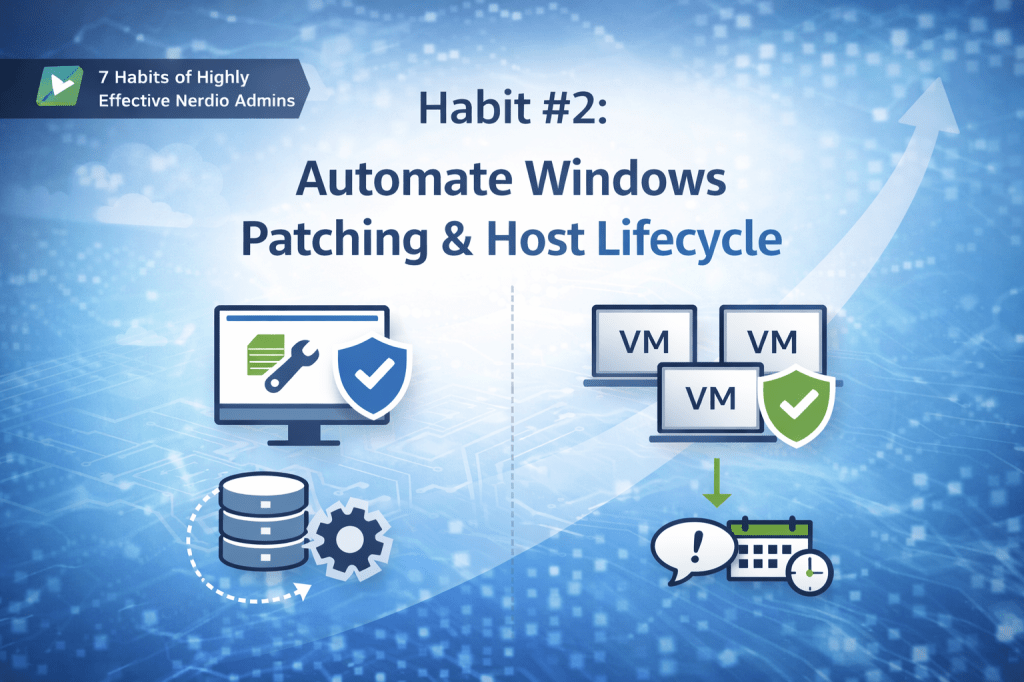
This is Habit #2.
Why patching becomes a bottleneck at scale
In smaller environments, manual patching can feel manageable. As environments grow, the cracks start to show.
Common symptoms include:
Hosts patched at different times
Inconsistent patch levels across pools
Long or unpredictable maintenance windows
Uncertainty about what’s actually been updated
The real issue isn’t effort — it’s risk. Inconsistent patching weakens security posture, complicates troubleshooting, and undermines confidence in automation elsewhere.
The mindset shift: patching is a workflow, not a task
Highly effective admins don’t think about patching as:
“Applying updates to machines.”
They think about it as:
“A controlled workflow that updates images and hosts predictably.”
That shift matters.
When patching is treated as a workflow, you gain:
Predictability
Auditability
Confidence to automate safely
This is where Nerdio Manager for Enterprise becomes an enabler rather than just a scheduling tool.
One size does not fit all: patching strategy depends on host pool type
One of the most common mistakes I see is applying the same patching strategy to every host pool, regardless of how it’s used.
Highly effective admins make a clear distinction based on host pool type.
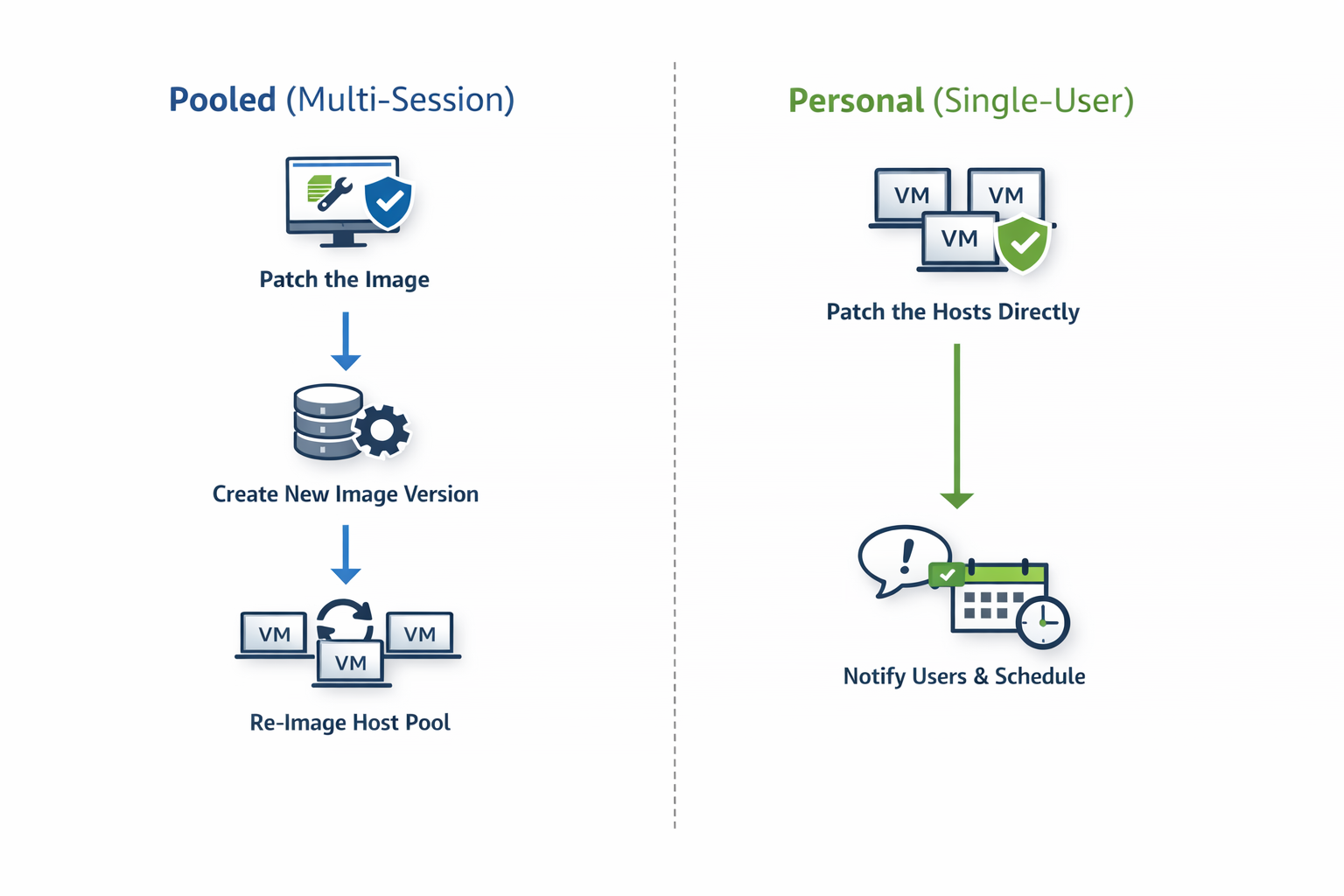
Multi-session (pooled) host pools
For multi-session environments, the recommended approach is simple:
Patch the desktop image and re-image the session hosts
This aligns naturally with how pooled AVD environments are designed.
Why this works so well:
Session hosts are disposable by design
User data lives outside the VM (for example, FSLogix)
Re-imaging restores a clean, known-good baseline
This approach delivers:
Consistent patch levels across all hosts
Faster recovery from issues
Cleaner environments over time
In mature pooled environments, re-imaging is not disruptive — it’s expected.
Personal host pools
Personal desktops are fundamentally different.
Because:
Each VM is tied to an individual user
Local applications or user-specific state may exist on the VM
The recommended approach is:
Patch the session hosts directly
Re-imaging personal desktops can introduce unnecessary risk and user disruption. Patching hosts in place preserves:
User data
Personal configuration
Application state
When combined with:
Drain mode
User notifications
Controlled scheduling
…this approach keeps personal desktops secure without breaking the user experience.
The guiding principle
Highly effective admins follow a simple rule:
If the host is disposable → patch the image and rebuild
If the host contains user state → patch the host directly
This decision is baked into their operating model, not revisited every month.
Why Patch Tuesday still matters
Automation doesn’t mean patching at random.
Highly effective admins align patching to:
Microsoft’s Patch Tuesday cadence
A predictable offset (for example, a few days later)
Known maintenance windows
This creates:
Operational rhythm
Predictable change windows
Fewer surprises for users and support teams
Automation doesn’t remove control — it formalises it.
Automating the host lifecycle safely
Patching doesn’t exist in isolation. It directly affects:
Host availability
User experience
Auto-scale behaviour
That’s why effective admins automate patching together with host lifecycle controls, such as:
Draining sessions before maintenance
Controlling concurrency
Aborting safely after defined failures
Re-imaging hosts in a controlled sequence
The objective isn’t speed — it’s controlled change at scale.
The operational payoff
When patching and host lifecycle management are automated correctly:
Hosts remain consistent
Security posture improves
Maintenance becomes predictable
Admin effort drops dramatically
More importantly, teams gain confidence to:
Scale environments
Trust automation
Focus on optimisation rather than upkeep
How this builds on Habit #1
Habit #2 only works because Habit #1 exists.
Without:
Standardised images
Versioning
Clear governance
…patch automation becomes risky.
With those foundations in place, patching becomes:
This is where operational maturity starts delivering real returns.
This article is part of an ongoing series exploring the 7 Habits of Highly Effective Nerdio Admins. Upcoming deep-dives will cover application management, autoscale optimisation, right-sizing, and cost visibility.
If you want a stable, cost-efficient Azure Virtual Desktop environment, everything starts with the desktop image.
Before auto-scale tuning, before patch automation, before application strategy — the quality and consistency of your image determines how effective everything else can be.
In almost every inefficient AVD environment I’ve reviewed, image management is either:
Manual
Inconsistent
Poorly documented
Or all three
Highly effective admins treat image management as a repeatable, automated process, not a one-off task. This is where real operational and cost gains begin.
Why desktop image management is foundational
Your desktop image influences:
How quickly can new session hosts be deployed
How predictable the user experience is
How easy it is to troubleshoot incidents
How confidently can we automate later stages
If image management is inconsistent, every downstream optimisation becomes harder and more expensive.
The common anti-patterns
In less mature AVD environments, image management often looks like this:
Images built manually in the Azure portal
Multiple “golden images” with no clear owner
No versioning or rollback strategy
Apps are baked in inconsistently
No naming or governance standards
These patterns increase:
Operational risk
Engineering effort
Time to recover from issues
How highly effective admins manage images
Highly effective admins standardise and automate image management using Nerdio Manager for Enterprise as the control plane.
Their approach focuses on consistency, governance, and repeatability.
1. Create images directly in Nerdio
Images are created and managed inside Nerdio rather than manually in Azure.
This provides:
A guided, repeatable workflow
Built-in automation for image creation and sealing
Clear visibility into image state and lifecycle
The goal is not speed — it is consistency.
Understanding how Nerdio captures images (and why it matters)
It’s worth briefly explaining how image capture works in Nerdio, as this directly impacts where applications, automations, and OS changes should be applied — and it’s one of the most common areas of confusion I see with customers.
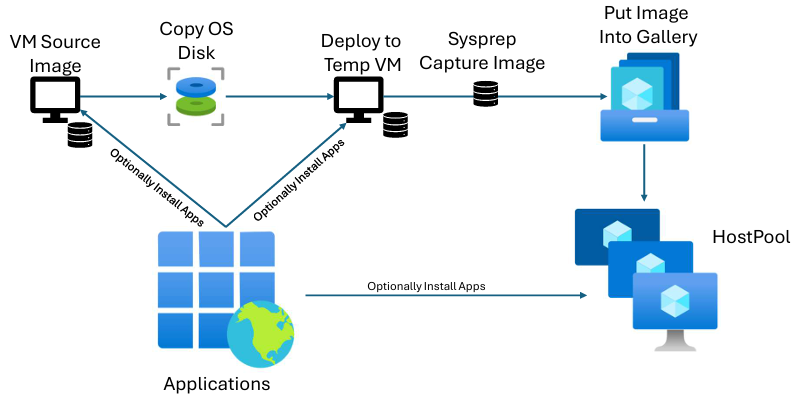
When you create a desktop image in Nerdio, the process starts by creating a source image VM.
At this point, you have two paths.
Option 1: “Do not create image object” (recommended)
If you select Do not create image object during image creation, Nerdio will:
Create the source image VM
Stop the workflow at that point
No image object is captured yet.
This is useful when you want to:
Install applications
Run automations or scripted actions
Apply OS or security configuration
…directly on the source VM before capturing the image.
This approach ensures the source VM is always:
Fully up to date
Free of security vulnerabilities
Aligned with what admins expect to see when they later edit the image
Because of this, this is the approach I generally recommend.
Option 2: Automatic image capture via a temporary VM
If you don’t select this option, Nerdio will:
Take a copy of the source VM’s OS disk
Create a temporary VM from that disk
Run any configured automations or application deployments on the temp VM
Sysprep the temp VM
Capture the final image object
The key thing to understand here is:
Any configurations applied during image creation are applied only to the temporary VM, not the source VM.
This distinction is subtle but important — and it’s the single biggest cause of confusion I see when customers later expect to find changes on the source image VM.
Nerdio Image Creation Process
Why this matters operationally
If admins later:
Edit the source image VM
Expect applications or settings to be present
Or assume the source VM reflects the deployed image
They can be caught out if those changes were applied only to the temp VM.
For that reason, keeping the source image VM as the authoritative, up-to-date representation of the image avoids ambiguity and reduces operational risk.
Common image creation pitfalls to be aware of
Trusted Launch and BitLocker
Trusted Launch is a great security feature and one I generally recommend — but it’s important to understand its side effects.
This ensures BitLocker does not automatically re-enable on newly deployed hosts.
2. Maintain a single source-of-truth image per workload
Once image creation is standardised, the next critical step is controlling image sprawl.
Highly effective admins deliberately limit the number of desktop images they manage. Rather than creating bespoke images for every host pool or team, they define a single source-of-truth image per workload.
Examples might include:
A core Office/knowledge worker image
A Power BI or data analyst image
A developer tooling image
Each image has a clear purpose, a defined owner, and a documented scope.
Why image sprawl is so expensive
In environments where image governance is weak, I often see:
Slightly different images per host pool
“Temporary” images that become permanent
Multiple images solving the same problem in different ways
This quickly leads to:
More patching effort
More testing effort
Inconsistent user experience
Longer incident resolution times
Every additional image increases operational cost — even if Azure spend looks unchanged.
What “source of truth” actually means
A source-of-truth image is:
The authoritative image for a workload
Used consistently across environments
Updated intentionally, not ad hoc
When something breaks in production, admins can immediately ask:
“Did this come from the image — or somewhere else?”
That clarity is invaluable during incidents and change reviews.
Shared images across environments
Highly effective admins use the same image version across:
Test
Validation
Production
(Where appropriate) DR
This does not mean skipping testing. It means:
Test the image once
Promote the same version forward
This dramatically reduces:
Duplicate testing
Configuration drift
Environment-specific surprises
Avoiding the ‘one image per host pool’ trap
A common misconception is that:
“Each host pool needs its own image.”
In reality, most differences between host pools can be handled through:
Application delivery mechanisms
Configuration at host creation
User or group targeting
Keeping the image itself generic and workload-focused preserves flexibility while keeping maintenance overhead low.
Operational benefits
Maintaining a single source-of-truth image per workload:
Simplifies troubleshooting
Reduces admin effort
Improves predictability
Makes audits and reviews easier
More importantly, it ensures image management scales with the business, not against it.
Where this fits in the bigger picture
Without this discipline:
Patch automation becomes risky
Reimaging becomes inconsistent
Autoscale amplifies mistakes faster
With it:
Every downstream automation becomes safer and easier to reason about
This is why source-of-truth images are a core maturity marker in well-run AVD environments using Nerdio Manager for Enterprise.
3. Keep desktop images intentionally minimal
One of the biggest differentiators between mature and immature AVD environments is what gets baked into the image.
Highly effective admins design desktop images to be intentionally minimal. The goal is not to create a “fully loaded” desktop, but a stable, predictable foundation that can be reused everywhere.
What belongs in the image
A well-designed image typically includes:
Core OS configuration
Required runtimes and frameworks (e.g., VC++ redistributables, .NET)
Baseline security and system settings
These are components that:
Change infrequently
Are required for almost every user
Would cause instability or performance issues if missing
What does not belong in the image
Equally important is what you intentionally exclude.
Highly effective admins avoid baking in:
Frequently updated applications
Department-specific tools
User-driven or role-specific software
Anything that requires frequent testing
Including these increases:
Image rebuild frequency
Testing effort
Risk of regressions
And, over time, image management becomes a bottleneck rather than an enabler.
Why “fatter” images create operational drag
Images that try to do everything tend to:
Take longer to build and validate
Break more often
Require more rollbacks
Slow down troubleshooting
When something goes wrong, it becomes much harder to determine:
“Is this an app issue, or an image issue?”
Minimal images dramatically reduce that ambiguity.
Design images to change slowly
A good rule of thumb is:
If something changes weekly, it probably doesn’t belong in the image.
Highly effective admins treat the image as:
A stable baseline
Updated deliberately
Changed only when there is a strong justification
This allows image updates to be:
Planned
Tested
Communicated clearly
Minimal images enable flexibility later
Keeping images lean gives you more options downstream:
Applications can be layered or targeted
Different user groups can share the same image
Host pools remain flexible without image duplication
This is what allows a single source-of-truth image to support multiple use cases without compromise.
The operational payoff
Minimal images result in:
Faster image build times
Easier validation
Lower maintenance overhead
Fewer production incidents
Over time, this translates directly into:
Lower operational cost
Higher platform confidence
Easier scale
Why this matters before moving on
If images are overloaded:
Patching becomes risky
Reimaging becomes disruptive
Automation amplifies mistakes
Minimal images are what make safe automation possible, which is why this step is a prerequisite for everything that follows.
4. Version images deliberately and manage them through Azure Compute Gallery
Once images are standardised, minimal, and controlled, the next maturity step is treating them as versioned assets rather than mutable objects.
Highly effective admins never modify images in place. Every meaningful change results in a new image version, managed and stored through Azure Compute Gallery (ACG).
Why in-place image changes are risky
Without proper versioning, image changes tend to:
Overwrite working configurations
Remove rollback options
Obscure the root cause of issues
When something breaks, the question becomes:
“What changed — and when?”
If you can’t answer that confidently, versioning isn’t being used effectively.
What good image versioning looks like
Effective image versioning has a few consistent traits:
Each image change produces a new version
Versions are immutable once created
There is a clear promotion path (test → prod)
Old versions are retained only as long as they add value
This creates:
Predictable change management
Safer deployments
Faster incident resolution
Why Azure Compute Gallery matters
Storing images in Azure Compute Gallery adds governance that manual image management simply can’t provide.
It enables:
Native image versioning
Controlled replication
Cross-region reuse if required
Lifecycle management of old versions
Trusted Launch and Confidential VM support
For organisations with multiple regions or DR requirements, this becomes essential rather than optional.
Controlling image sprawl with retention policies
Highly effective admins don’t keep every image version forever.
They:
Retain a defined number of previous versions
Automatically clean up older images
Keep enough history for rollback without creating clutter
This avoids:
Unmanaged image growth
Confusion during deployments
Unnecessary storage overhead
Versioning without retention is just delayed sprawl.
Operational clarity during incidents
When images are versioned and centrally managed, incident response becomes much simpler.
Admins can immediately identify:
Which image version is in use
When it was introduced
What changed compared to the previous version
This shortens:
Mean time to identify issues
Mean time to recover
Overall impact on users
Why does this enable everything that follows
Image versioning is what makes:
Patch automation safe
Scheduled reimaging predictable
Autoscale reliable
Rollbacks low-risk
Without it, automation amplifies uncertainty. With it, automation becomes controlled and reversible.
The maturity signal
If you want a quick indicator of image maturity, ask:
Can we roll back our desktop image confidently and quickly?
If the answer is yes, versioning is working. If not, it isn’t.
5. Apply clear naming standards and lightweight image governance
By the time image creation, scope, minimalism, and versioning are in place, the final step is often the most overlooked — making images easy to understand and safe to operate.
Highly effective admins apply simple, consistent naming standards and lightweight governance to prevent mistakes before they happen.
Why naming matters more than it seems
In environments without naming standards, images quickly become:
Hard to distinguish
Easy to misuse
Risky during changes or incidents
Admins end up asking:
“Is this the current image?” “Is this safe to deploy?” “What does this image actually contain?”
Those questions cost time — and time costs money.
What good image naming looks like
Effective naming conventions are:
Predictable
Descriptive
Human-readable
A common and effective pattern is:
OS | Workload | Image Version | Build Date
For example:
Win11 | Office | v1.3 | 2025-01
From the name alone, anyone should be able to tell:
What OS is it based on
Who it’s intended for
Whether it’s current or obsolete
Clearly distinguish active vs deprecated images
Highly effective admins make it obvious which images:
Are approved for deployment
Are retained for rollback only
Should no longer be used
This can be achieved through:
Naming conventions
Descriptions or tags
Controlled access – stage image as inactive
Ambiguity is one of the most common causes of accidental misconfiguration.
Keep governance intentionally lightweight
Image governance does not need to be heavy or bureaucratic.
In practice, it usually means:
Defined ownership of each image
Clear promotion criteria (e.g., tested, approved)
Agreement on when images are retired
The goal is not process for its own sake — it’s operational safety.
Why this matters at scale
As environments grow:
More admins get involved
Changes happen more frequently
The cost of mistakes increases
Clear naming and governance:
Reduce human error
Speed up troubleshooting
Make handovers and audits easier
It’s one of the highest ROI habits you can adopt.
The final maturity check
A simple test:
Could a new admin confidently select the correct image without asking for help?
If the answer is yes, governance is working.
The cost optimisation impact
Standardised image management:
Reduces build and provisioning time
Lowers troubleshooting effort
Prevents configuration drift
Enables every downstream automation to work reliably
While image management alone won’t cut your Azure bill in half, it enables every other optimisation habit to work properly.
Final thoughts
If your image process is manual or inconsistent, no amount of auto-scale tuning will fully compensate for it.
Highly effective Nerdio admins:
Standardise and automate image creation
Govern image usage
Version everything
Let automation do the heavy lifting
Treat images as managed assets
This is the foundation that makes all other AVD cost and performance optimisations possible.
Once image management is under control, you can safely move on to automating patching and host lifecycle, which is where Habit #2 begins.
This article is part of an ongoing series expanding on the 7 Habits of Highly Effective Nerdio Admins. Deep-dives into each habit will follow, with practical guidance you can apply directly to your environments.
How the best teams optimise Azure Virtual Desktop with Nerdio Manager
Optimisation in Azure Virtual Desktop (AVD) is not achieved through a single setting or feature. The most successful environments are run by admins who apply consistent operational habits, leverage automation, and regularly review data-driven insights.
After working with many production AVD environments, a clear pattern emerges. The most efficient, stable, and cost-effective deployments all share the same behaviours.
Below are 7 habits of highly effective Nerdio admins and how they use Nerdio Manager for Enterprise to optimise without sacrificing performance or user experience.
1. Standardise and automate desktop image management
Highly effective admins never build images manually in Azure.
Instead, they:
Create and manage desktop images directly in Nerdio
Automate sysprep, sealing, and versioning
Maintain clean, repeatable image pipelines
This approach:
Eliminates configuration drift
Reduces troubleshooting time
Enables predictable re-imaging and scaling
Lowers operational overhead
A well-maintained image is the foundation of every efficient AVD environment.
2. Automate Windows patching (and stop firefighting)
Manual patching is expensive — not just in Azure costs, but in engineer time and risk.
Effective admins:
Automate Windows Updates on desktop images
Patch personal host pools directly where appropriate
Schedule updates x days after Patch Tuesday
Combine patching with automated image updates and host re-imaging
The result:
Consistent security posture
Reduced downtime
Fewer emergency maintenance windows
Predictable change control
Automation here directly translates to lower operational cost and reduced risk.
7. Optimise Log Analytics instead of accepting default costs
Monitoring is essential — but unmanaged telemetry can quietly inflate Azure bills.
Highly effective admins:
Review Log Analytics data collection
Adjust polling intervals and counters
Reduce retention where appropriate
Balance visibility with cost
By tuning Log Analytics properly, teams maintain observability while avoiding unnecessary ingestion and storage costs.
Final thoughts
Optimisation in AVD is not about cutting corners — it is about operating deliberately.
Admins who adopt these seven habits:
Spend less on Azure
Reduce operational toil
Improve stability and security
Scale with confidence
If you are already using Nerdio Manager, these capabilities are available today. The difference is not tooling — it is how consistently the tooling is used.
This is the starting point. I’ll be sharing detailed deep dives into each habit soon, focusing on practical configuration and optimisation tips.
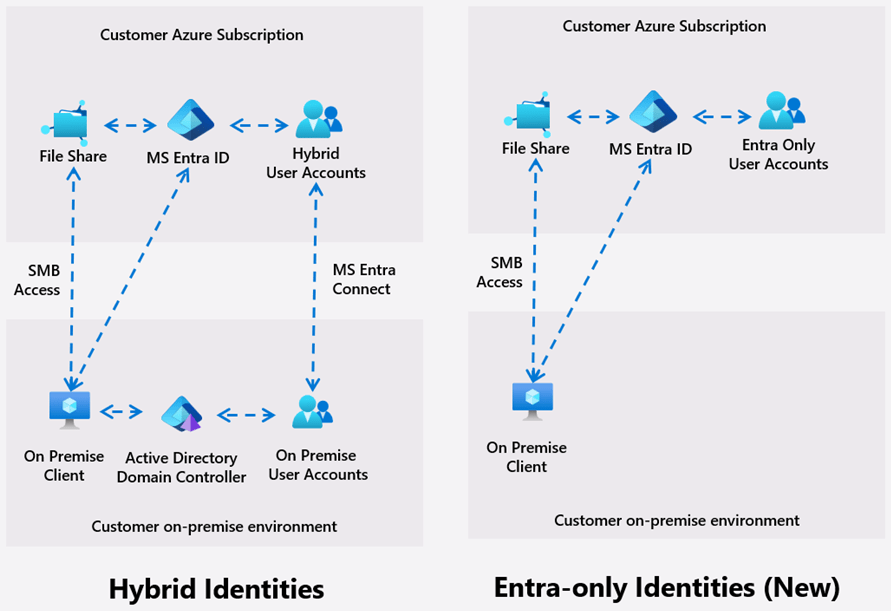
If you’ve been waiting to run Azure Virtual Desktop (AVD) + FSLogix without Windows AD domain controllers or Microsoft Entra Domain Services, Microsoft has now introduced a public preview capability that makes it possible: Microsoft Entra Kerberos authentication for Azure Files SMB with cloud-only identities.
This unlocks a true cloud-native pattern where:
Users are sourced from Microsoft Entra ID (cloud-only)
Session hosts are Entra-joined
FSLogix profile containers are stored on Azure Files
No DCs / no AAD DS required
Microsoft announced this preview in late 2025 as part of the broader “cloud-native identity” push for Azure Files.
For cloud-only identities in this preview, default share-level permissions are the supported approach (applies to all authenticated users accessing shares in the account).
Entra Kerberos does not support MFA for Azure Files SMB access. If MFA is enforced, you may see errors such as System error 1327 / sign-in restrictions.
Everyone’s Conditional Access policies will be different; you’ll need to ensure any policies enforcing MFA for all resources and applied to AVD users have an exclusion for the storage account.
What to do:
Go to Conditional Access
Identify policies that target all resources
Add an exclusion for the Storage Account “app” (search it by name [Storage Account xxx.file.core.windows.net])
Save
This is a common “why can’t I map the drive” failure mode during testing.
Step 5 — Configure FSLogix Profile and Session Hosts to Retrieve Kerberos Tickets
If you skip this, you may get:
Credential prompts when mapping the share
System error 86
You must add a registry key to each Entra-joined session host that will access the share. Nerdio can configure this registry value and the FSLogix settings as part of the FSLogix Profiles Storage Configuration.
Nerdio Manager → Profiles Management → New profile → FSLogix
Enter the profile name
Select Configure session hosts registry for Entra ID joined storage
Enter the FSLogix Profiles path (VHDLocation), the UNC path of your storage account, share, and directory (\\<storageaccount>.file.core.net\<share>\<directory>]
Important caveat: This setting can prevent on-premises AD-joined clients from accessing storage accounts via the legacy flow; if you need both Entra and Windows AD access patterns, realm mapping may be required (scenario-specific).
Step 6 — Configure Directory and File-Level Permissions for FSLogix (Critical)
Even if FSLogix “works” without this, you risk a serious security issue:
Users may be able to access other users’ profile containers
6A) Validate you can mount the share (from an Entra-joined session host)
Log on to a session host as a member of your “Storage Admin” Entra group, then run from Command Prompt:
net use X: \\<storageaccount>.file.core.windows.net\<share>
If it fails:
Verify Step 5 registry key is present
Reboot the session host (often required during early preview workflows)
6B) Set ACLs using Azure Portal “Manage access” (not File Explorer / icacls)
In cloud-only identity mode, Microsoft provides an Azure Portal ACL experience for Windows-style permissions on Azure Files SMB.
If you’ve ever planned a Nerdio Manager for Enterprise (NME) deployment, you may be aware that there isn’t just one way to install it. Depending on how your Azure environment is structured — identities, tenants, permissions, governance, and AVD architecture — the installation path can look very different.
This is one of the questions I’m asked most often by customers:
“Which installation method do I actually need to use?”
To make this easier, I created a simple decision tree (I’ll include a diagram at the end) and broke down each installation type. Whether you’re deploying for a single small environment or a global multi-tenant estate, this guide should point you in the right direction.
Why are there multiple installation methods?
Nerdio Manager integrates deeply with:
Entra ID
Azure subscriptions
Azure Virtual Networking
AVD / Windows 365 resources
App registrations
Service principals
Resource providers
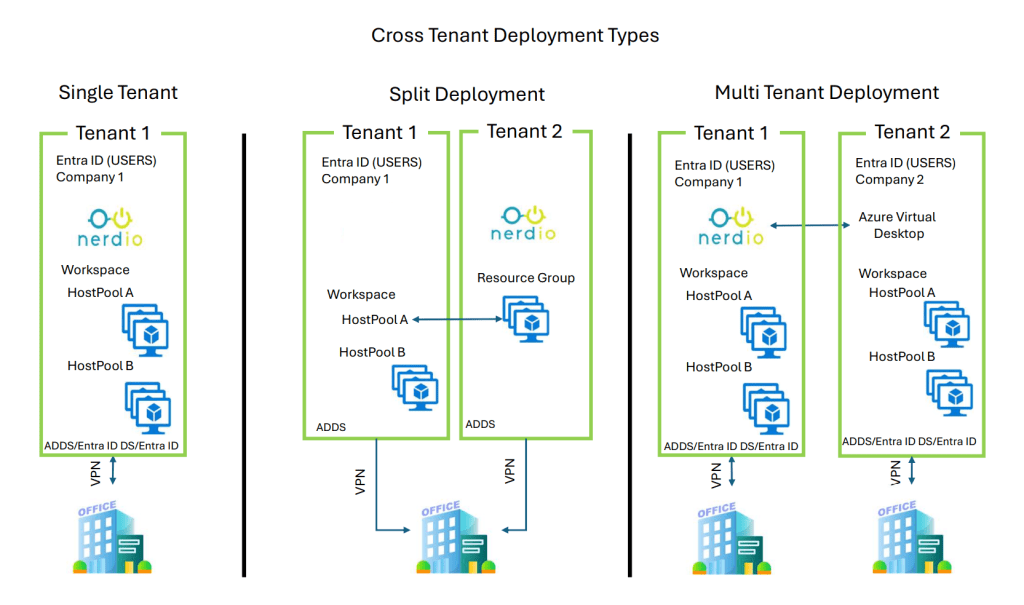
Because every customer structures their identity and resource topology differently, NME provides installation paths for a range of real-world scenarios — including restricted RBAC environments and split-tenant setups.
Summary of All Installation Types
Here is a high-level overview of all six installation methods available in Nerdio Manager.
1️⃣ Standard Install (Azure Marketplace)
The most common and simplest deployment method.
Use this when:
Your user identities and AVD resources live in the same Entra ID tenant.
You have the required permissions to deploy and initialise NME.
You don’t need to customise the Entra ID application name.
Typical customers: Most AVD/W365 deployments, POCs, and standard single-tenant setups.
Some organisations do not allow deployment engineers to create app registrations — typically due to strict RBAC, identity governance, or Conditional Access rules.
Use this when:
You don’t have permission to create an Entra ID app.
A separate team (Identity/Security) needs to pre-create the Nerdio app for you.
You’ll reference the existing App ID, Secret, and Object ID during initialization.
Some customers have user identities mastered in another tenant but synchronised into the AVD tenant as guest / external identities. This is not split identity — everything still runs in a single AVD tenant.
Use this when:
Your users are guests from another tenant.
You want them to connect to AVD/Windows 365 using External Identities.
You want to avoid maintaining a full split-tenant architecture.
Putting It All Together — The Installation Decision Tree
I created a simple flowchart to help customers quickly identify the correct installation type. It includes:
Tenant topology
Permissions
Identity architecture
Guest user model
Multi-tenant requirements
NME deployment decision tree
Final Thoughts
Choosing the right installation method is crucial for:
Proper AVD lifecycle management
Compliance with your organisation’s identity model
Ensuring NME has the permissions it needs
Avoiding rework later
Supporting multi-tenant or cross-tenant architectures
If you’re planning a new deployment or reviewing your existing setup, this guide (and the diagram) should help you pick the correct path with confidence.