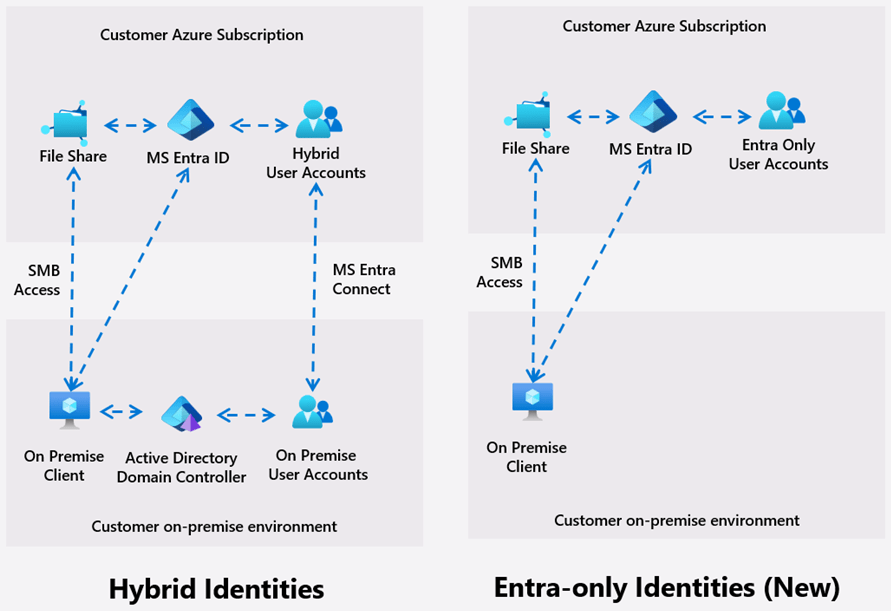
If you’ve been waiting to run Azure Virtual Desktop (AVD) + FSLogix without Windows AD domain controllers or Microsoft Entra Domain Services, Microsoft has now introduced a public preview capability that makes it possible: Microsoft Entra Kerberos authentication for Azure Files SMB with cloud-only identities.
This unlocks a true cloud-native pattern where:
- Users are sourced from Microsoft Entra ID (cloud-only)
- Session hosts are Entra-joined
- FSLogix profile containers are stored on Azure Files
- No DCs / no AAD DS required
Microsoft announced this preview in late 2025 as part of the broader “cloud-native identity” push for Azure Files.
Important Preview Notice
This feature is an early public preview, so expect:
- Documentation changes
- Portal UI differences (including preview portal links)
- Updated prerequisites/limitations as it approaches GA
Treat this as lab first → pilot → production.
High-Level Steps
- Create a storage account and enable Microsoft Entra Kerberos authentication with default share-level permissions (current preview limitation)
- Grant admin consent to the Storage Account service principal
- Update tags in the App Registration manifest
- Disable / exclude MFA for the storage account (Conditional Access)
- Configure FSLogix Profile and Session Hosts to Retrieve Kerberos Tickets (registry)
- Configure Directory and File-Level Permissions for FSLogix (Critical)
- Test end-to-end using an Entra-joined session host + cloud user
Prerequisites (Read This First)
OS requirements
Entra Kerberos for cloud-only identities requires:
- Windows 11 Enterprise/Pro (single or multi-session), or
- Windows Server 2025, with the latest updates applied.
Identity-source limitation
A Storage Account cannot authenticate to multiple directory sources simultaneously (you must pick one method per account).
Share-permissions limitation (preview)
For cloud-only identities in this preview, default share-level permissions are the supported approach (applies to all authenticated users accessing shares in the account).
Cloud availability
This capability is currently scoped to the Azure public cloud, with limitations outlined in Microsoft documentation.
Recommended test design
- AVD host pool with Entra ID-joined session hosts
- Azure Files Premium
- Two Entra groups: Storage Admin / Cloud Users
Step 1 — Create Storage Account and Enable Microsoft Entra Kerberos Authentication on Storage Account with Default Share-Level Permissions
- In Nerdio Manager, navigate to Storage → Azure Files
- Select New Azure Files
- Enter the storage account name, location, performance, replication, file share name, and capacity
- Enable Share-level permission, select SMB Share Contributor, and add the user(s)/group(s) into Permissions (SMB share contributors)
- Enable Join AD or Entra ID and select Entra ID
- For NTFS file-level permissions, select None
- Ok

This links Azure Files SMB identity-based access to Entra Kerberos.
Step 2 — Grant Admin Consent to the Storage Account Service Principal
You must grant admin consent once per storage account used with Entra Kerberos.
- Go to Microsoft Entra ID
- Navigate to App registrations → All applications
- Find the Storage Account app registration (it typically appears with a bracket prefix, [Storage Account xxx.file.core.windows.net])
- Open it → Manage → API permissions
- Click Grant admin consent for your tenant
- Yes
This enables the storage account’s app registration to operate correctly for the Entra Kerberos flow.
Step 3 — Update Tags in the Application Manifest File
This is one of the “preview sharp edges.”
- In the same App Registration, go to Manifest
- Locate the tags attribute
- Add “kdc_enable_cloud_group_sids”
- Save

In GA, this may become automated, but for now it’s part of the manual setup path.
https://learn.microsoft.com/en-us/entra/identity/authentication/kerberos
Step 4 — Disable MFA for Storage Account Access (Conditional Access Exclusion)
Entra Kerberos does not support MFA for Azure Files SMB access. If MFA is enforced, you may see errors such as System error 1327 / sign-in restrictions.
Everyone’s Conditional Access policies will be different; you’ll need to ensure any policies enforcing MFA for all resources and applied to AVD users have an exclusion for the storage account.
What to do:
- Go to Conditional Access
- Identify policies that target all resources
- Add an exclusion for the Storage Account “app” (search it by name [Storage Account xxx.file.core.windows.net])
- Save
This is a common “why can’t I map the drive” failure mode during testing.
Step 5 — Configure FSLogix Profile and Session Hosts to Retrieve Kerberos Tickets
If you skip this, you may get:
- Credential prompts when mapping the share
- System error 86
You must add a registry key to each Entra-joined session host that will access the share. Nerdio can configure this registry value and the FSLogix settings as part of the FSLogix Profiles Storage Configuration.
- Nerdio Manager → Profiles Management → New profile → FSLogix
- Enter the profile name
- Select Configure session hosts registry for Entra ID joined storage
- Enter the FSLogix Profiles path (VHDLocation), the UNC path of your storage account, share, and directory (\\<storageaccount>.file.core.net\<share>\<directory>]
- Configure your remaining FSLogix profile settings
- Ok

Important caveat: This setting can prevent on-premises AD-joined clients from accessing storage accounts via the legacy flow; if you need both Entra and Windows AD access patterns, realm mapping may be required (scenario-specific).
Step 6 — Configure Directory and File-Level Permissions for FSLogix (Critical)
Even if FSLogix “works” without this, you risk a serious security issue:
- Users may be able to access other users’ profile containers
6A) Validate you can mount the share (from an Entra-joined session host)
Log on to a session host as a member of your “Storage Admin” Entra group, then run from Command Prompt:
- net use X: \\<storageaccount>.file.core.windows.net\<share>
If it fails:
- Verify Step 5 registry key is present
- Reboot the session host (often required during early preview workflows)
6B) Set ACLs using Azure Portal “Manage access” (not File Explorer / icacls)
In cloud-only identity mode, Microsoft provides an Azure Portal ACL experience for Windows-style permissions on Azure Files SMB.
Preview portal link:
(If “Manage access” is not visible in the standard portal UI, use that preview link.)
- In the Azure portal, navigate to your storage account
- Data storage → Files shares → select share → Browse → three dots → Manage access
- Delete everything except the CREATOR OWNER
- Add your storage admin group with Full control
- Add your user group and change it to Applies to this folder with Modify access

https://learn.microsoft.com/en-us/fslogix/how-to-configure-storage-permissions
Why this works:
- Users can create their own profile folder
- Creator Owner grants them rights within the folder they created
- They cannot access other users’ folders
- Storage admins can troubleshoot, recover, and clean up profiles
Once configured, save and re-check permissions in the portal or via folder security view (Windows UI may show Entra objects as SIDs in some builds).
Step 7 — Test End-to-End (Moment of Truth)
- Log in to AVD as a user in your AVD Users Entra group
- Confirm the session signs in successfully (good indicator)
- On a session host logged in as a Storage Admin, open the share
- Confirm a new user folder is created
- Confirm folder/file ACLs show
You can validate per-folder permissions either:
- In the Azure portal → Browse → drill into the user profile folder → Manage access
- Or via Windows folder properties/security view (bearing in mind Entra objects may show as SIDs).
Operational Notes for Production
Conditional Access design
You will likely need a targeted strategy such as:
- Exclude the storage account app from MFA requirements
- Keep MFA for interactive user sign-in, but avoid breaking SMB access. This is a common real-world friction point.
Keep tracking preview updates
Microsoft is positioning this as a foundational capability for modern workloads, including AVD/FSLogix.
References (Microsoft)
- Cloud-native identity announcement blog Microsoft Tech Community
- Entra Kerberos authentication for Azure Files SMB Microsoft Learn
- Assign share-level permissions Microsoft Learn
- Configure Windows ACLs using Azure portal (“Manage access”) Microsoft Learn
- FSLogix profile containers using Entra Kerberos scenario Microsoft Learn
References (Nerdio)
- Travis Roberts YouTube video: Master AVD and FSLogix: Unveiling Entra-only Identity Secrets!
- Neil McLoughlin YouTube Video: FSLogix Profiles Just Got WAY Better for AVD

Leave a comment