Every RemoteApp user I’ve ever met has the same complaint.
“It doesn’t feel like a real app.”
Microsoft has now rebuilt the engine underneath RemoteApp. It went GA for Azure Virtual Desktop in November.
So I built two host pools in my lab, one old and one new, and put them side by side.
Two things surprised me.
Below is how to turn it on, how to prove it’s on, what those two surprises were.
What changed
Microsoft calls it “RemoteApp enhancements”. The connection dialog calls it RemoteAppV2. Remember that second name, because it’s how you prove it’s working.
The idea is simple.
Until now, the client has had to guess a lot about each remote window, where its edges are and how it should sit next to your local apps, and the rebuild moves that knowledge to the session host, which actually owns the window.
Microsoft’s docs list what you get:
→ Better Windows Snap support. → Proper full-screen mode. → Better multi-monitor handling. → Native visuals: borders, shadows, and theme integration.
The Windows 365 Cloud Apps page adds better DPI handling. And Neil McLoughlin’s walkthrough video (worth ten minutes of your time) calls out smoother move and resize, plus z-ordering against your local windows.
What you need
Three of these you probably already have. One will catch you out.
The session host. Windows 11 Enterprise or Enterprise multi-session, 24H2 or 25H2, with the December 2025 update or later (build 26100.7309 or 26200.7309). It also needs SxS network stack 1.0.2507.25750 or newer.
The client. Windows App 2.0.864.0 or later, or the Remote Desktop client 1.2.6760.0 or later.
The local device. This is the one. Microsoft lists Windows 11 24H2 or 25H2.
That rules out Windows 10, macOS, iPad, Android, and the web client.
Thin clients, contractor laptops, that one finance PC nobody has rebuilt since 2021. Nothing breaks for them. They keep the old experience. They just don’t get the new one.
My lab test
I kept it as close to a fair test as I could.
In Nerdio Manager I cloned my existing RemoteApp host pool twice. Each got one session host from the same gallery image.
Both hosts came up on Windows 11 Enterprise multi-session 24H2, build 26100.9445, with SxS stack 1.0.2608.28600.
Same three apps in each pool. Notepad, Adobe Acrobat, Chrome.
The only difference was one registry value.
I connected from my own laptop with Windows App 2.0.1489.
How to turn it on
You’ve got two routes.
Option 1: a validation host pool
During preview, Microsoft switched it on by default for host pools in the validation environment, as a staged rollout at a 75% chance.
So flicking a pool to validation might get you there.
Might.
I wouldn’t do that for production users.
I’ve seen people treat validation pools as a feature switch, and they’re not one: they exist to catch service updates early, so whatever lands there next lands on your users too.
Option 2: the registry value (my pick)
Set this on the session host, then restart it:
Key: HKLM\Software\Policies\Microsoft\Windows NT\Terminal ServicesName: EnableRemoteAppV2Type: REG_DWORDValue: 1
Then check two Group Policy settings aren’t disabled on the host.
Both live here:
Computer Configuration > Administrative Templates > Windows Components >Remote Desktop Services > Remote Desktop Session Host > Remote Session Environment
→ Use advanced RemoteFX graphics for RemoteApp → Enable enhanced shell experience for RemoteApp
Not configured is fine. Disabled stops it working.
Set it however you already manage hosts. Golden image, Group Policy, scripted action: they all work.
For Windows 365 Cloud Apps, Microsoft suggests an Intune Remediation to push the same value. The Cloud Apps page still lists this as preview, so treat the Windows 365 side as a test for now. (Cloud Apps run on Windows 365 Flex Cloud PCs in shared mode, so you need Flex licences.)
I used a Nerdio scripted action, set to restart the host when it finishes. The core of it is three lines:
$key = 'HKLM:\SOFTWARE\Policies\Microsoft\Windows NT\Terminal Services'if (-not (Test-Path $key)) { New-Item -Path $key -Force | Out-Null }New-ItemProperty -Path $key -Name 'EnableRemoteAppV2' -PropertyType DWord -Value 1 -Force | Out-Null
It ran on the session host, and the host restarted on its own.
Seven minutes, start to finish.
How to prove it’s on
This is the bit I’d teach your helpdesk.
- Open a published app from Windows App.
- Press Ctrl+Alt+End to bring up the Windows Security screen.
- Right-click its title bar and pick Connection information.
- Select See details.
- Look at Remote session type.
Here’s mine, side by side:
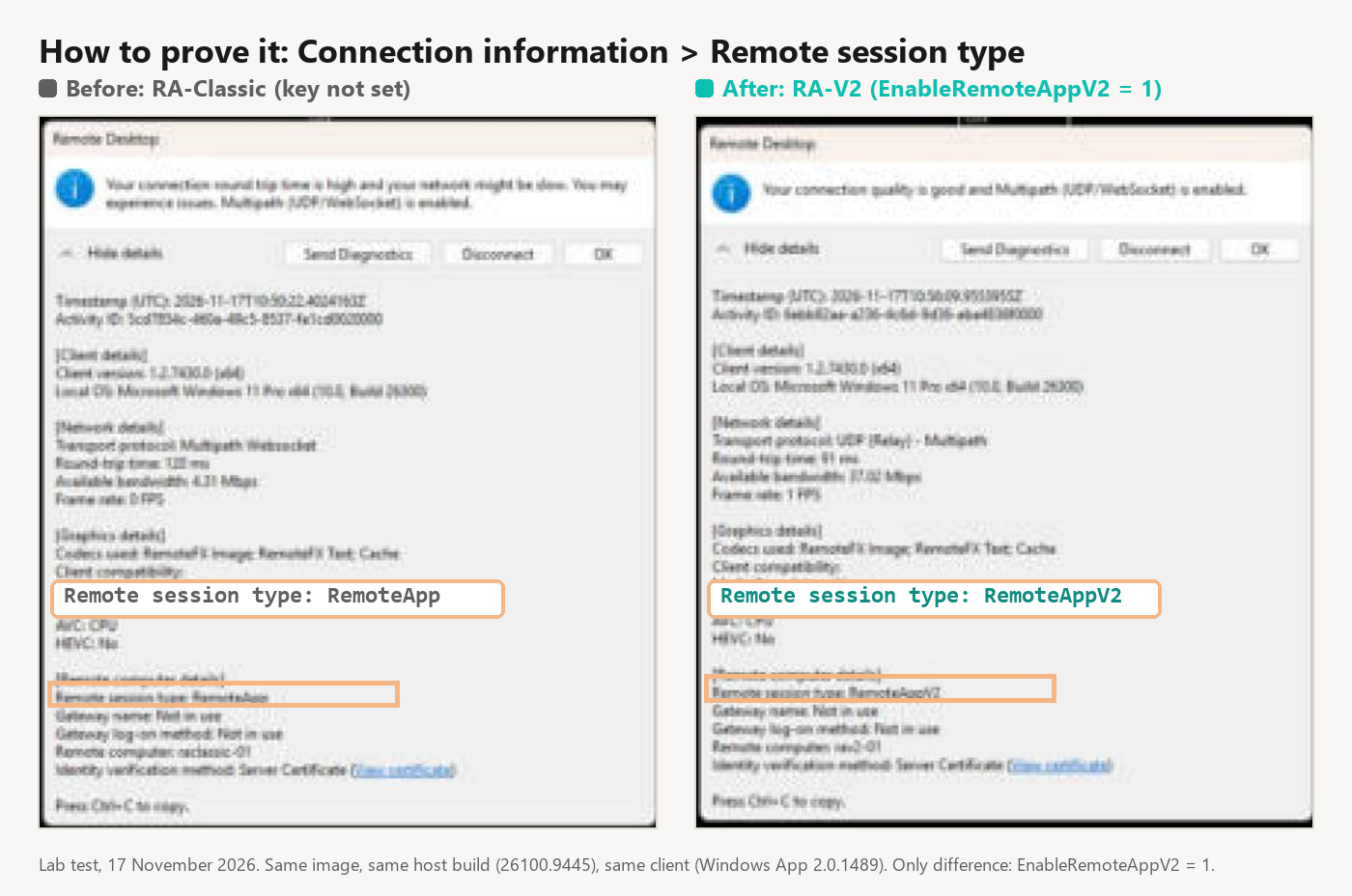
RemoteAppV2 means you’re on the new engine. Anything else means you’re not.
Surprise 1: Microsoft’s own pages don’t agree
The AVD What’s new page says RemoteApp enhancements are now generally available.
The RemoteApp enhancements page, the one with the steps on it, still has “(preview)” in its title. It also says host pools in the production environment keep the existing experience by default.
My lab matched the second page.
RA-Classic is a normal production pool, on a supported build, connected through the same Windows App that showed RemoteAppV2 two minutes later.
It still reported plain RemoteApp.
So don’t wait for GA to switch it on for you. Set the value on the hosts you want.
Then check one session with Ctrl+Alt+End before you tell anyone it’s live, because the first person who rings the service desk to say “it looks exactly the same” will otherwise be right.
Surprise 2: Snap isn’t your proof
I expected Snap to be the obvious difference.
It wasn’t.
On this host build and this Windows App version, the old engine already showed Snap layouts when I hovered the maximise button. And it snapped to half the screen.
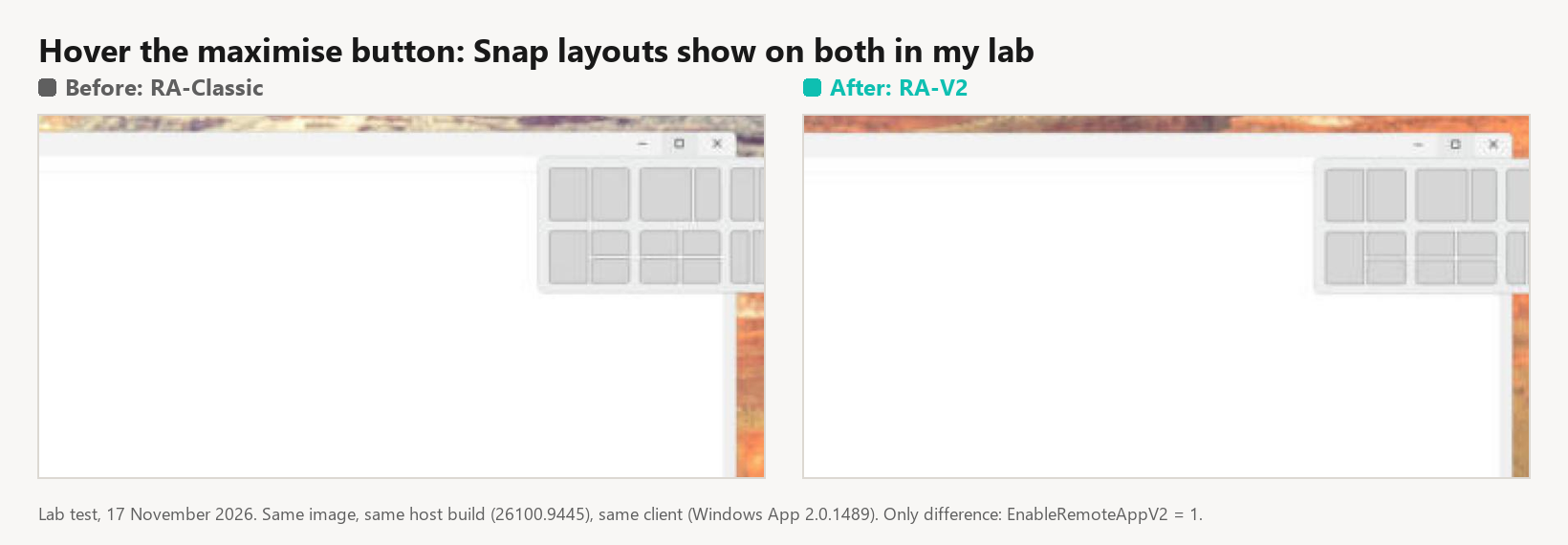
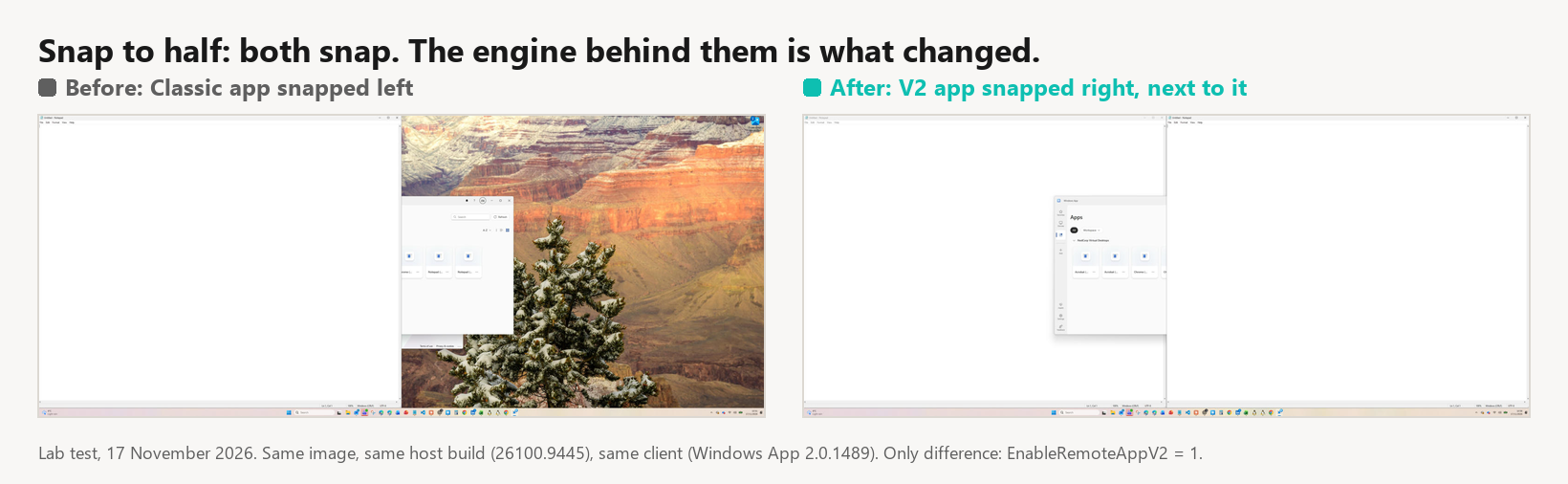
So if your pilot test is “can I snap it?”, you’ll get a yes either way.
Use the connection dialog to prove which engine you’re on. Then it’s worth asking users how it feels to drag, resize, and work across two screens, because that’s where the rebuild is meant to show.
What it doesn’t fix (yet)
Microsoft lists three known issues:
→ Some enhancements aren’t applied to Microsoft Edge and Chrome. Microsoft doesn’t say which. → Narrowing a window that’s already at minimum width sometimes moves it instead. → Closing a RemoteApp window sometimes changes which window has focus.
The first one matters most.
A lot of published RemoteApps are just a browser pointed at a line-of-business web app, and if that’s your pilot group, they might see very little difference and your feedback session will be awkward.
I’d recommend you pilot with a proper Win32 app first.
One more honest note. My laptop runs a newer Windows 11 build than the 24H2 and 25H2 Microsoft lists, and RemoteAppV2 still worked. That’s one lab result, not a support statement. Stick to the list for production.
Where to start
- Check your hosts are on 24H2 or 25H2 with the December 2025 update or later.
- Count your Windows 10, Mac, and web client users before you promise anything.
- Build one pilot pool with the value set, and publish a non-browser app.
- Teach the helpdesk the Ctrl+Alt+End check.
Test it in a lab or pilot pool first, and check Microsoft Learn for changes after GA.
Has anyone rolled this out to real users yet? I’d love to know what they noticed first.
If you know an AVD admin whose users have asked for a “proper window” for years, send them this.
Wayne

Leave a Reply