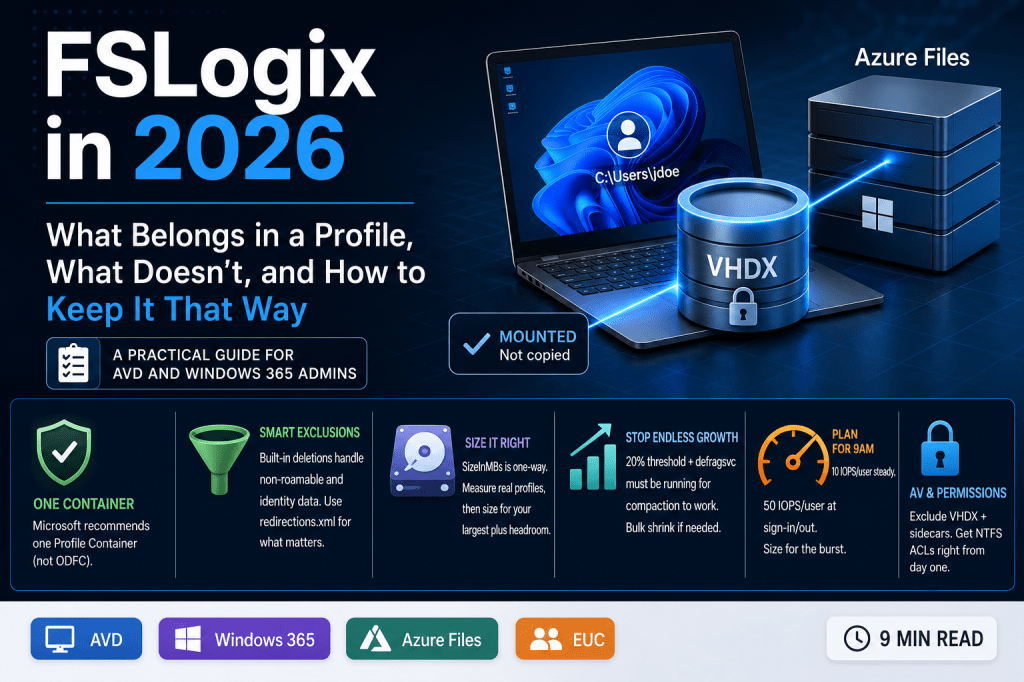
Four questions come up in nearly every FSLogix health check I run. What should be in the profile. What shouldn’t. How big it needs to be. And why it keeps growing even after someone swears they turned on cleanup.
This week I’ve gone through the first three on LinkedIn: the beliefs that quietly cost money, what actually happens at logon, and the config I’d set before a single user signs in. This post is everything in one place, with the registry paths, so you can check your own environment against it rather than take my word for it.
What FSLogix actually does
Skip this if you already know it, but it’s worth thirty seconds because it explains almost everything downstream.
FSLogix doesn’t copy a profile to the session host the way old-style roaming profiles did. It mounts a VHD or VHDX file from a network share and attaches it at the file system level using a kernel driver. Windows sees C:\Users\<username> and has no idea it’s actually a disk sitting on Azure Files or a file server somewhere else. No copy at logon, no copy at logoff. That’s why it’s fast, and it’s also why almost every strange failure traces back to that mounted disk: what’s inside it, how big it’s allowed to get, and whether the network path stays up for the whole session.

What belongs in the container, and what doesn’t
Microsoft’s own guidance has settled on a single answer here: use one Profile Container that holds everything, rather than splitting profile data from Office data into a separate ODFC container. ODFC exists for organisations already running a different profile solution and using FSLogix only for Office data. If that’s not your situation, one container is simpler, and it’s what Microsoft recommends.
Inside that container, two things get handled for you automatically, and it’s worth knowing about them rather than assuming they don’t exist.
Deletion-based exclusions. Non-roamable app data (MSIX package cache, temp state) gets stripped out at logoff so it never bloats the container. More importantly, identity data tied to the device itself — Entra broker tokens, TokenBroker, OneAuth, the AAD registry keys — is excluded by design. There’s a setting called RoamIdentity that looks like it would fix Entra sign-in quirks by roaming that data instead. Don’t touch it. Microsoft is explicit: never enable RoamIdentity on an Entra-joined or Intune-managed device. It ties identity to the wrong thing, and you’ll get worse authentication problems than whatever you were trying to fix.
Custom exclusions via redirections.xml. If you need to exclude something Microsoft doesn’t already handle, this is the mechanism — an XML file, deployed centrally via RedirXMLSourceFolder, that lists paths to exclude or redirect. Microsoft’s own warning on this page is worth repeating verbatim: profile data isn’t designed to be removed, and unless you understand the application well, don’t exclude it. Every well-known FSLogix teardown agrees on the same short list worth actually redirecting: browser cache, the Outlook OST, OneDrive’s sync cache, and Teams. Beyond that, keep the file short. Every redirection is I/O overhead multiplied by every signed-in user.
Two of Microsoft’s own defaults are worth knowing precisely because they surprise people. IncludeTeams in ODFC settings defaults to 0 — Teams data isn’t redirected unless you turn it on, and for the current MSIX-based Teams client you need this set for the app to even register correctly at sign-in. And RoamSearch, the setting that roams the Windows Search index inside the container, is something Microsoft now says isn’t needed on Windows Server 2019 (1809+), Windows 10, or Windows 11 multi-session. It solved a real problem years ago. On a modern image, it mostly adds I/O.
Sizing that actually works
SizeInMBs defaults to 30,000, roughly 30 GB, and it’s a one-way setting. Raise it and every existing container expands to match on next logon. Lower it and nothing happens — it has zero effect on containers that already exist. The only way down is compaction or rebuilding the container from scratch.
Keep IsDynamic at its default of 1. A dynamic VHDX starts small and grows as data is written; a fixed one allocates the full size immediately and can never be compacted. There’s no scenario where fixed is the better choice for a profile container.
Thirty gigabytes is a reasonable starting point, not a number to trust blindly. A light knowledge worker with a small OST and everything else in OneDrive might genuinely need 10 to 15 GB. Someone with a large mailbox and local app data can eat 60 GB without anything unusual happening. Measure actual profile sizes on your existing share before you commit to a number, and size for the largest real profile you have plus headroom, not for a round figure that felt safe when the host pool was built.
Why containers grow and never shrink on their own
This is the one that catches people out months after go-live. When a user deletes files inside their profile, FSLogix marks the space as free inside the VHDX. The file on the share stays exactly the same size. Nothing shrinks by itself. A profile that briefly ballooned to 25 GB during a big OneDrive sync stays at 25 GB on disk forever, even after the sync settles down.
Built-in compaction exists to fix this and runs automatically at every sign-out, but it has two conditions that quietly stop it working, and neither produces an error when they do.
First, it only runs if at least 20% of the consumed space is recoverable. A container using 12 GB with a 10 GB minimum supportable size has 2 GB recoverable, which is under the 2.4 GB threshold — so compaction skips it silently every time, and the profile never gets smaller.
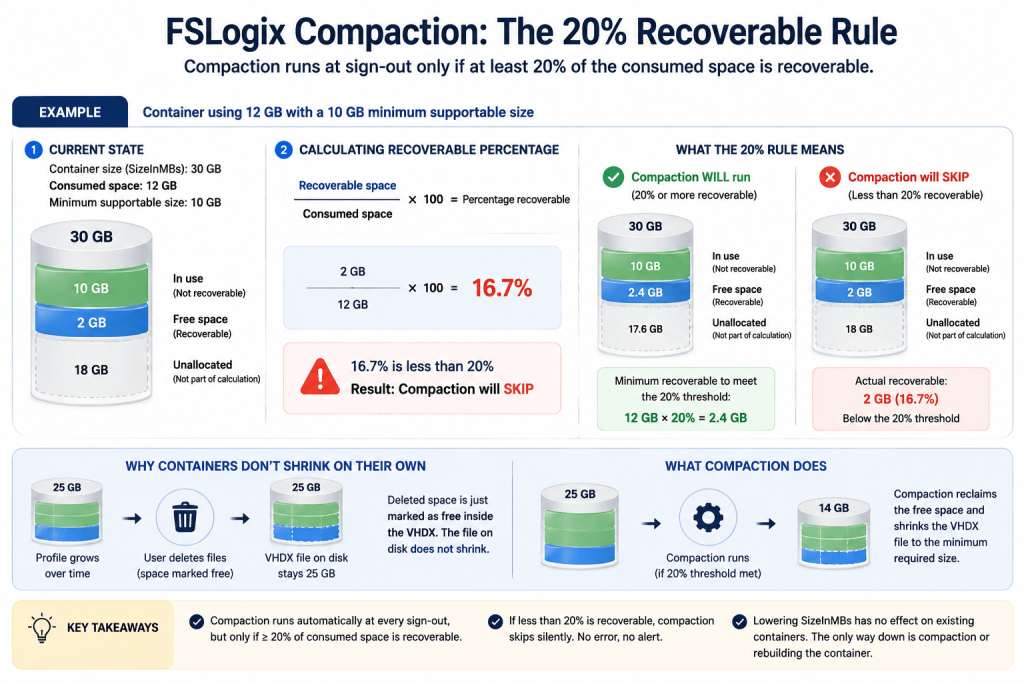
Second, compaction depends on the Windows Optimize Drives service, defragsvc. If that service is set to Disabled anywhere in your image, which is common in hardened builds, FSLogix can’t query the minimum supportable size, and compaction doesn’t run at all. No error, no log entry that jumps out. It just quietly does nothing every single sign-out.
If you’re maintaining an older estate where containers have already ballooned past what per-sign-out compaction can claw back, both the community Invoke-FslShrinkDisk script and Nerdio Manager’s built-in “Shrink FSLogix Profiles” scripted action exist to do a bulk pass offline. Worth knowing the community script sits in the FSLogix GitHub organisation and isn’t a Microsoft-supported product feature — test it before you trust it against production data.
One more setting worth turning on while you’re in there: CleanupInvalidSessions, which ships disabled. It has FSLogix clean up stale artefacts left behind by sessions that ended abruptly rather than signing out cleanly, and it’s a small thing that prevents a class of “why won’t this profile attach” tickets later.
Storage, and the 9am problem
Microsoft’s IOPS guidance for FSLogix is specific: budget 10 IOPS per user at steady state, and 50 IOPS per user during sign-in or sign-out. For 100 users, that’s roughly 1,000 IOPS most of the day and a burst toward 5,000 IOPS in the window everyone arrives at once. Size for the burst, not the average, or the first twenty minutes of every morning will be the worst part of your users’ day.
On tier, Microsoft’s own workload table draws the line at 200 users for the “Light” category: under 200 light users, Azure Files Standard can work. Above that, or for anything heavier than light, Premium is the recommendation regardless of headcount. Standard is priced on transactions as well as capacity, which makes its performance genuinely variable under load — not what you want for something every user depends on to log in.
The failure modes worth knowing before they bite
Wrong FSLogix permissions are, by most practitioner accounts I trust, the single biggest generator of AVD support tickets. Get the NTFS ACLs on the share root right from day one: modify for the user group, full control for admins, and Creator Owner set to modify on subfolders and files only so each user’s own container inherits correctly. Exclude admin accounts from FSLogix profiles entirely — if something goes wrong, you want an unencumbered way in to fix it.
Antivirus exclusions are the other classic. It’s not just the VHD or VHDX file itself. The small sidecar files sitting next to it on the share — .VHD.lock, .VHD.meta, .VHD.metadata and their VHDX equivalents — need the same exclusion, or AV locking them produces the exact same sharing violations and temp profiles as locking the disk file. A logon storm with twenty users all having their containers scanned at once is a fast way to bring a host to its knees.
Two authentication issues are worth knowing about specifically because they’re recent and easy to miss. Microsoft’s Kerberos hardening, moving domain controllers to require AES-SHA1 instead of RC4 for objects with no encryption type explicitly set, took effect with the April 2026 cumulative update, and the audit-mode rollback that let you defer it was removed at the end of July. If your profiles sit on an on-premises SMB share, or on Azure Files using AD DS authentication, and anything in that chain is still RC4 or has no encryption type set, it breaks. Entra Kerberos authentication isn’t affected by this particular change.
Entra Kerberos has its own separate limitation worth planning around if you’re cloud-native: the ticket that authorises access to Azure Files lasts about 10 hours, and Entra ID currently can’t renew it. Cross that mark in a single session and the container drops, usually with a bad username or password error that has nothing to do with the actual password. Microsoft’s documented fix is cloud trust, issuing tickets from AD DS instead — which isn’t an option if you’re genuinely Entra-only. If that’s your situation and you have users on long shifts, budget time to look at a scheduled ticket refresh as a workaround.
Cloud Cache: when it earns the extra complexity
Cloud Cache sits on top of the profile container and changes where the writes go. Instead of writing straight to the network share, it writes to a local cache on the session host first and syncs to one or more remote storage providers in the background. Microsoft positions it for multi-region deployments and for keeping users working through a storage outage — genuine high availability, not a substitute for backup and restore.
It’s not free. It needs fast local storage for the cache, adds a few seconds to logon, and on non-persistent session hosts that get rebuilt regularly, the local cache is gone every time — meaning every logon rehydrates fully from remote storage anyway, which defeats the point. For a single-region deployment already sitting on Zone Redundant Azure Files Premium, the honest answer is usually that Cloud Cache adds complexity without adding much you didn’t already have.
Where none of this applies
Windows 365 Cloud PCs don’t use FSLogix profile containers, and this trips people up when they’ve spent years thinking in AVD terms. A Cloud PC is persistent and assigned 1:1 to one user. The profile lives on the Cloud PC itself between sessions, the same way it would on a physical laptop, so there’s nothing to roam.
The same logic extends further than most people realise. AVD Personal host pools work the same way: one session host assigned persistently to one user. Microsoft’s own guidance on when a roamed profile is genuinely needed centres on pooled host pools, where a user might land on a different host every time they sign in — the scenario a persistent, dedicated assignment simply doesn’t create. I haven’t found a Microsoft page that states this as flatly as I’d like, so take it as my reading of how the mechanism works rather than a quoted policy: on a Personal host pool, FSLogix is there for convenience and portability, not because the architecture requires it the way a pooled deployment does.
Doing this at scale
Everything above is something you can configure by hand through Group Policy and the registry, and for a single host pool that’s entirely reasonable. Where it gets tedious is doing it consistently across a growing estate, and keeping it consistent as new host pools get added.
Nerdio Manager applies FSLogix configuration as policy at the host pool level rather than per-image, and ships the offline compaction runbook mentioned above as a built-in scripted action rather than something you maintain yourself. If you’re already on NME, it’s worth checking those settings are actually being applied the way you think they are rather than assuming the defaults match what’s above.
Where to start
If you only do three things after reading this: check whether defragsvc is disabled anywhere in your image, add the sidecar file exclusions to your antivirus policy, and measure real profile sizes on your share before you next touch SizeInMBs. None of them take an afternoon, and each one is a support ticket you won’t get later.

Leave a Reply