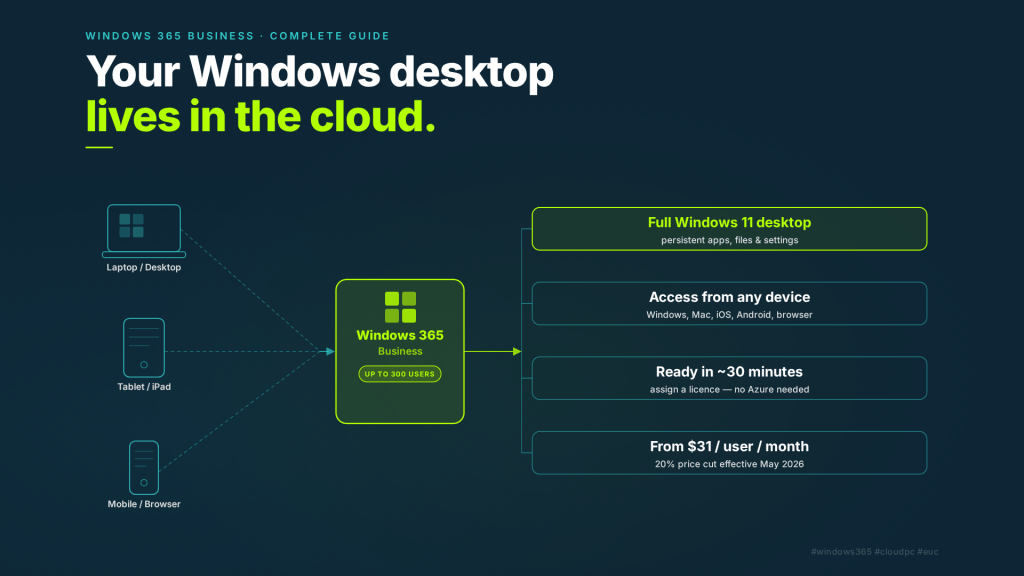
Microsoft will cut Windows 365 Business prices by 20%, effective 1 May 2026. If you’ve been sitting on the fence about Cloud PCs for your organisation, this is a good moment to revisit the conversation. But before you can decide whether Windows 365 Business is the right fit, you need to understand what it actually is, what it isn’t, and where it makes sense to deploy it.
This post covers all of that, plus a quick-start guide to get your first Cloud PC provisioned.
What Is Windows 365 Business?
Windows 365 Business is Microsoft’s Cloud PC offering for smaller organisations — specifically, tenants with up to 300 users. It delivers a full Windows 11 desktop, hosted in Microsoft’s cloud, streamed to virtually any device a user already owns: Windows, macOS, iOS, Android, or a web browser.
Unlike Azure Virtual Desktop (AVD), which requires you to manage Azure infrastructure, session hosts, and networking, Windows 365 Business is fully managed by Microsoft. You buy a license, assign it to a user, and within about 30 minutes, they have a Cloud PC waiting for them at windows365.microsoft.com. No Azure subscription required. No virtual network to configure. No infrastructure to maintain.
The trade-off for that simplicity is control — more on that shortly.
Who Should Use Windows 365 Business?
Windows 365 Business is built for small to medium-sized businesses with up to 300 users that want the benefits of a cloud-hosted desktop without the complexity of a traditional VDI deployment or the licensing overhead of Windows 365 Enterprise.
It’s particularly well suited to:
Businesses without a dedicated IT team. If there’s no one managing Intune policies or Azure environments, Windows 365 Business gives you a manageable Cloud PC through the familiar Microsoft 365 Admin Center. Setup is genuinely straightforward.
Organisations with high contractor or seasonal worker turnover. Instead of imaging laptops, shipping hardware, and reclaiming devices, you assign a license and revoke it when the engagement ends. The Cloud PC is ready in minutes and leaves no data on the contractor’s personal device.
Remote or hybrid teams. Users can pick up exactly where they left off from any device, anywhere. The full desktop experience — apps, files, settings — is persistent and consistent regardless of what endpoint they’re connecting from.
BYOD environments. Windows 365 Business lets users run a corporate Windows environment on their personal Mac or Windows laptop without any corporate management touching their personal device. The Cloud PC is isolated in the cloud.
Disaster recovery and business continuity. If a laptop dies or an office becomes inaccessible, users can log into their Cloud PC from any available device and keep working. Hardware failure becomes a minor inconvenience rather than a productivity outage.
Windows 365 Business vs Windows 365 Enterprise: Know the Difference
This is the question that trips most people up. Here’s the short version:
| Windows 365 Business | Windows 365 Enterprise | |
|---|---|---|
| User limit | Up to 300 | Unlimited |
| Licensing prereqs | None | Requires Windows 10/11 Enterprise + Intune + Entra ID P1 |
| Management | Microsoft 365 Admin Center | Microsoft Intune admin center |
| Policy management (GPO/MDM) | Not supported | Fully supported |
| Custom images | Not supported | Supported |
| Monitoring & analytics | Not supported | Endpoint Analytics via Intune |
| Conditional Access | Entra ID P1 required | Supported via Intune or Entra |
| Microsoft Defender for Endpoint | Requires separate E5 license | Integrated with E5 |
The headline: Windows 365 Business is for simplicity; Windows 365 Enterprise is for control. If you need to push apps, enforce security baselines, deploy compliance policies, or manage more than 300 Cloud PCs, Enterprise is your path. If you need to get a small team productive quickly without building out an Intune environment, Business is the right fit.
Pricing (prediction – Updated May 2026)
Microsoft’s 20% price cut brings Windows 365 Business down to three clean tiers:
| Plan | Specs | Price per user/month |
|---|---|---|
| Basic | 2 vCPU, 4 GB RAM, 128 GB storage | $25 |
| Standard | 2 vCPU, 8 GB RAM, 128 GB storage | $33 |
| Premium | 4 vCPU, 16 GB RAM, 128 GB storage | $53 |
Basic suits light productivity users: web browsing, email, Teams calls, and basic Microsoft 365 apps. Standard is the sweet spot for most knowledge workers running a full suite of productivity tools and line-of-business applications. Premium is for users running heavier workloads — data processing, software development, or resource-intensive line-of-business apps.
If your organisation already licenses Windows 10 or Windows 11 Pro, you may also qualify for additional discounts through Windows Hybrid Benefit. Worth checking before you buy.
Quick Start: Setting Up Your First Windows 365 Business Cloud PC
No Azure subscription. No virtual network. Here’s all you need to do.
Step 1 — Check your Entra device settings.
Before anything else, make sure Users may join devices to Microsoft Entra ID is set to All in your Entra admin center. Cloud PCs will fail to provision if this is locked down.
Step 2 — Purchase licenses.
Go to the Windows 365 Business pricing page or navigate to Billing > Purchase services in the Microsoft 365 Admin Center and search for Windows 365 Business. Select your tier based on user workload needs, enter the number of seats, and complete the purchase.
Step 3 — Assign a license to a user.
In the Microsoft 365 Admin Center, go to Billing > Licenses, find your Windows 365 Business subscription, and assign it to a user. Alternatively, assign directly from windows365.microsoft.com under Quick actions > Manage your organisation.
Step 4 — Wait ~30 minutes.
Windows 365 automatically provisions the Cloud PC using a standard Windows 11 gallery image. No further action needed from you.
Step 5 — User connects.
The user visits windows365.microsoft.com, signs in with their Microsoft 365 credentials, and their Cloud PC is waiting. They can also connect via the Windows App or Microsoft Remote Desktop client on any platform.
That’s genuinely it. No imaging, no infrastructure, no VNet configuration.
Is Windows 365 Business Right for You?
If you’re running a business with fewer than 300 users, your team is remote or hybrid, you have BYOD challenges, or you’re spending too much time on endpoint management — Windows 365 Business is worth a serious look, especially at the new pricing.
The 20% price reduction makes the TCO case significantly more compelling. Gartner noted in April 2026 that cloud-hosted PCs now offer lower total cost of ownership than traditional laptops when you factor in hardware refresh cycles, IT support overhead, and device management costs. At $25–$53 per user per month, Windows 365 Business is squarely in that conversation.
The simplicity is real, but so are the limitations. If your organisation needs Intune-based policy management, custom images, or advanced security integration, you’ll want to evaluate Windows 365 Enterprise or Azure Virtual Desktop instead.
For most small businesses and SMBs looking to modernise their desktop estate without a large IT investment, Windows 365 Business is a clean, low-friction option. And right now, it’s the cheapest it’s ever been.
Have questions about sizing Cloud PCs for your team, or whether Business or Enterprise is the right fit for your environment? Drop a comment below or reach out directly.

Leave a Reply